
Pass functionalities for loyalty, stamp cards and prepaid
Available functionalities
You add exactly one functionality per template.
- Valid once per day. Each pass is valid once per day.
- Loyalty Program. Pass holders collect points for every purchase or scan.
- Stamp Card. Pass holders collect stamps with every scan, and you add or deduct them.
- Prepaid Card. Pass holders use a prepaid card until the balance runs out.
- Variants.
Adding a functionality
- Go to Templates in the sidebar and open your template in the editor with Edit Template.
- At the bottom of the section menu, under the Functionality caption, click Add Functionality.
- Select one of the functionalities. It appears as its own item in the section menu, prefilled with default values that work out of the box. Adjust them as needed.
- Save your template and publish the changes.
Configuring the functionalities
Loyalty program
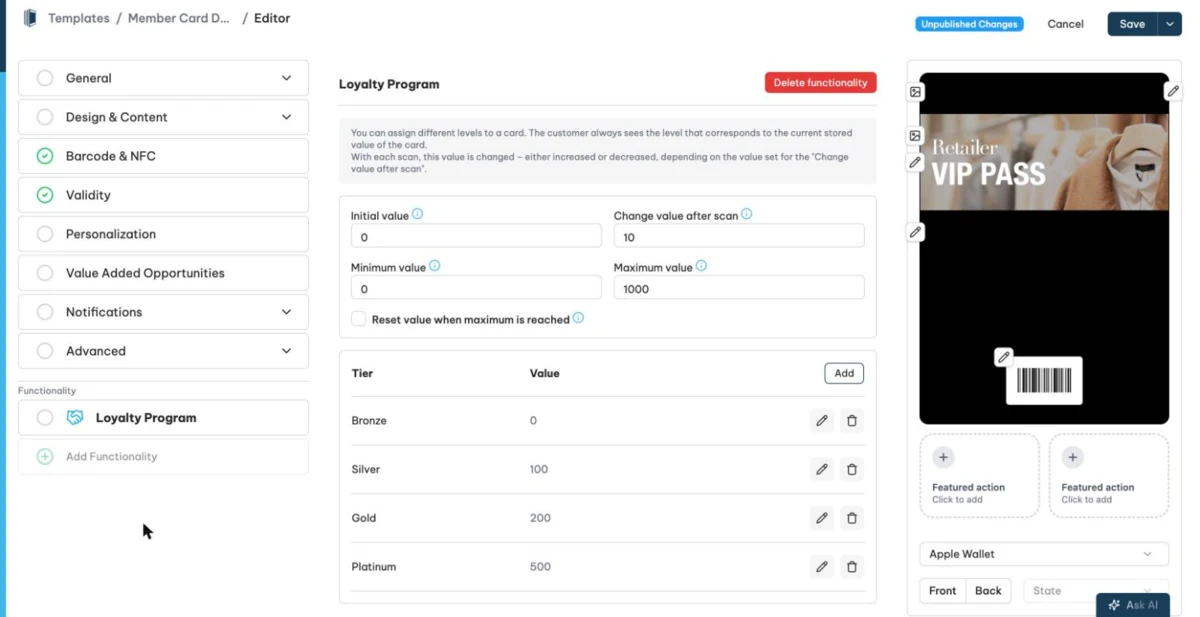
A loyalty program tracks a points value per pass and shows the tier that matches the current value. The default tiers are Bronze from 0, Silver from 100, Gold from 200 and Platinum from 500. Each tier has its own start value, colors and images. The images per tier are Logo, Logo for Android, Background image, Android background, Artwork, Primary Logo and Secondary Logo. Tier colors and images override the template's regular design.
These are the settings.
- Initial value. The points a new pass starts with.
- Change value after scan. How much each scan changes the value. A positive number adds points, a negative number deducts them.
- Minimum value and Maximum value. Bounds for the stored value.
Reset value when maximum is reached.
Stamp card
A stamp card collects or deducts stamps with every scan. You configure the stamp image. Use it for classic mechanics like buy 10, get 1 free.
Prepaid card
A prepaid card holds a balance that pass holders use up over time.
- Passcreator sets the value on pass creation.
- Optionally, Passcreator voids the pass once the balance runs out.
- Optionally enforce that the value can not be negative.
- Optionally disable recharging. By default, entering a negative value in the Smart Scan app recharges the balance.
When someone scans a prepaid card, the Smart Scan app asks for the purchase amount, deducts it from the balance and shows the remaining amount directly after the scan.
Valid once per day
There are no further settings. Passes of this template are valid once per day.
Showing the value on the pass
If your template has no field displaying the pass value, Passcreator adds one automatically. These placeholders are available for functionalities.
{storedValue}. The current value of a pass.{functionality.initialValue}. The initial value you defined.{functionality.maximumValue}. The maximum value.{functionality.minimumValue}. The minimum value.
For example, a field value of {storedValue} of {functionality.maximumValue} on a stamp card shows 3 of 10 when the pass has 3 stamps and the maximum is 10.
Using passes with a functionality
When someone uses a pass, Passcreator's backend needs to know about it. The easiest way is the Smart Scan app. Scanning a pass automatically triggers the actions the functionality defines, see The Smart Scan app. An app configuration with a configuration link and QR code gets you started fast.
If you want to integrate an existing system such as a CRM or point of sale system, use the Passcreator API to create app scans. An app scan represents one pass usage in Passcreator.
Templates with a functionality show a functionality icon in the templates list. Its tooltip names the functionality.
Next step
Continue withThe Smart Scan appChecked 2026-08-20 · Documentation