
Publishing changes and template versions
Requirements
- Publishing requires the
templates.publishpermission.
Steps
Drafts and the live version
The editor header shows the current state of your template.
- Unsaved Changes. You have local edits that you haven't saved yet.
- Unpublished Changes. A saved draft exists that you haven't published.
- Live Version. The editor matches what pass holders currently see.
After saving, a toast reminds you with Saved - publish the template to make your changes visible to your customers. The pass preview on the templates list and on Template Details has a draft and production toggle. Draft is the default, so you compare both versions.
To throw a draft away, use the Reset Unpublished Changes option of the Save split button in the editor. It discards all unpublished changes and returns the editor to the current live version.
Publishing changes
You open the Publish Changes modal from several places.
- The cloud upload Publish changes icon on a template row in the templates list. It appears only while an unpublished draft exists.
- The banner on the Template Details Overview tab with the text
There are unpublished changes. Publish them now or schedule a publication.and the Publish changes... button.
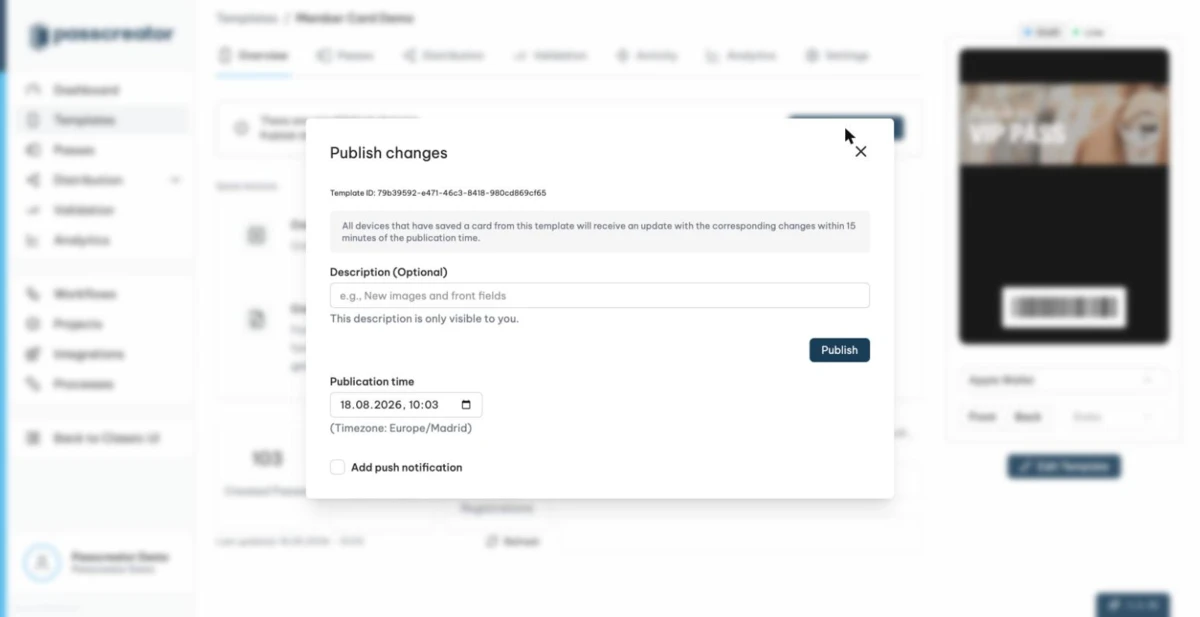
In the modal, take these steps.
- Enter a Description if you like. The field is optional and, as the modal says, only visible to you. It helps you identify the version later in the activity history.
- Set the Publication time in your timezone. Leave it at the current time to publish immediately, or pick a future time. The button then changes from Publish to Schedule publication.
- Enable Add push notification if you want to notify pass holders, see below.
- Click Publish or Schedule publication.
All devices that have saved a pass from this template receive the update within 15 minutes of the publication time. Passes that nobody has downloaded yet receive the update too, so pass holders always get the latest version when they download.
Publishing runs asynchronously. The Template Details page shows a Publishing changes... badge until the new version is live.
Adding a push notification
Enable Add push notification in the Publish Changes modal to send a message to all devices along with the update. A live preview in iOS style shows the notification with your template icon and organization name.
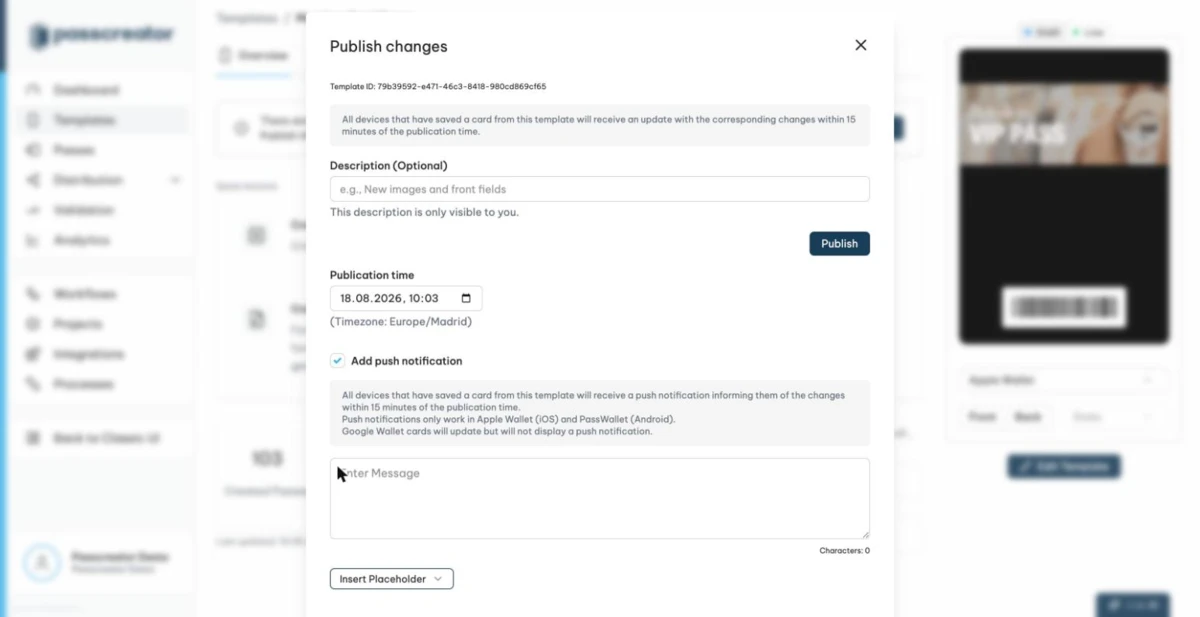
- Keep the message at 85 characters or fewer. Old devices crop some messages of 86 to 100 characters, and Wallet crops every message over 100 characters.
- You can insert
{placeholders}from additional properties to personalize the message.
Apart from an explicit publish message, changed fields also trigger notifications via their Change Message. If a field has a change message, updating its value shows that message as a push notification, with %@ standing for the new value. Changes to images, times or locations, and changes to fields without a change message, arrive silently in the background. See Updating all passes of a template.
Scheduled publications and conflicts
Scheduled publications appear under Scheduled activities on the Template Details Overview and Activity tabs with the type Publish template version. There you also cancel them with Cancel Activity.
If you publish while future scheduled versions exist that change the same fields, a Scheduled Version Conflict Warning appears. It lists the conflicting scheduled versions with their scheduled time and conflicting fields. It warns that future scheduled versions will overwrite the fields you're publishing now, so passes end up with outdated values or become invalid. You can Cancel or choose I Understand, Publish Anyway.
Next step
Continue withUpdating all passes of a templateChecked 2026-08-20 · Documentation