
Barcodes
Choosing a barcode type
Open the template editor and go to Barcode & NFC. Under Barcode type you choose from three groups.
- 2D formats. QR Code, PDF417 and Aztec.
- 1D formats. Code 128,
EAN-13, Code 39, Codabar and ITF, also called Interleaved 2 of 5. - None. You can also create passes without a barcode.
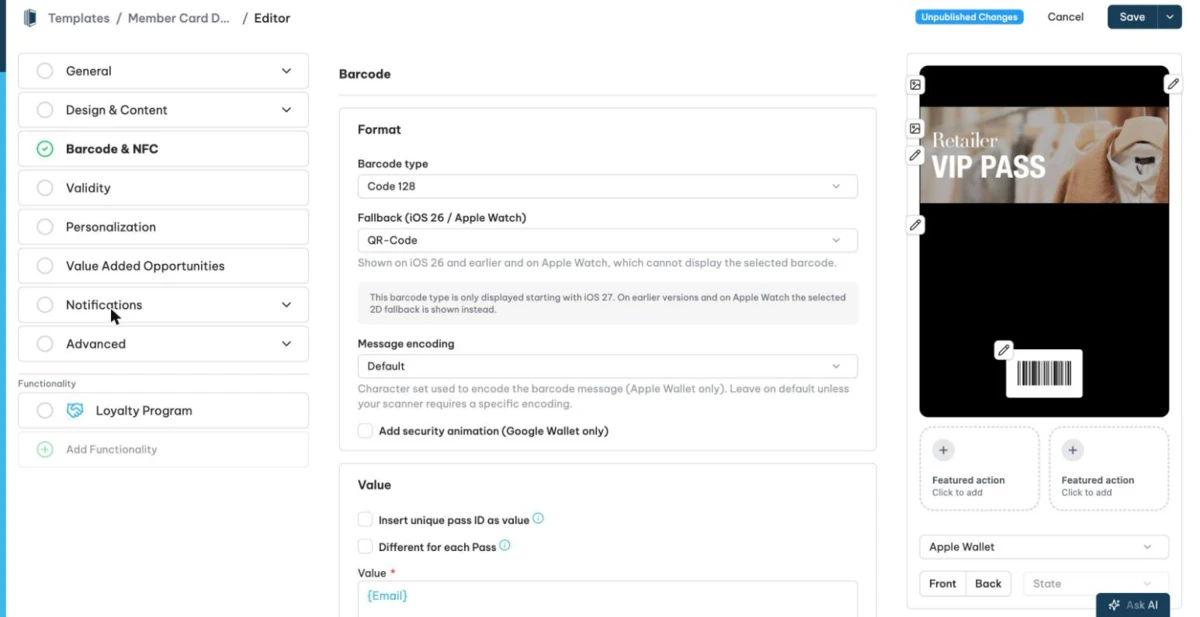
Apple Wallet displays 1D barcode types only from iOS 27 on. If you pick a 1D type, you also select a 2D fallback under Fallback (iOS 26 / Apple Watch). The choice is QR Code, PDF417 or Aztec. iOS 26 and earlier and the Apple Watch show this fallback, because they cannot display the selected 1D barcode.
For Apple Wallet you can also set the Message encoding of the barcode content. The options are Default, utf-8, iso-8859-1, iso-8859-15, windows-1252 and shift_jis. Choose a different encoding only if your scanning hardware requires it.
The checkbox Add security animation (Google Wallet only) adds Google's animated security element to the barcode area of Google Wallet passes.
Barcode value
The Value area controls what the barcode encodes.
- Insert unique pass ID as value. Encodes the automatically generated unique pass ID, the
{autoGeneratedId}placeholder. This is the easiest way to give every pass a scannable, unique code. - Different for each Pass. Passcreator requests the barcode value when you create a pass. The value in the editor acts as the fallback.
- Value. A free value that supports
{placeholders}from additional properties, so you can encode customer numbers or other per pass data. See Personalization and additional properties. - Prefix. A fixed prefix that Passcreator places before the value.
- Condition for Visibility. Shows the barcode only when a condition matches. See Show a field only if it matches a condition.
Alternative text
The pass shows the Alternative Text below the barcode. This helps when people need to read a code or type it by hand. It offers the same options as the value. Insert the unique pass ID, request it per pass, or translate it per language.
NFC
The NFC box in the same section turns a template into an NFC pass with Enable NFC. NFC requires an approved NFC request and an NFC certificate. If your account isn't set up yet, submit an NFC request via your account settings. The box has two related options, Do not add a barcode as fallback when NFC is enabled and Face ID or Touch ID required (iOS).
Testing your barcode
Next step
Continue withPersonalization and additional propertiesChecked 2026-08-20 · Documentation