
Colors, images and links
Colors
Open the template editor and go to Design & Content › Colors. You can set four colors.
- Label color. The color of field labels.
- Field value color. The color of field values, the foreground.
- Background color. The pass background.
Background color – For voided passes. Passcreator uses this color for voided passes.
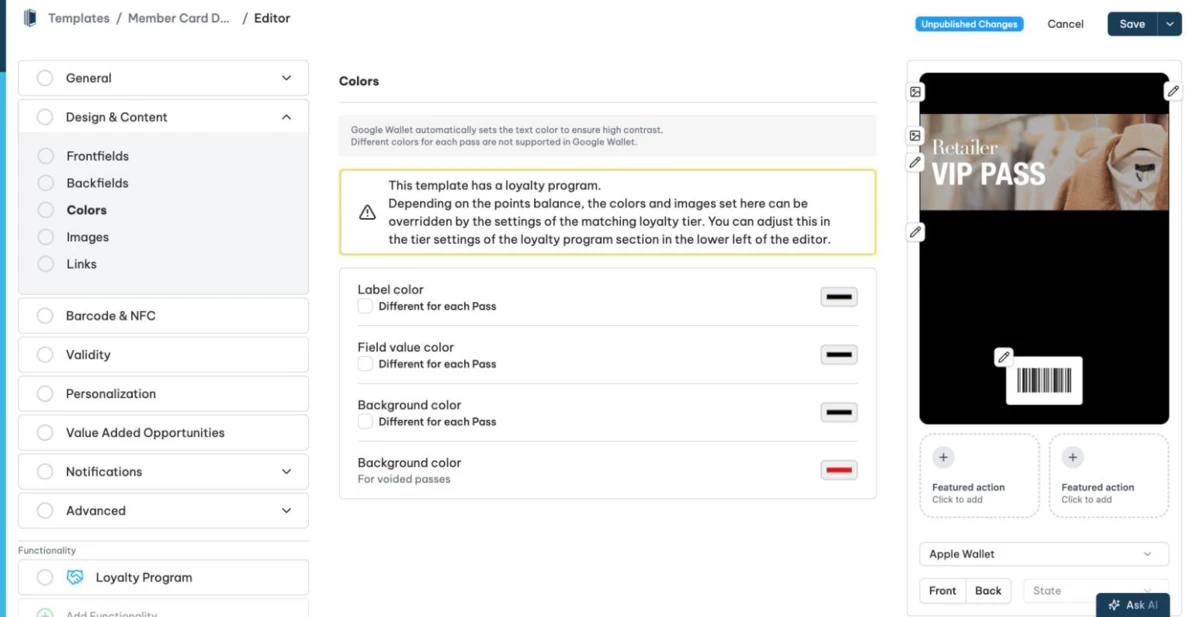
Each of the three main colors has a Different for each Pass checkbox. When you enable it, Passcreator requests the color when you create a pass. The value in the editor acts as the fallback.
Colors must be valid hex values. The editor also runs brightness and contrast checks and warns you about hard to read combinations, for example with Background color is too dark for a dark label color.
Poster event tickets also offer a Footer background color. Enable Use custom footer background color to use it. They have an Automatic colors toggle as well, which lets Apple Wallet derive label and foreground colors from the background image.
Images
Go to Design & Content › Images. The pass type decides which slots you see. The Google Wallet Logo slot appears only when you have enabled Google Wallet.
- Coupon, Store Card and Event Ticket. Icon, Background, Logo, Google Wallet Logo and Android Background Image.
- Generic. Icon, Thumbnail, Logo, Google Wallet Logo and Android Background Image.
- Event Ticket with full size background image. Icon, Background, Thumbnail, Logo, Google Wallet Logo and Android Background Image.
- Poster layouts get an extra Enhanced Layout tab. The poster event ticket adds Artwork, Primary Logo, Secondary Logo and Venue Map. The poster generic layout adds Artwork and Primary Logo. This tab also hosts the Suppress header darkening toggle for enhanced event tickets.
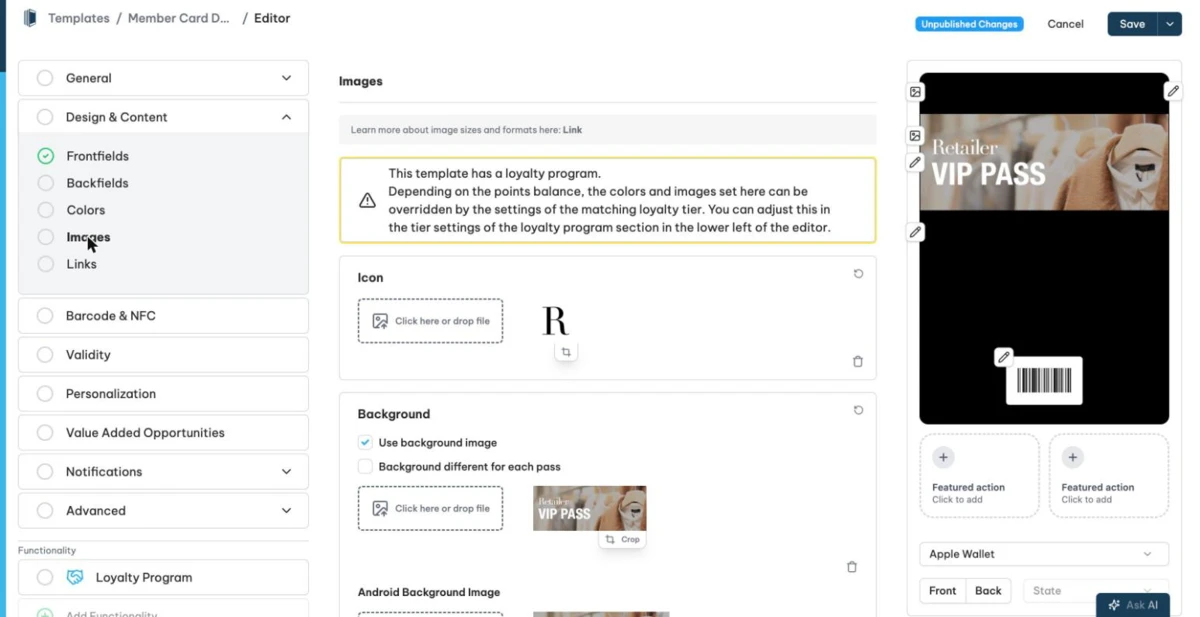
The table lists the recommended pixel sizes. Where a slot has a fixed aspect ratio, the crop tool enforces it.
| Image | Size in pixels |
|---|---|
| Icon | 720×720, ratio 1:1 |
| Thumbnail | 540×1080 |
| Logo | 960×150 |
| Google Wallet Logo | 660×660, ratio 1:1 |
| Background for Store Card and Coupon | 1860×738 |
| Background for Event Ticket | 1920×504 |
| Background for Event Ticket with full size image | 1080×1320 |
| Background for Generic | 1125×759 |
| Android Background Image | 1032×336 |
| Artwork | 1074×1344 |
| Primary Logo | 378×90 |
| Secondary Logo | 405×36 |
| Venue Map | 1074×1074, ratio 1:1 |
For details on where each image appears, see the Image sizes reference.
Per image you upload a file by clicking or dropping it, Crop it and Remove it. The Use background image and Use thumbnail image toggles hide backgrounds and thumbnails. The logo, background, thumbnail and Google Wallet logo each offer a Different for each Pass checkbox, so Passcreator requests the image when you create a pass. You can also set a Different background image for Android. When you have enabled localization, you can localize the logo, icon, background and thumbnail per language.
Links
Go to Design & Content › Links. The section has up to three tabs.
- Common. Up to four label and value link pairs on the back of passes in Apple Wallet and Google Wallet. Values must start with
mailto:,tel:,https://orhttp://. Fill in both label and value, or leave both empty. Below that,Button on the front of the pass (Google Wallet)adds a front button with a Label and Target URL to Google Wallet passes. - Enhanced Layout. Only for poster event tickets and semantic boarding passes. It holds link fields for quick actions on iOS 18 and later, grouped by categories such as Venue, Purchasing, Transfer, Transport, Seating and Assistance. Examples are Directions URL, Order Food URL, Venue Phone Number and Change Seat URL.
- Featured actions for iOS 27. Up to two quick actions that Apple Wallet shows below the pass, such as View schedule, Watch trailer, Call, Order or Book appointment. Each action takes a URL, and Call takes a phone number instead. Use Swap order to reorder them.
Next step
Continue withImage sizes referenceChecked 2026-08-20 · Documentation