
Import a template from Apple Pass Designer
Requirements
- A role with the privilege to create templates.
- A template from Apple Pass Designer on your Mac, saved as
.pkpasstemplate. - The new UI. The import is not offered in the classic UI or in embedded sessions.
Steps
Zip the template
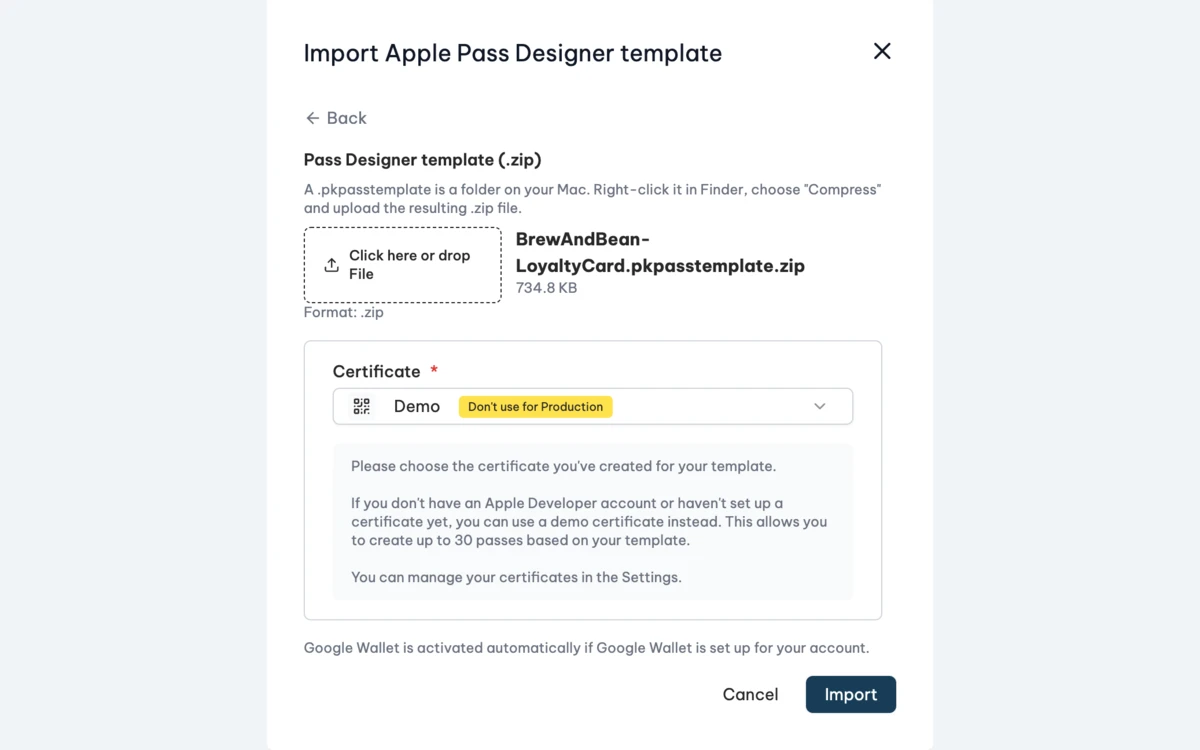
A .pkpasstemplate looks like a file in Finder, but it is a folder. Browsers cannot upload folders, so zip it first. Right-click the .pkpasstemplate in Finder and choose Compress. You upload the resulting .zip file.
Import it
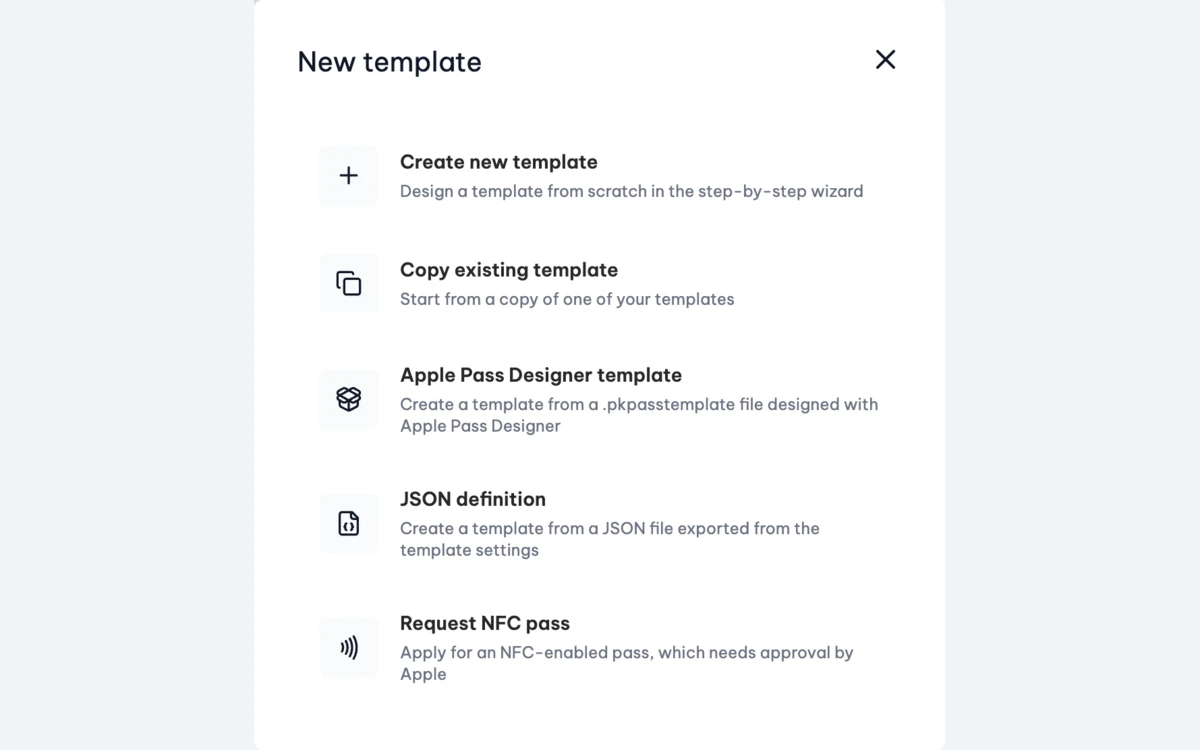
- Go to Templates and click + Template.
- Choose Apple Pass Designer template.
- Select the
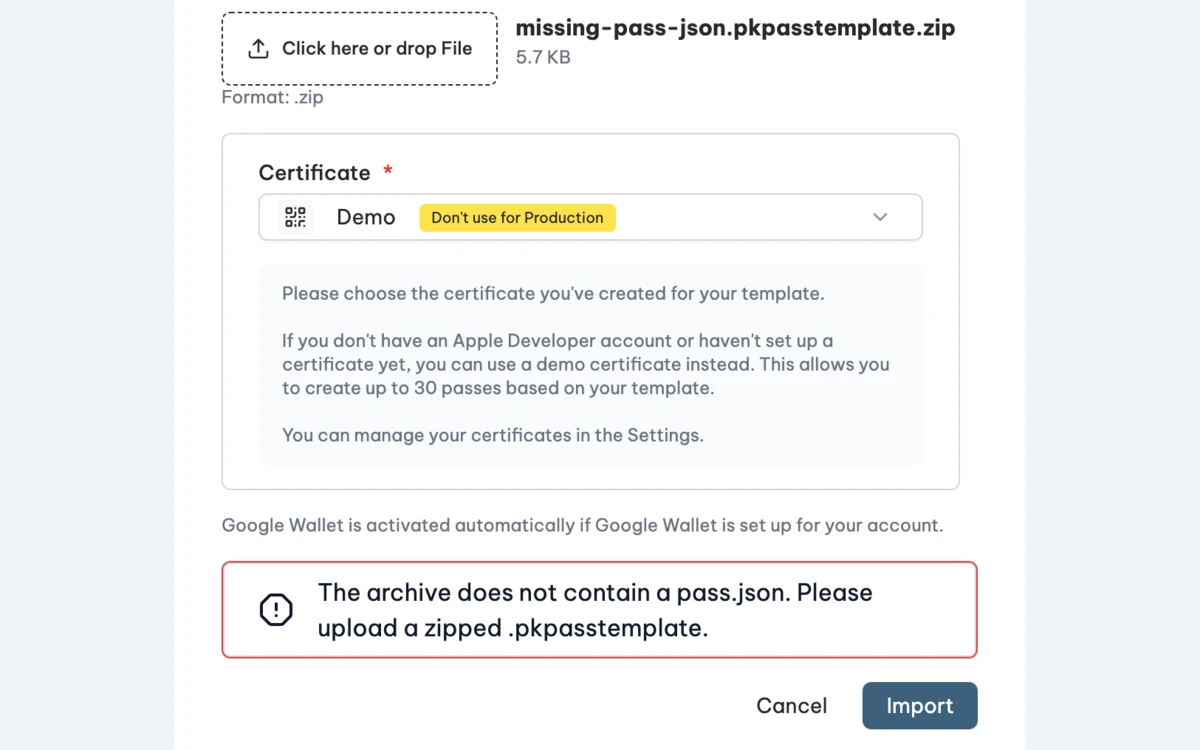
.zipfile or drop it into the upload field. - Choose the Certificate that signs the passes. If your account has only one certificate, or only one that is not a demo certificate, it is preselected.
- Click Import.
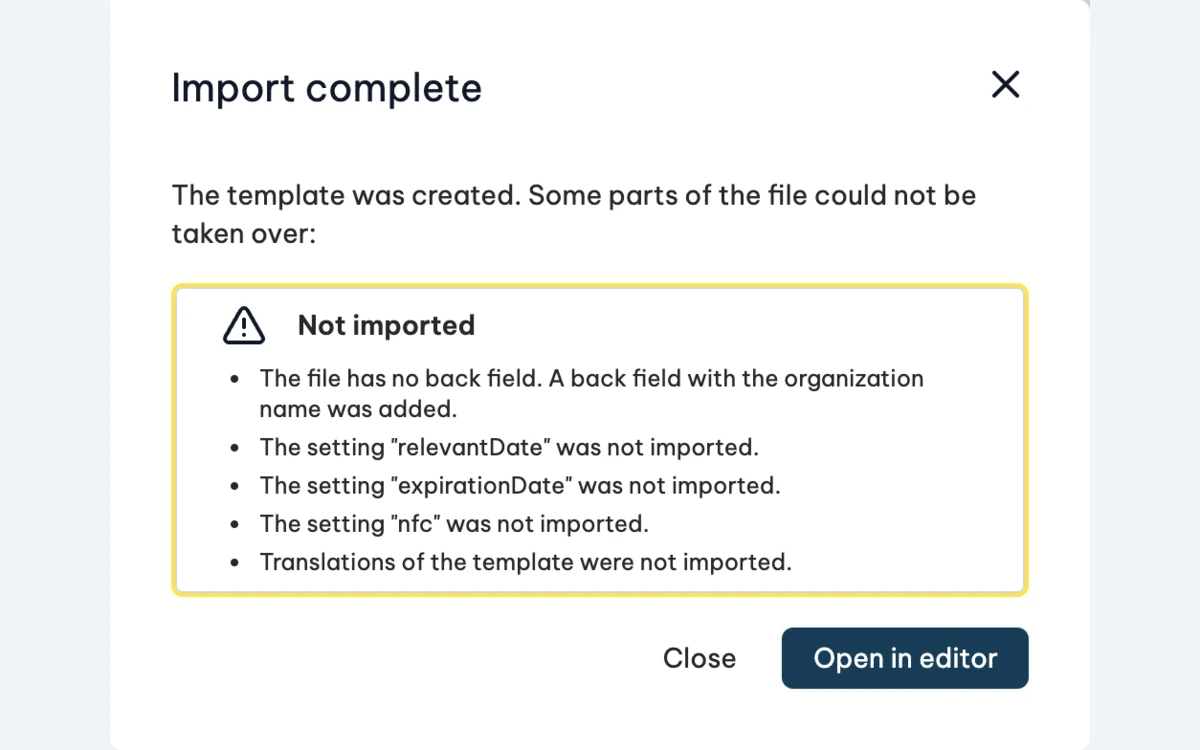
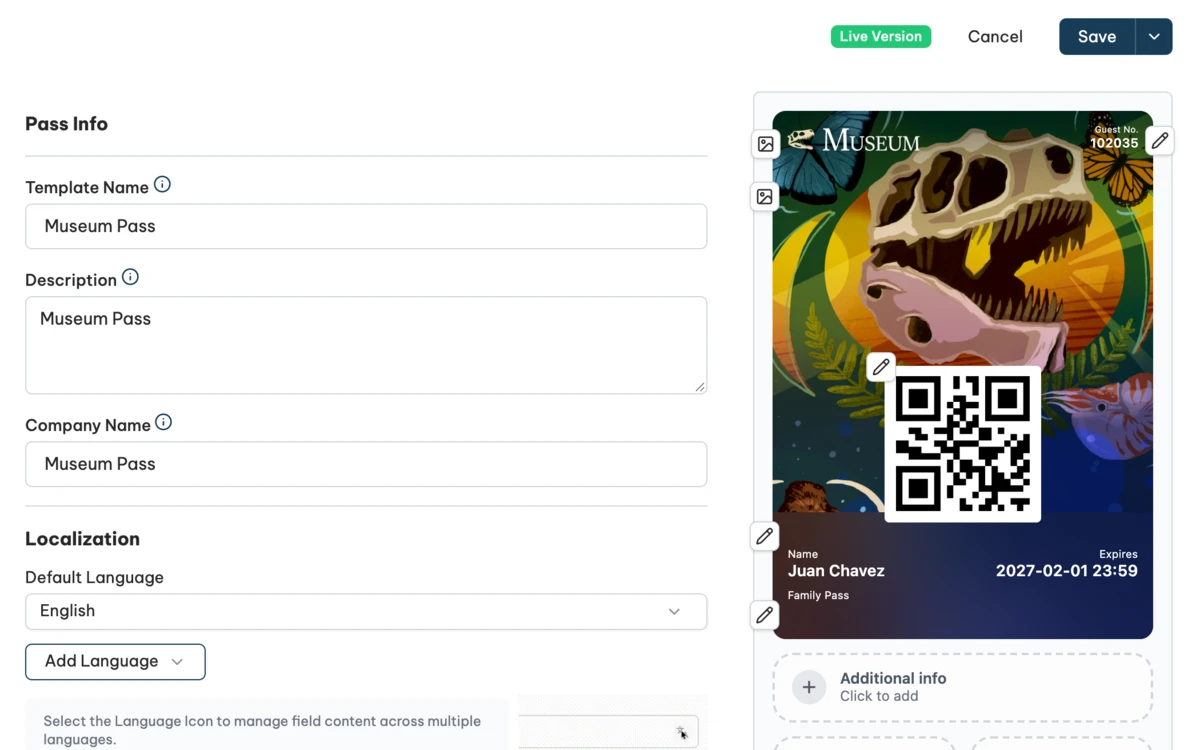
If Passcreator could take over everything, the template editor opens with the new template. If some parts could not be taken over, Passcreator still creates the template and shows Import complete with the list Not imported. Click Open in editor to continue.
What Passcreator takes over
- The pass style as pass type. Generic, store card, coupon, event ticket, boarding pass and the poster layouts are supported. An event ticket with a background image becomes an event ticket with background.
- Header, primary, secondary, auxiliary and back fields with label, value, alignment and date, number and currency formats.
- Organization name, description and logo text. The description also becomes the template name.
- Background, text and label colors.
- Images, in the largest resolution the file contains.
- The barcode format. The barcode content from Pass Designer is only a sample, so Passcreator replaces it with an automatic ID per pass.
- Up to 10 locations, beacons, links and featured actions.
- Semantic tags with valid values.
A posterGeneric template becomes a generic pass with the poster layout, and its background image becomes the artwork. A posterEventTicket becomes a poster event ticket.
What Passcreator does not take over
- The relevant date and the expiration date. Set them in the editor, see Validity, welcome push, locations and relevant date.
- NFC. NFC passes need approval by Apple. Use Request NFC pass in the same window.
stripColor,upcomingPassInformationandeventLogoText.- Translations from
.lprojfolders. Add the languages again in the editor, see Pass languages and localization. - Semantic tags with an invalid value, for example a wrong IATA code or time zone.
Passcreator needs at least one back field. If the file has none, as with the sample templates from Apple, Passcreator adds a back field with the organization name.
How to check it worked
The template editor shows the new template with your fields, colors and images in the preview. Check the barcode and the back of the pass. If you saw the list Not imported, check the settings it names. Then publish the template, see Publishing changes and template versions.
Things to check
- The file is not a valid ZIP archive. The file is not a zip, for example a renamed file. Compress the template in Finder again.
- The archive does not contain a pass.json. You zipped the wrong folder, or the archive is empty. Zip the
.pkpasstemplateitself. - The pass.json of the template is invalid. Open the template in Pass Designer and save it again.
- The template has no icon. Wallet passes need an icon. Add one in Pass Designer.
- The pass style of the template is not supported. Passcreator imports the pass styles listed above.
- The file or the archive is too large. The upload can be up to 20 MB, the archive up to 200 files and 50 MB unpacked, each image up to 10 MB and the pass.json up to 1 MB.
- The selected certificate cannot be used for this template. Choose another certificate.
- A poster event ticket shows the classic layout. Wallet needs semantic tags such as the event name and the venue name. Add them in the editor, see Advanced options for links, sharing, beacons and semantic tags.
Checked 2026-11-11 · Documentation