
How do I issue event tickets and check them in at the door?
An event ticket is an Event Ticket pass with its own barcode, a relevant date and one holder per pass. Guests receive the ticket by mail, link or from your ticketing system. At the door, staff scan it with the Smart Scan app, online or offline.
Requirements
- A template with the pass type Event Ticket
- Your own Apple certificate. The demo certificate stops at 30 passes per template
- One phone with the Smart Scan app per entrance
Steps
Prepare the template
- Create the template and set the pass type to Event Ticket. Add the date, venue and seat as fields. For seat numbers use additional properties so every ticket carries its own value.
- Under Barcode & NFC, switch on Insert unique pass ID as value. Every ticket must have a different code.
- Under
Notifications › Relevant Date, set the event date. Shortly before it, the ticket appears on the lock screen. If you also add the venue under Locations, the ticket shows up when guests arrive. Event Tickets allow a radius up to 1000 m. - Save and publish.
Issue one ticket per guest
- For a guest list, use
Passes › Bulk Processingwith one row per ticket. Map your order number to the User Provided ID so you can update or delete tickets later. - Send the tickets with a sendout that uses the
{pass_link}placeholder, or let your shop create tickets through the API. - Give every attendee their own pass. Do not bundle several tickets for different people into one download. The buyer then installs all of them on one phone, and tickets forwarded from there no longer receive updates.
Set up admission
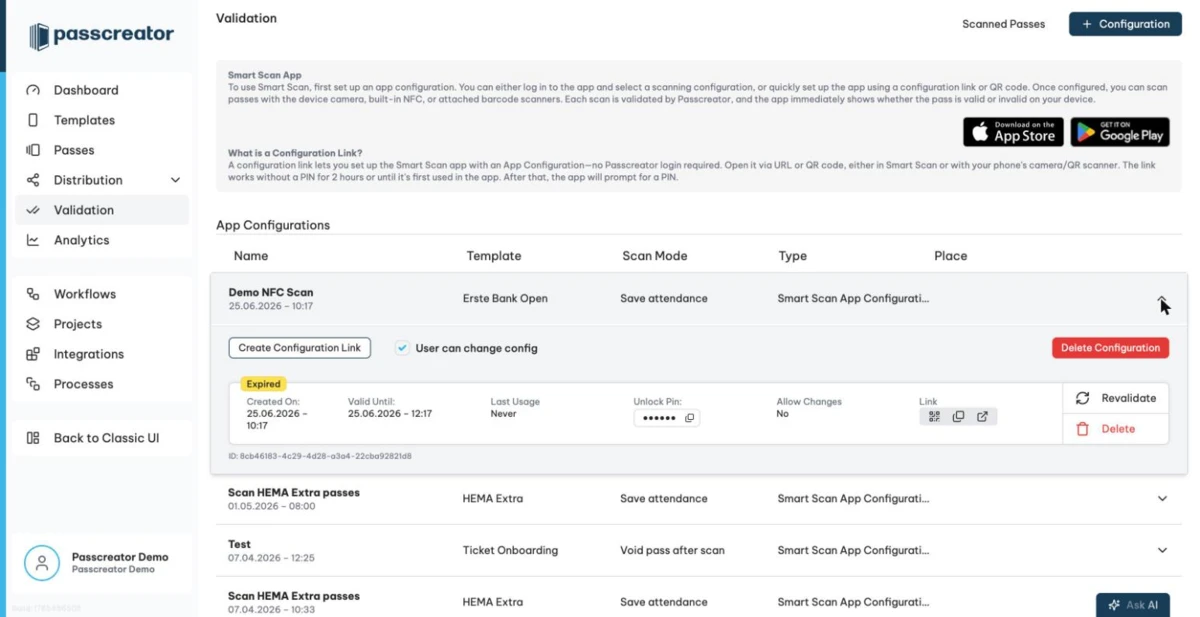
- Go to Validation and create a configuration for the ticket template. Choose the scan mode Void pass after scan for single entry, or
Check-InandCheck-Outif guests leave and return. - Enter the entrance as Place so you can filter scans by door later.
- Create a Configuration Link per entrance and load it on the phones. Staff scan without a Passcreator login. The link works without a PIN for two hours or until first use.
- If the venue has poor reception, switch the app to offline mode before doors open. It downloads the ticket data and syncs the scans afterwards.
How to check it worked
- A test ticket scans once. The app rejects the second scan with "Card has already been used".
- The scan appears under
Validation › Scanned passeswith the right place. - A test phone shows the ticket on the lock screen at the relevant date.
If it does not work
Next step
Continue withThe Smart Scan appChecked 2026-09-11 · Documentation