
How do I set up a loyalty card or stamp card?
A loyalty card is a Store Card template with a pass functionality. The Stamp Card functionality collects stamps per scan, the Loyalty Program collects points and shows a tier. Customers sign up on a form, staff scan the card with the Smart Scan app, and the value on the card updates by itself.
Requirements
- Role Admin, or a role with the privileges to create templates and app configurations
- Your own Apple certificate for production. The demo certificate stops at 30 passes per template and shows a DEMO watermark
- A phone with the Smart Scan app for the counter, or a POS system connected through the API
Steps
Create the template
- Go to
Templates › New Template › Create new template...and give the template a name, your organization and a description. - Choose your certificate and the wallet apps. Apple Wallet is always on, and Google Wallet is the default on Android.
- In the editor, set the pass type to Store Card. Only the Store Card layout renders stamps. The Generic layout has no room for a stamp grid.
Add the functionality
- At the bottom of the editor menu, under Functionality, click Add Functionality.
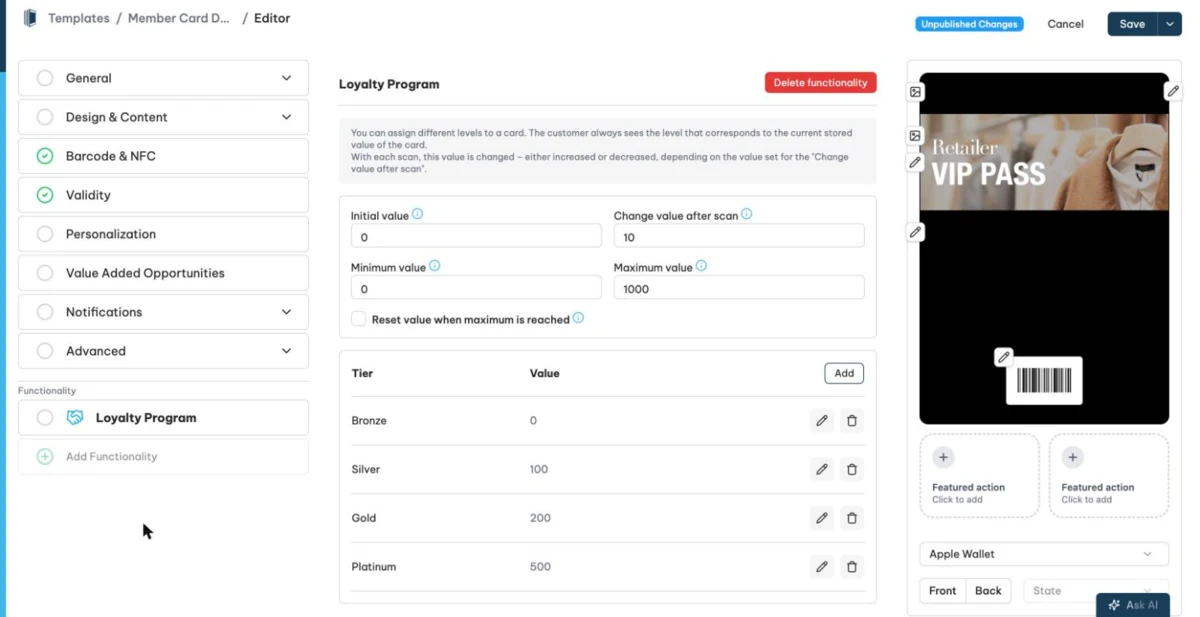
- Pick Stamp Card for a "buy 10, get 1 free" mechanic, or Loyalty Program for points with tiers. The default tiers are Bronze, Silver, Gold and Platinum, each with its own colors and images. A template holds exactly one functionality.
- Set the Initial value, the Change value after scan and the Maximum value. For a stamp card, switch on Reset value when maximum is reached so a full card starts again at zero after the reward.
- Show the value on the pass with a field like
{storedValue} of {functionality.maximumValue}. If the template has no such field, Passcreator adds one. - Save and publish the template.
Set up scanning
- Go to Validation and click + Configuration. Select the loyalty template and the scan mode Save attendance, and switch on Increment Stored Value so every scan adds a stamp or points.
- Create a Configuration Link and load it on the phones at the counter. Staff scan with the Smart Scan app without a Passcreator login.
- If a point of sale adds points itself, let it create app scans through the API instead of the app. Never write
storedValuedirectly for stamps. A direct write skips the maximum and the reset.
Let customers sign up
- Go to
Distribution › Formsand open the form of the template. Every submission creates a personalized card. - Share the form link or its QR code in the shop, on receipts and on your website.
How to check it worked
- A test pass shows
0 of 10, or your initial value, after you save it to the wallet. - One scan with the Smart Scan app changes the value on the pass. Opening the pass or pulling down on its back refreshes it.
- After the maximum, the next scan resets the counter to the initial value.
If it does not work
Next step
Continue withPass functionalities for loyalty, stamp cards and prepaidChecked 2026-09-11 · Documentation