
The Smart Scan app
Steps
What the Smart Scan app does
Smart Scan is a free app for iOS and Android. You need a valid Passcreator account to use it. Once you have configured the app, you scan passes with the device camera, the NFC reader of the device, or an attached barcode scanner. Passcreator validates each scan, and the app immediately shows on your device whether the pass is valid or invalid.
Typical use cases are checking in visitors at an event, redeeming coupons at a store, or adding stamps and points to loyalty passes.
Download the app from the app stores. The stores list it as Passcreator Companion.
How you configure the app
The app uses app configurations to define which passes it validates and what happens after a successful scan, for example voiding the pass or only saving the attendance. You manage app configurations on the Validation page in the sidebar.
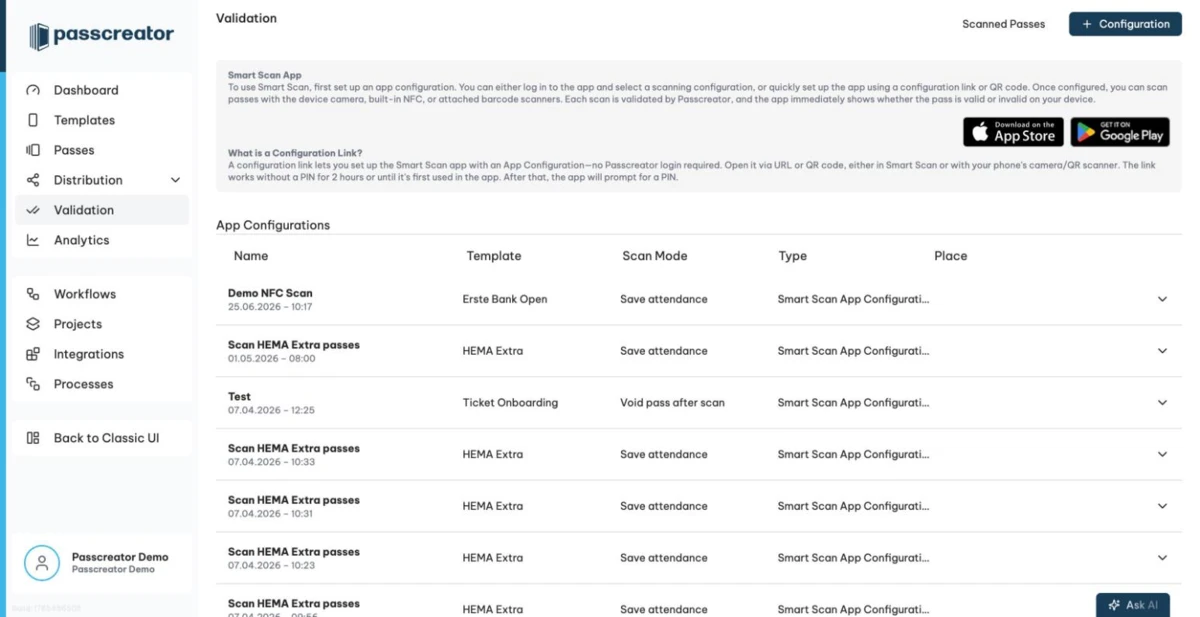
To use Smart Scan, first set up an app configuration. Then load it onto the scanning device in one of two ways.
- Log in to the app with your Passcreator username and password and select one of your app configurations.
- Use a configuration link or QR code. A configuration link sets up the Smart Scan app with an app configuration, and the person using it needs no Passcreator login. This is ideal when event staff or store employees scan passes without knowing your account credentials.
See App configurations and scan modes for how to create configurations and configuration links.
Validating a pass
Once the app has a configuration, hold the camera of the Smart Scan app over the barcode of a Wallet pass. The app recognizes the barcode automatically and tells you whether the pass is valid. Depending on the scan mode of your configuration, the app shows messages like Scan successful - Card has been voided, Attendance saved, Card has already been used, or Unknown card.
After a successful scan the app displays data of the scanned pass. You control what the app shows there, see Customizing the scan result screen. You can also ask your staff to enter additional information for each scan, see Collecting additional info when scanning.
Passcreator records every scan in your account. To review or export scans, open Scanned Passes at the top of the Validation page. See Viewing and exporting scan data.
Next step
Continue withApp configurations and scan modesChecked 2026-08-20 · Documentation