
Creating a template
Requirements
- You need a role with the privilege to create templates. If you don't see the New Template button, ask your Customer administrator.
Steps
Start the wizard
- Go to Templates in the sidebar.
- Click New Template and choose Create new template....
The dropdown also offers Copy existing... to start from one of your existing templates, see Copying a template, and Request NFC Pass to request NFC capability for your account.
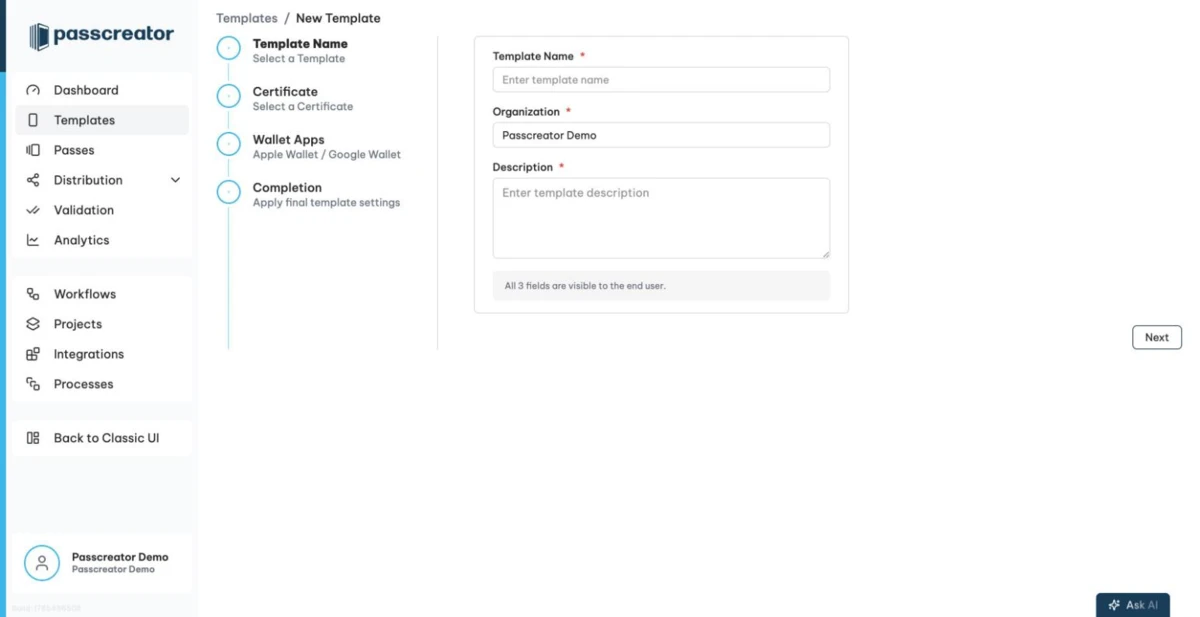
Template Name
Enter the basic information for your template.
- Template Name. The name of your template. It also appears in email attachments.
- Organization. Prefilled with your company name. Pass holders see it, for example in push notifications.
- Description. A short description of the pass. iOS accessibility features use it.
All three fields are mandatory and visible to the end user.
Certificate
Select the Apple certificate that signs passes created from this template. Ideally you choose a certificate you created specifically for this template.
If you don't have an Apple Developer account or your own certificate yet, select a demo certificate. Templates with a demo certificate allow at most 30 passes. That is enough to test your design before going live. You manage certificates in Settings, see Creating a certificate.
Wallet Apps
Choose which wallet apps your passes support.
- Apple Wallet is always on and you cannot turn it off. It is the default on Apple devices.
- Pick one primary Android app, Google Wallet as the default or Pass Wallet. Some accounts also offer Your Wallet.
- Samsung Wallet is an independent add on checkbox. If you enable it, Samsung Wallet becomes the primary wallet app on Samsung devices, while your selected Android app remains the fallback. The first time you activate it, you must accept the Samsung Wallet terms of service and privacy notice.
Alternative (optional). Depending on your account, you can offer a second Android app that pass holders choose as an alternative.
If you choose Google Wallet but your account has no Google Issuer ID yet, the wizard shows Please activate Google Wallet for your Account to continue with a Setup button. See Configuring a template for Google Wallet.
You can add more wallet apps later in the template editor.
Completion
The final step prepares your template.
- Template Icon. Mandatory, because push notifications and other places use it. If your company has a default icon, the wizard applies it automatically. You can change it in the editor afterwards.
- The wizard applies a logo or a placeholder, along with a default design.
- The wizard adds a Contact back field built from your company address. Apple requires contact data on every pass. If your company data is incomplete, the field contains the placeholder text
Please add contact data here. Replace it in the editor.
Click through to finish. Passcreator creates the template with the pass type Store Card by default, and you land directly in the template editor. There you change the pass type and add fields, images and everything else. See Overview of the template editor.
Next step
Continue withOverview of the template editorChecked 2026-08-20 · Documentation