
Ways to create passes
Steps
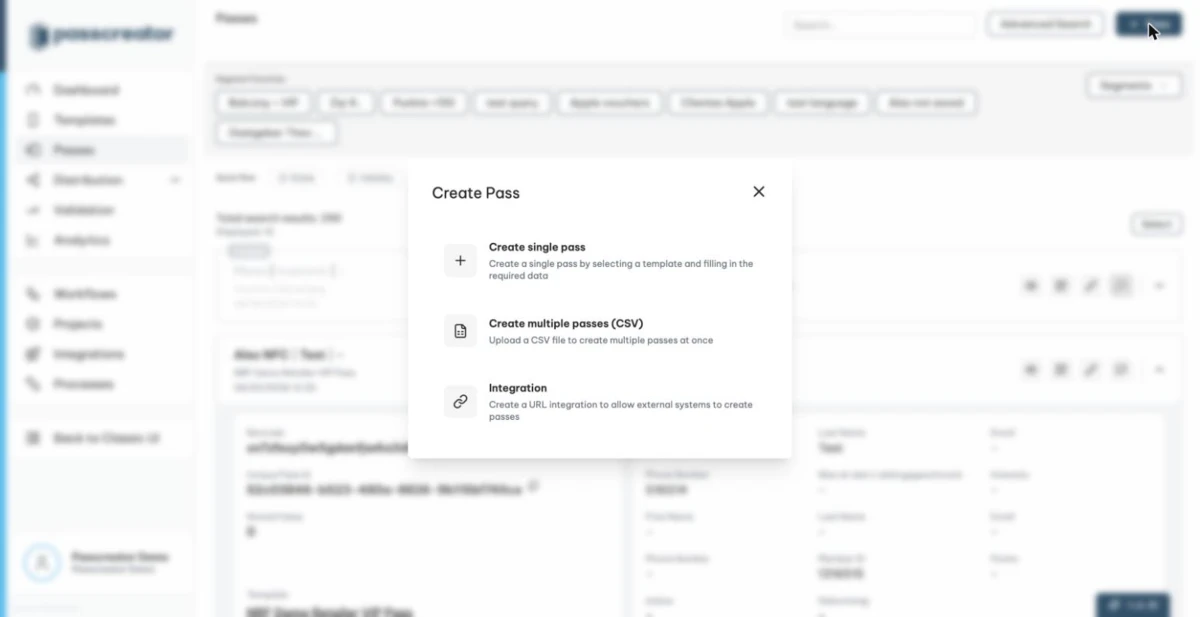
The Create Pass modal
The quickest entry point is the pass list.
- Go to Passes in the sidebar.
- Click the + Pass button.
The Create Pass modal opens and offers up to three options. Which ones you see depends on your permissions.
- Create single pass. The modal describes it as "Create a single pass by selecting a template and filling in the required data". This option suits tests and one time passes.
Create multiple passes (CSV). The modal describes it as "Upload a CSV file to create multiple passes at once". This option takes you to the bulk processing wizard.- Integration. The modal describes it as "Create a URL integration to allow external systems to create passes". This option opens the Create Integration modal with the type "URL that reads parameters" preselected.
Which method should I use?
Create a single pass when you want to test a template on your phone or issue a pass to one specific customer. You fill in the template fields by hand and get a QR code and a download link right away. See Creating a single pass.
Bulk processing when your customer data lives in a file. You upload a CSV and map its columns to the fields of the template. Passcreator then creates, updates or deletes one pass per row as a background job. If you want, Passcreator sends the passes via email or SMS right after creation. See Bulk processing with CSV files.
Forms when your customers request their own passes. A form is a public web page where visitors enter their data, and Passcreator creates their personalized pass automatically. Forms work well for lead generation and self service signup. See Forms.
URL integrations when another system already knows the customer data. A "URL that reads parameters" integration gives you a link that creates a pass from the data in its parameters, for example a personalized link in a newsletter. See Create passes via URL parameters. If you prefer a pass download button on your own website, use an iFrame integration. See Embedding pass downloads with an iFrame.
The REST API when you want full programmatic control. Every pass creation option in the UI is also available via the API. See the developer documentation and REST API and API keys.
Workflows when pass creation happens automatically as part of a larger automation, for example when your CRM creates a new contact. The Workflow Engine is an optional add on. See What are workflows.
Next step
Continue withCreating a single passChecked 2026-08-20 · Documentation