
Export a template as JSON and import a draft
You can download a template as a JSON file and load a JSON file into an existing template as a new draft. Use it to back up a template, move it to another account or change it outside Passcreator. Passes stay unchanged until you publish the draft.
Requirements
- For the export, read access to templates.
- For the import, the privilege to edit templates. Without it, the row Import definition as draft is not shown.
- For the import, a template without an open draft.
Steps
Export a template
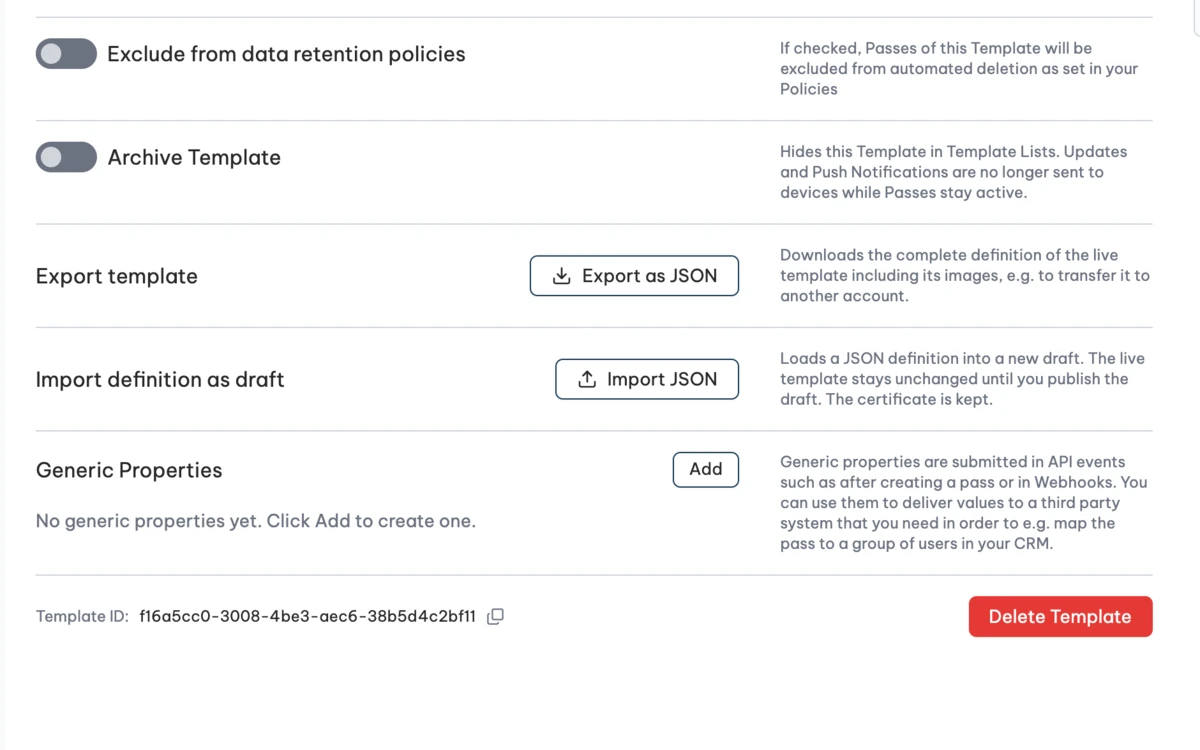
- Open the template and go to the tab Settings.
- In the row Export template, click Export as JSON.
Passcreator downloads the file <template name>.passcreator-template.json. It contains the complete definition of the live version, including all images, so it is often several hundred KB. An open draft is not exported.
Import a definition as a draft
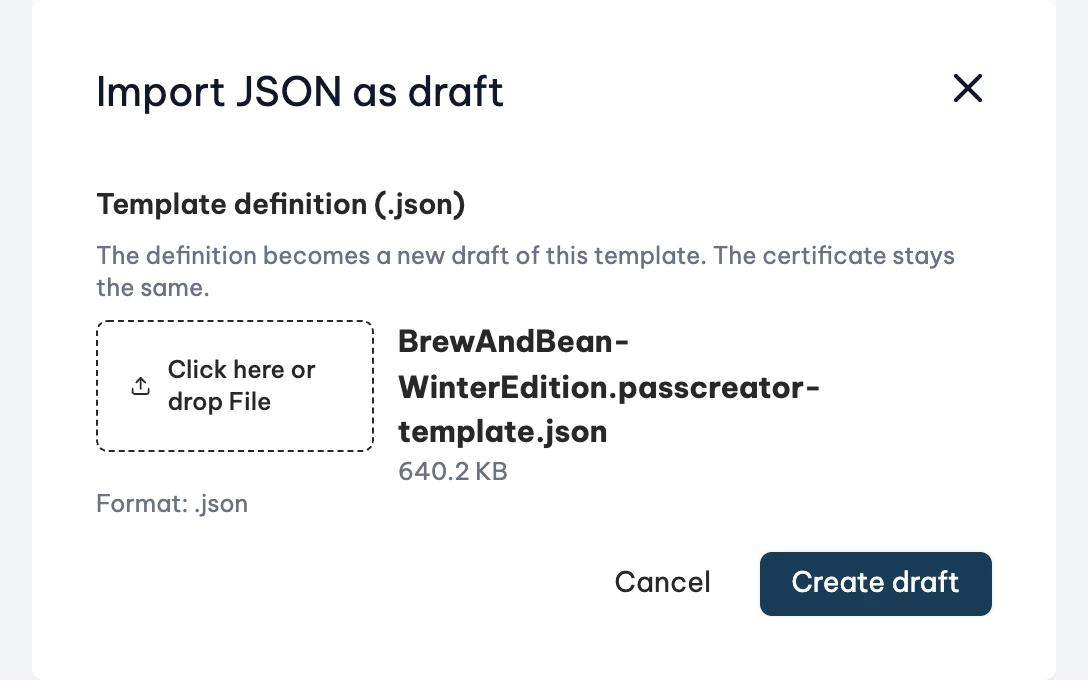
- Open the template and go to the tab Settings.
- In the row Import definition as draft, click Import JSON.
- Select the
.jsonfile and click Create draft.
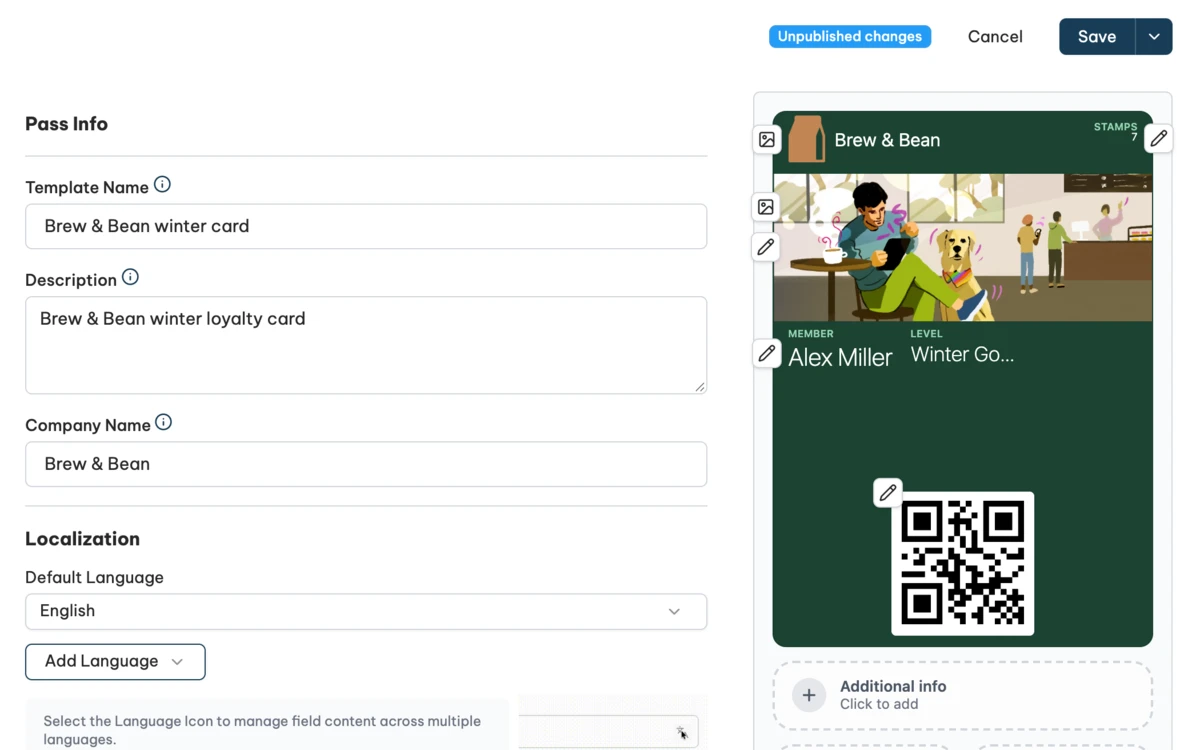
The editor opens with the draft and the status Unpublished changes. If some parts could not be taken over, the list Not imported appears first.
- The certificate of the template always stays. A certificate in the file is ignored.
- Passcreator removes data bound to another account, as described in Create a template from a JSON definition.
- Google Wallet stays as in the file, but is switched off if your account has no Google Wallet.
How to check it worked
The editor shows the status Unpublished changes. Check the preview. The live template and the passes already issued stay unchanged until you publish the draft, see Publishing changes and template versions.
Things to check
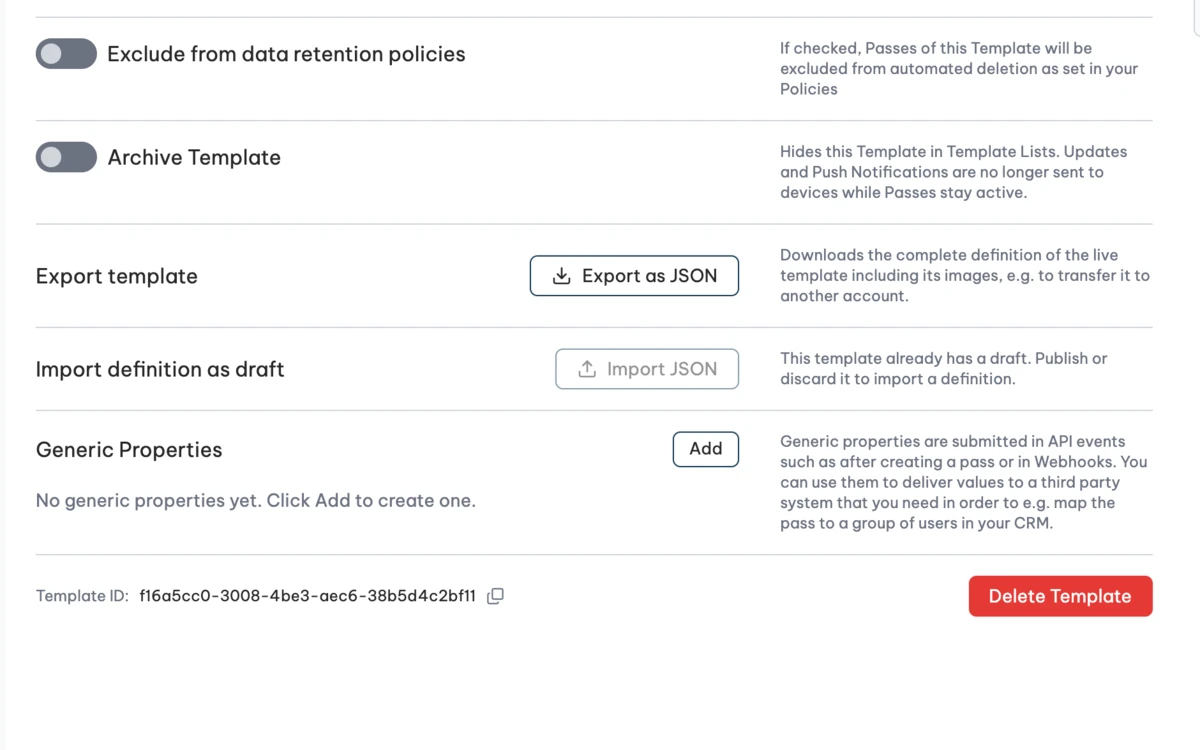
- Import JSON is greyed out. The template already has a draft. Publish or discard it, then import the definition.
- The row Import definition as draft is missing. Your role cannot edit templates.
- The export does not contain your latest changes. The export contains the live version only. Publish the draft first.
Checked 2026-11-11 · Documentation