
Copying a template
Instead of building a new template from scratch, you can copy an existing one. Passcreator copies all settings, design and fields. This is ideal for variants of a pass, for example per branch or campaign, or for a safe test copy before you change a template with many live passes.
Requirements
- You need the
templates.createpermission to copy templates.
Steps
Copying a template
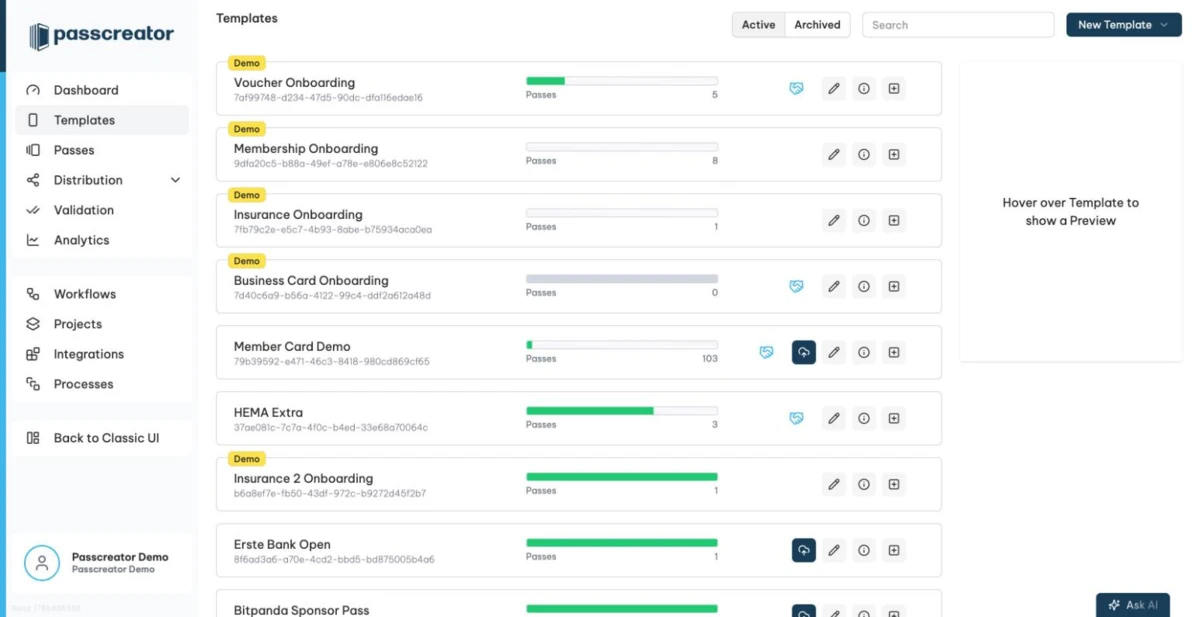
- Go to Templates in the sidebar.
- Open the New Template dropdown and choose Copy existing.... The option stays inactive as long as no templates exist.
The Copy Template wizard has four steps.
- Select Template. Pick the source template as the basis. Passcreator copies all settings, design and fields.
- Name & Description. Set the Template Name, Organization and Description. The wizard prefills the name with the source name and the suffix
(Copy). All three are visible to the end user. - Customization, an optional step. Override parts of the design and link resources for the copy.
- Background image, including the Android background, and Logo.
- Colors. Label color, Foreground color and Background color as hex values. The copy takes over the per pass color flags and the voided background color from the source.
- Form. Choose a form of the source template to copy along with it, or keep the default
--- Do not copy ---. - Custom ID for copy. An optional custom identifier for the new template. Passcreator generates one when you leave it empty.
- Create integration link for copy. Toggle it to create an integration link for the new template right away.
- Certificate. Select the certificate the copy uses. This step is mandatory.
- Click Create Copy.
You land directly in the new template's editor, where you fine tune everything else. The copy starts without passes. Publish it before you distribute it, see Publishing changes and template versions.
Using a copy to test changes safely
A template with many live passes deserves a test run. This way you push changes and their push notifications only once you're sure they look as expected.
- Copy the template as described above.
- Make your changes on the copy and create a test pass for it on your own device.
- Check that the pass looks right, then update the copy to confirm that the push notifications arrive as expected.
- Apply the same changes to the original template and publish them to reach all pass holders.
Next step
Continue withCreating a templateChecked 2026-08-20 · Documentation