
App configurations and scan modes
Creating an app configuration
- Go to Validation in the sidebar.
- Click + Configuration in the upper right. The Create Configuration modal opens.
- Enter a Name and select one or more templates under Pass Template. This configuration validates only passes of the selected templates.
- Choose the Scan Mode and the Type. The next two sections explain both.
- Fill in
Place (optional)if you want to filter scans by location later. Passcreator records the validation place with every scan. - Click Create.
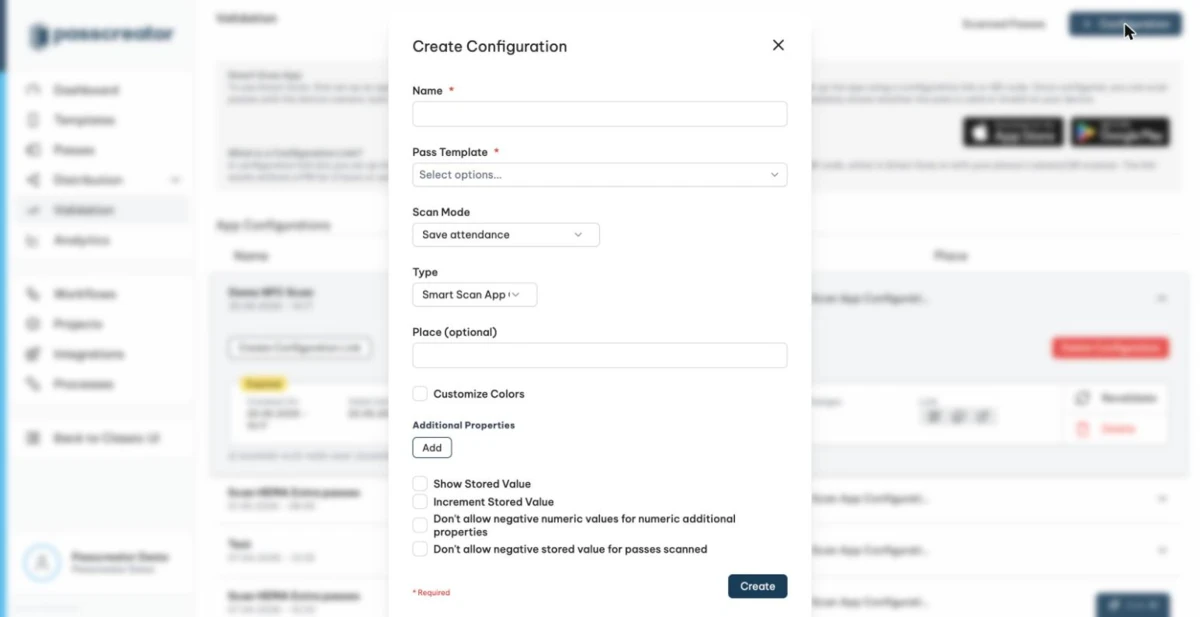
You can also create configurations directly from a template. Open the template, switch to the Validation tab and choose Actions › New Configuration....
Scan modes
The Scan Mode determines what happens when your staff scans a pass.
- Void pass after scan marks the pass as invalid after the first successful scan. Use this for one time tickets and coupons. Scanning the pass again shows
Card has already been used. - Save attendance only records the scan. The pass stays valid, and your staff can scan it again. Use this for check ins, loyalty scans or repeated entry.
Check-InandCheck-Outrecord entries and exits separately, for example for access control at venues.
Configuration type
- Smart Scan App Configuration is the standard type. The Smart Scan app uses it.
- Generate URL to validate passes creates a URL that your own systems call to validate passes instead of using the app.
Further options
- Customize Colors sets a Background Color and a Text Color as hex values for the scan screen in the app. Use this to tell configurations for different entrances apart at a glance.
- Additional Properties defines extra data fields that your staff fills in at scan time. See Collecting additional info when scanning.
- Show Stored Value and Increment Stored Value apply to templates with a loyalty program, stamp card or prepaid functionality. The first shows the current stored value after a scan, the second lets the scanning staff change it.
- Don't allow negative numeric values for numeric additional properties and Don't allow negative stored value for passes scanned block negative entries during scanning.
Setting up the app on a device
The App Configurations list shows every configuration with its Name, Template, Scan Mode, Type and Place. Expand a row to manage it. There are two ways to get a configuration onto a smartphone.
Log in to the app
Install the Smart Scan app, log in with your Passcreator username and password, and select the configuration in the app.
Use a configuration link or QR code
A configuration link sets up the Smart Scan app with an app configuration. The person using it needs no Passcreator login. This is the easiest way to equip staff who should not have access to your account.
- On the Validation page, expand the configuration and click Create Configuration Link.
- Decide whether to allow User can change config. If it is off, the person using the link scans with this one configuration only. Choose this if someone validates passes without knowing your Passcreator credentials.
- Share the link, or show its QR code and scan it with the camera of the phone.
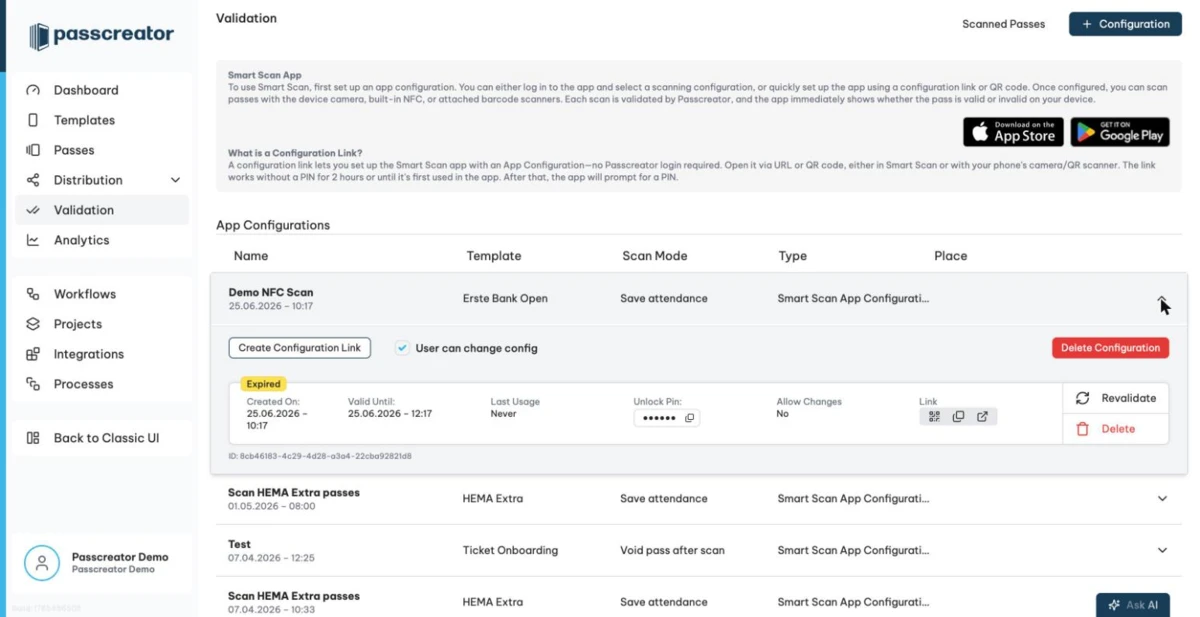
If the phone already has the app, the configuration loads right away. Otherwise the link sends the phone to the app store, and the app loads the configuration after the installation.
Each configuration link shows Created On, Valid Until, Last Usage and an Unlock Pin. The link works without a PIN for 2 hours or until the app uses it for the first time. After that, the app prompts for the PIN.
Other row actions
- Download Config shows a QR code that loads the configuration.
- Link to Config Download Page opens or copies the configuration download page.
- Revalidate refreshes a configuration link.
- Delete Configuration removes the configuration.
Next step
Continue withThe Smart Scan appChecked 2026-08-20 · Documentation