
How do I issue coupons that can be redeemed once?
A coupon is a pass with a unique barcode that a scan voids after the first use. You control the validity in the template and distribute the coupon by form, mail or CSV. Staff redeem it with the Smart Scan app in the scan mode "Void pass after scan".
Requirements
- A template with the pass type Coupon
- Your own Apple certificate for production
- A text file with one code per line if you use voucher codes from your own system
Steps
Make every coupon unique
- Open the template in the editor and go to Barcode & NFC. Select a 2D barcode such as QR code. Cameras read it more reliably than 1D formats.
- Under Value, switch on Insert unique pass ID as value. Every coupon gets its own scannable code.
- If your POS system expects its own codes, upload them under
Settings › User Provided Ids › Manage IDsand set the source to Uploaded IDs. Show the code on the pass with{userProvidedId}.
Set the validity
- In the editor, open Validity. Set an Expiration Date for a campaign that ends on a fixed day. Set Pass validity in days for a coupon that stays valid for a number of days after you issue it.
- For validity in days, do not make the "valid as of" date selectable on the form. The countdown then starts when Passcreator creates the coupon.
- Save and publish.
Distribute the coupons
- For signups in the shop or online, share the form link or QR code from
Distribution › Forms. - For a list of customers, use
Passes › Bulk Processingwith one row per coupon. Then send a sendout with the{pass_link}placeholder in the email template. Creation and sending are two separate steps. - For a personalized link in a newsletter, create an integration of the type "URL that reads parameters" under Integrations and switch on deduplication.
Redeem at the counter
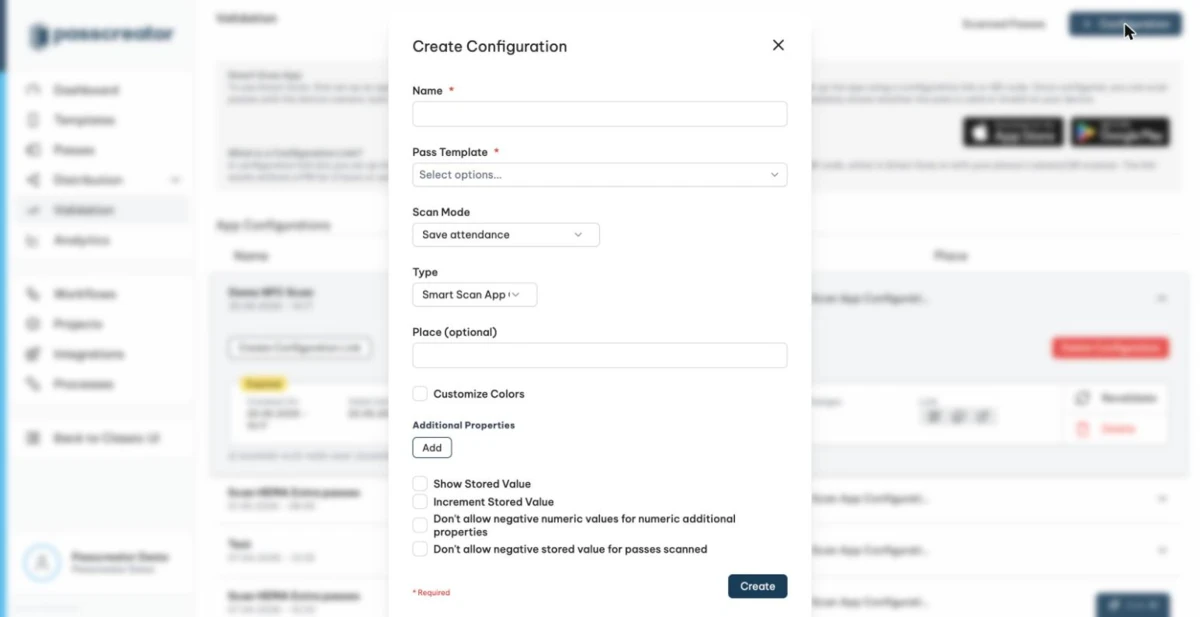
- Go to Validation and create a configuration with the scan mode Void pass after scan.
- Load the configuration on the phones with a configuration link. A second scan of the same coupon shows Card has already been used.
How to check it worked
- Two test coupons show two different barcode values.
- The app accepts the first scan and rejects the second one as already used. The scan appears under
Validation › Scanned passes. - After the expiration date, the barcode on the pass appears greyed out.
If it does not work
Next step
Continue withApp configurations and scan modesChecked 2026-09-11 · Documentation