
Additional info fields for Apple Wallet passes
Additional info fields show extra information directly below the front of an Apple Wallet pass, on every pass type. Use them for information pass holders need often but that does not fit on the front, such as opening hours, guest rules, entry times, bag policies or contact details.
Requirements
- A template with Apple Wallet passes. Additional info fields work on store cards, membership cards, coupons, event tickets, boarding passes and generic passes.
- Pass holders on a current iOS version. Older iOS versions do not show the fields, the rest of the pass stays unchanged.
Steps
- Open the template in the template editor.
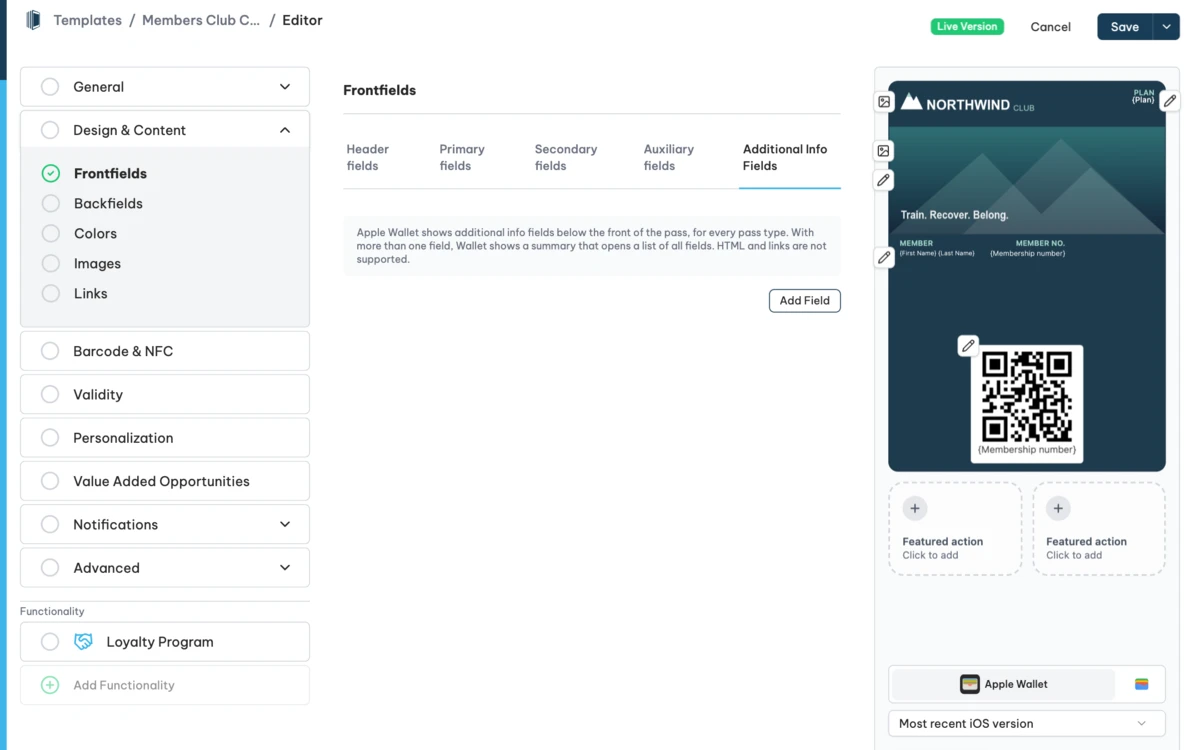
- Go to
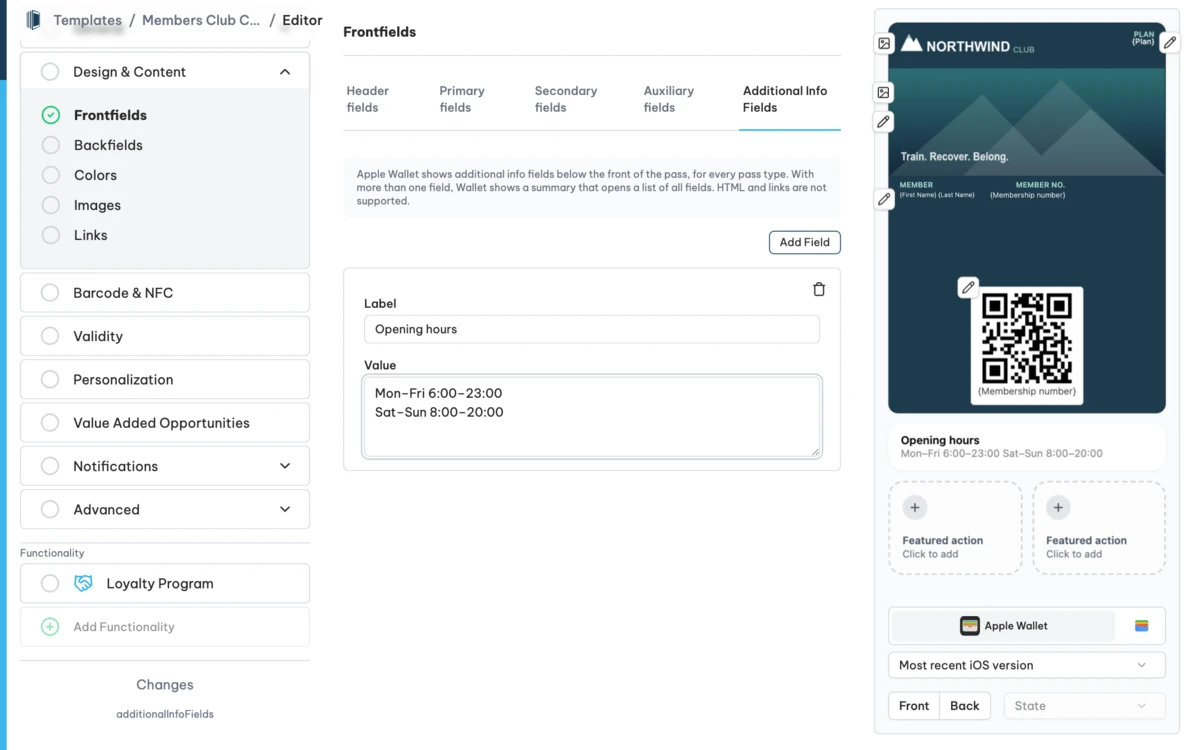
Design & Content › Frontfieldsand open the tab Additional Info Fields. - Click Add Field and enter a label and a value. Values can span several lines, for example opening hours with one line per day range. Repeat this for further fields.
- Check the preview on the right and click Save.
How to check it worked
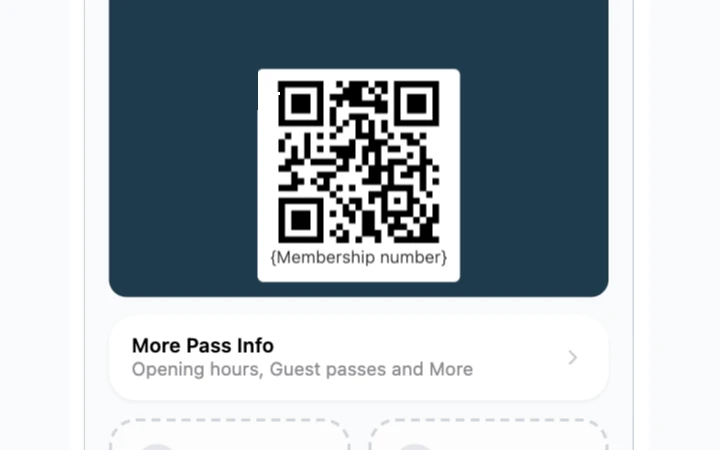
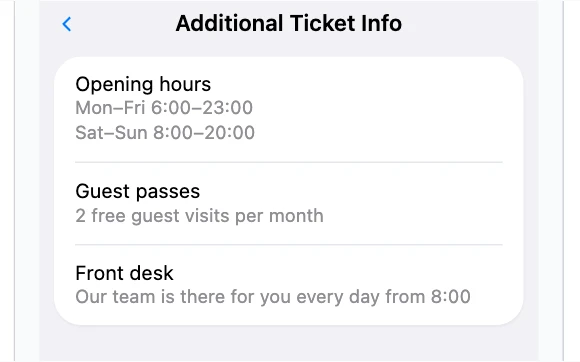
Look at the preview. With one field, Apple Wallet shows the label and the value as a row below the pass. With several fields, it shows a summary row, for example Opening hours, Guest passes and More. Tapping the row opens a list with all fields.
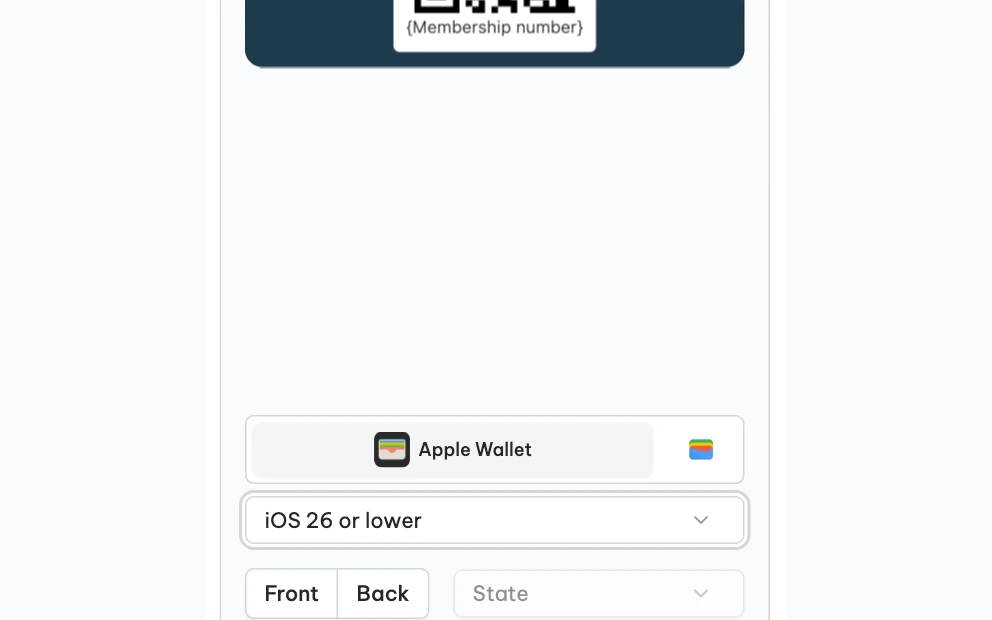
Use the version selector below the preview to check how the pass looks on older iOS versions, where the fields do not appear.
Things to check
- A pass holder does not see the fields. Check the iOS version of the device. Older versions do not show additional info fields.
- A link is not clickable. Additional info fields do not support HTML or links. Put links on the back of the pass.
- Google Wallet and Samsung Wallet passes look the same as before. Additional info fields are an Apple Wallet feature.
- Existing passes do not show the fields yet. Passcreator sends the changes to all existing passes with the next update.
Checked 2026-11-04 · Documentation