
Updating all passes of a template
Requirements
- You need the template update privilege to edit templates and the template publish privilege to publish changes.
Steps
Editing the template
- Go to Templates in the sidebar and click the pencil icon Edit Template on the template, or open the template details and click Edit Template.
- Add a new field or edit an existing one. Passcreator sends notifications for new as well as changed fields.
- If all pass holders should receive the same message, do not personalize the field. You can still include the placeholder of an additional property in the field value to personalize the notification text per pass.
- Set the Change Message of the field. Passcreator replaces
%@with the new field value. If the change message is only%@, the notification consists of the field value alone. Leave the change message empty for a silent update. - Click Save.
For example, to announce an offer on a back field, set the value to Use your credits to get one coffee for every croissant you buy! and the change message to %@.
Saving creates a draft. The editor badge changes to Unpublished Changes, and a toast reminds you to publish the template to make your changes visible to your customers.
Publishing the changes
- Open the template. The details page shows the banner
There are unpublished changes. Publish them now or schedule a publication. - Click Publish changes.... You can also use the cloud upload icon Publish changes directly in the row of the templates list.
- In the Publish Changes modal, enter a Description if you want one. Only you see it. Then set the Publication time. If you pick a future time, the button changes to Schedule publication. Otherwise it reads Publish.
- To show a push notification along with the update, tick Add push notification and enter the message. The length meter shows three states. Up to 85 characters the message is safe, from 86 to 100 characters old devices sometimes crop it, and above 100 characters devices crop it. You can insert placeholders, and a live preview in iOS style shows the notification with your template icon and organization name.
- Confirm with Publish or Schedule publication.
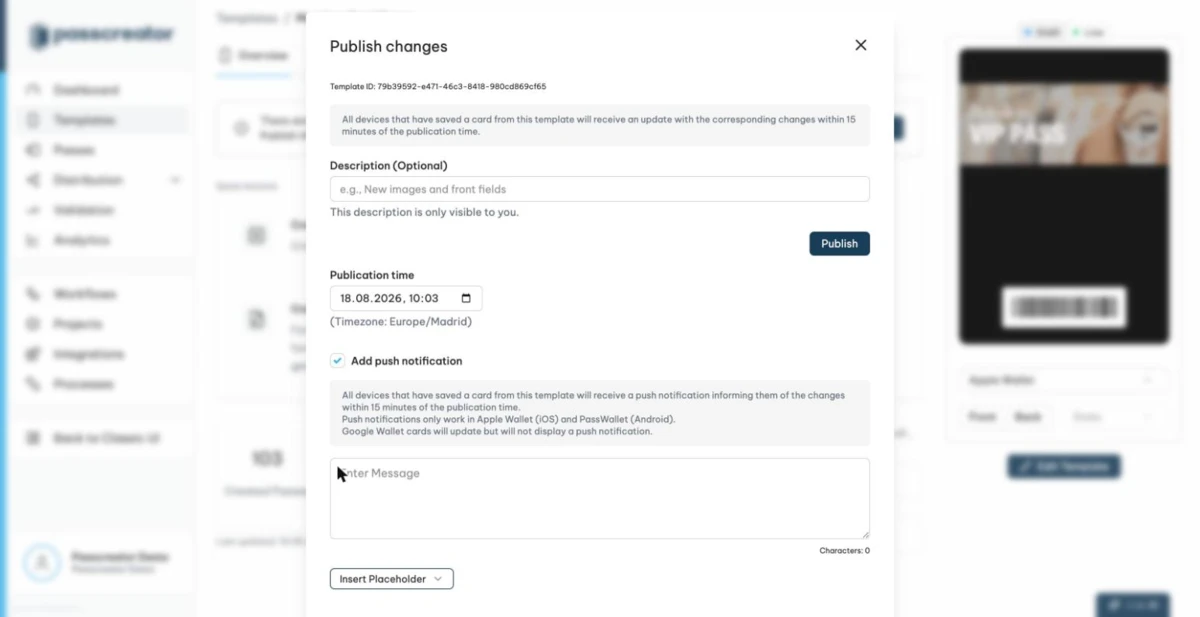
All devices that have saved a pass of this template receive the update within 15 minutes of the publication time. Passes that nobody has downloaded yet update as well, so pass holders always get the latest version when they download. Publishing runs in the background. The details page shows Publishing changes... until the new version is live.
If you change your mind before publishing, use Reset Unpublished Changes in the Save split button of the editor to discard the draft and return to the live version.
Scheduled publications
Scheduled publications appear under Scheduled activities on the Overview tab of the template and on the Activity tab as the type Publish template version. You can cancel a scheduled publication there with Cancel Activity as long as it hasn't run yet.
Next step
Continue withPublishing changes and template versionsChecked 2026-08-20 · Documentation