
Sending single passes
Requirements
- The Sendout module is active for your account. If it isn't, enable it in the sendout settings first. See Your own sender address and SMTP.
- Passcreator bills each email and each SMS it sends.
Steps
Where to find the sendout options
- Go to Templates in the sidebar and open your template.
- Open the Distribution tab.
- Scroll to the Sendout options panel. It carries the description
Configure how passes from this template are sent out via email and SMS.and has four toggles. Each toggle opens a small configuration modal where you select the email template, the subject or the message text.
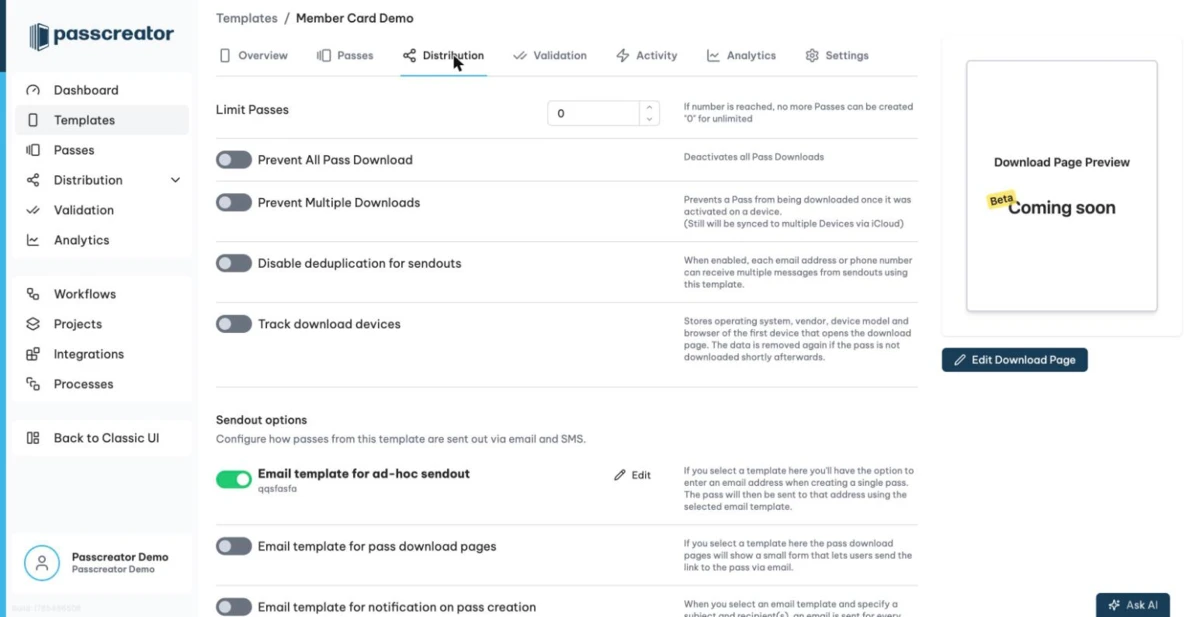
Email template for ad hoc sendout
When this option is on, Passcreator asks for an email address when you create a single pass. After creating the pass, Passcreator sends it to that address with the email template you selected. This also works through the Passcreator API endpoints.
In the configuration modal, choose the Email template and enter the Subject of the email.
This is the fastest way to hand a pass to one specific customer. Create the pass, type the email address, done. See Creating a single pass for the pass creation flow.
Email template for pass download pages
By default, pass download pages render a mailto link that opens the visitor's own email program. If you select an email template here, a small form on the download page replaces that link. Visitors use it to send the pass link to any email address, for example to forward it from a desktop browser to their phone. Passcreator has measures in place that prevent spam abuse of the form.
Email template for notification on pass creation
When this option is on, Passcreator sends an email for every pass created from this template. Besides the email template and subject, the modal asks for the Recipient email. Separate multiple addresses with commas. Use this to notify yourself or your team about every new pass, for example one created from a form or an integration.
SMS text after pass creation
When this option is on, Passcreator asks for a phone number when you create a single pass and delivers an SMS with your text after it has created the pass. This also works through the Passcreator API endpoints.
In the message text, use {pass_link} to insert the link to the pass. You can also use additional pass properties as placeholders, for example {Property name}.
Next step
Continue withEmail templatesChecked 2026-08-20 · Documentation