
Creating a single pass
You usually create a single pass to test a template on a smartphone or to issue a pass to one specific customer. This article walks you through the process step by step, from picking the template to handing over the pass.
Requirements
- You have the
passes.createprivilege.
Steps
Create the pass
- Go to Passes in the sidebar and click + Pass.
- In the Create Pass modal, choose Create single pass.
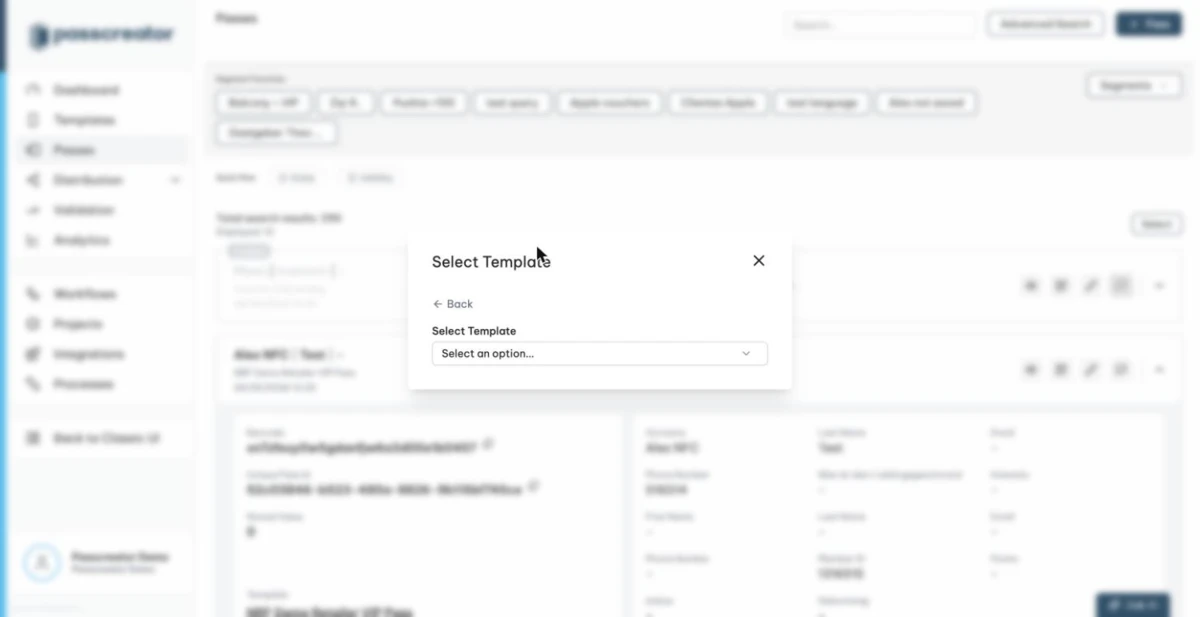
- In the Select Template step, pick the template for the pass. You can search the list. Archived templates do not appear.
- Fill in the pass data. The Create Single Pass dialog shows one input for each field the template defines. These are text fields, select lists with the prompt
Please select..., checkboxes, radio buttons, date and time fields, phone number fields or color fields. An asterisk*marks required fields. If the template has no per pass fields, the dialog showsNo additional data needed. Just press "Create" to continue. - Depending on the template configuration, the dialog shows up to two more sections.
- A Validation Places section with checkboxes. The template ticks its default places in advance, and you can change them if the template allows it.
- Image uploaders for a per pass Thumbnail, Logo or Background if the template flags these images as different for each pass.
- Click Create.
Deliver the pass
After creation you see the Pass created screen with everything you need to get the pass onto a phone.
- A QR code of the pass download page. The pass holder scans it with the phone camera under "Scan code" and lands directly on the download page.
- The download page URL with actions to copy it and to open it in a new tab. Copy the link to send it via your own channels, or open it to download the pass yourself.
- Create another pass to create the next pass from the same template right away.
The modal itself doesn't send emails or text messages. To deliver passes via email or SMS, use a sendout, or configure an email template for ad hoc sendouts in the distribution settings of the template. See Sendouts by email or SMS and Sending single passes.
If it does not work
Next step
Continue withWays to create passesChecked 2026-08-20 · Documentation