
Selling passes
You sell passes by enabling payment on a form. This works for paid tickets, vouchers, memberships and other passes. Customers fill out the form, pay with the payment method of their choice and receive their personalized pass automatically after the payment succeeds.
Requirements
You need two things to sell passes.
- A valid Passcreator account with a form for the pass template you want to sell.
- An account with at least one supported payment gateway.
- Stripe supports credit cards, Apple Pay, Google Pay and more. You need a valid Stripe account.
- PayPal requires a PayPal API signature. See Requesting a PayPal API signature.
- You can also offer purchase on account without an external gateway.
Steps
Enabling payment on a form
You currently still edit forms in the classic UI. The new UI links there.
- Go to
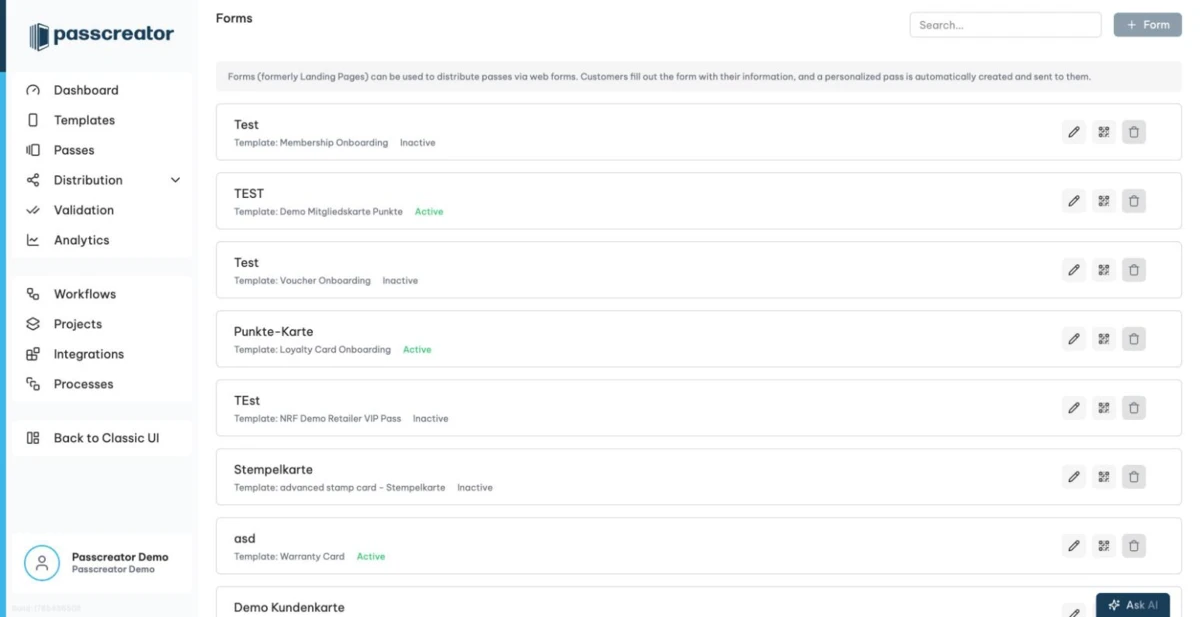
Distribution › Formsin the sidebar. - Click Edit Form on the form you want to sell passes with. The form editor opens in the classic UI in a new tab.
- Go to the payment tab of the form and fill in all required fields.
- Enable at least one payment gateway. Open the tab for PayPal, Stripe or purchase on account and follow the instructions there. Stripe and purchase on account only need a few details. For PayPal, enter the API signature from the guide linked above.
- Save the form.
The Forms list marks forms with payment enabled with a coin icon and the label Payment Enabled.
Sharing the sales page
Once you have enabled payment, the public URL of the form is your sales page. In the Forms list, click Show Form Link to get a QR code and the localized public link. Share it on your website, in newsletters or on printed material. Customers who complete the payment receive their pass automatically.
Next step
Continue withFormsChecked 2026-08-20 · Documentation