
Selling subscriptions with forms and Stripe
Requirements
You need three things to sell subscriptions.
- A form for the pass template you want to sell.
- A Stripe account. You connect it once under
Settings › Connected accountsand use it in any number of forms. - Fields in the pass template for the values the subscription writes, for example membership number, plan, status and valid until. The form does not ask for these fields. Passcreator fills them.
Steps
Connecting your Stripe account
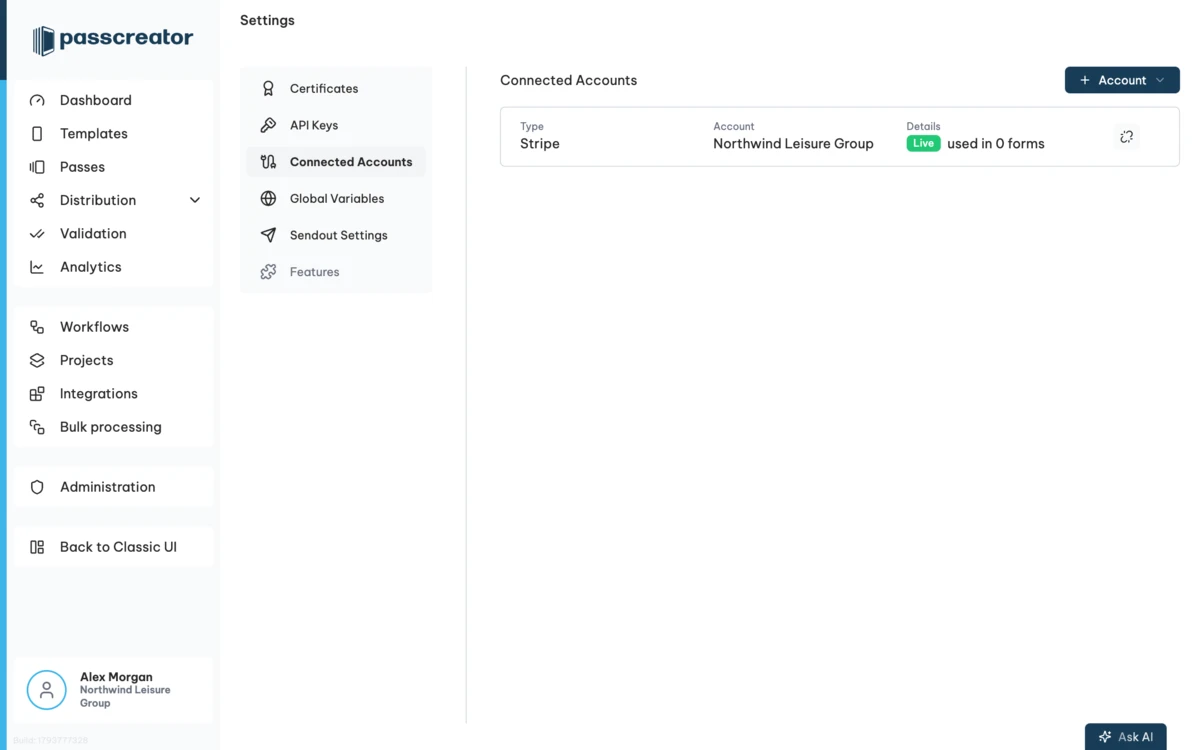
Go to Settings › Connected accounts, click + Account and choose Connect Stripe. Log in to Stripe and confirm. The account then appears in the list with the number of forms that use it.
Creating the form
Go to Forms, click + Form, enter a name and choose the pass template and the URL of the form. On the General tab, make the form public, add a description and, if you want, a logo and a background image. They appear on the order page.
Setting up the subscription
- Open the Payment tab, switch on Sell this pass and choose Subscription as sales type.
- Choose your Stripe account and the currency.
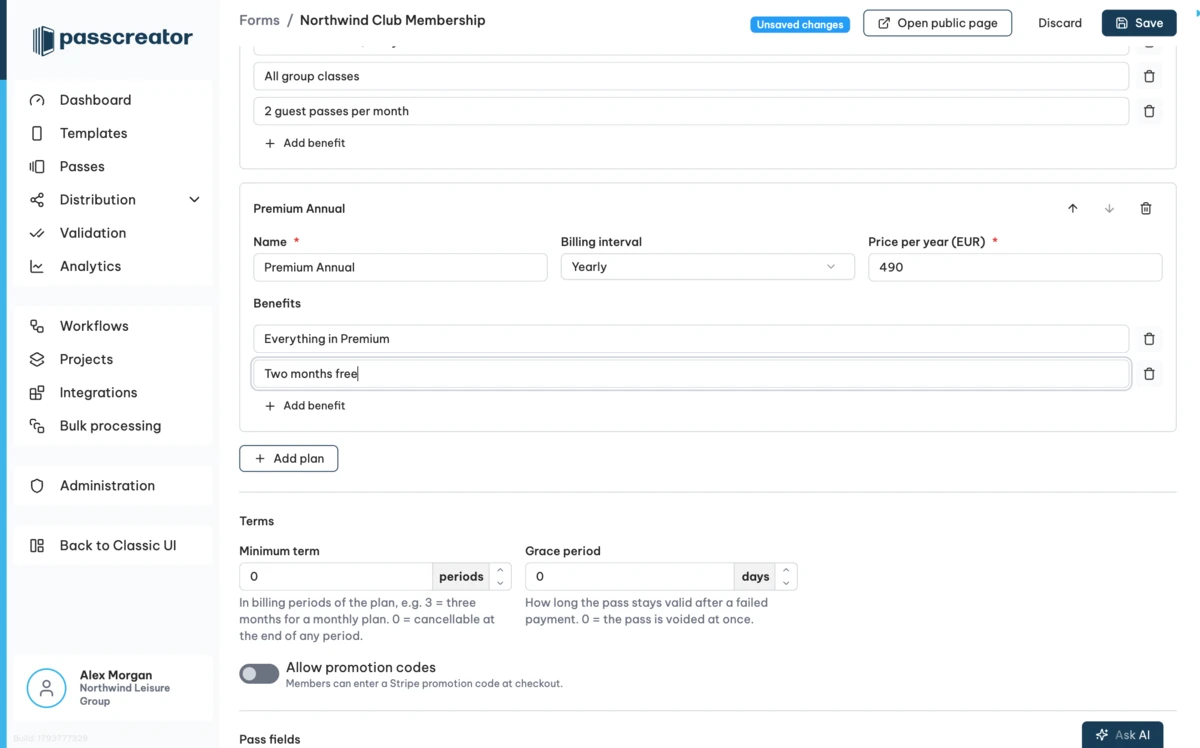
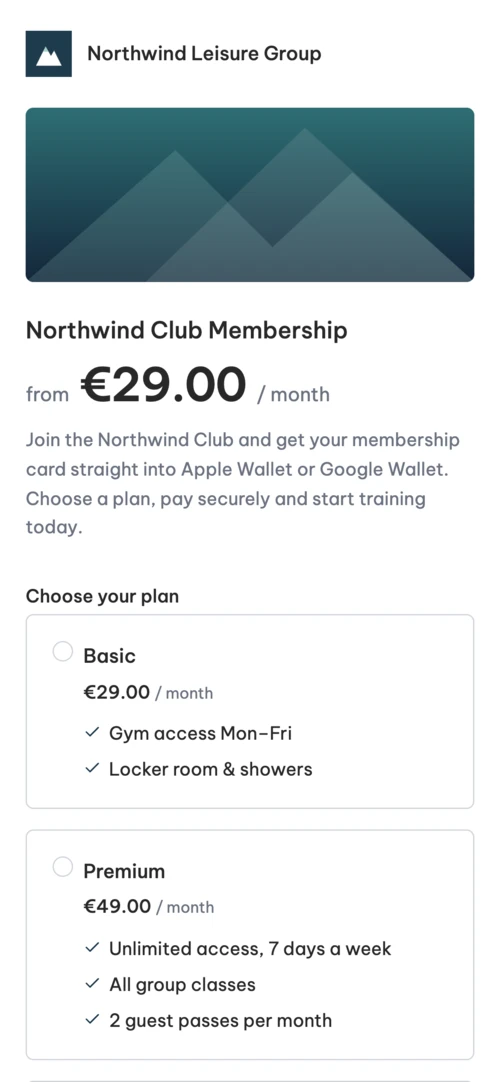
- Add your plans. For each plan you enter a name, the billing interval (monthly or yearly), the price and the benefits shown on the order page.
Then set the terms and the pass fields.
- Minimum term in billing periods. 12 means one year for a monthly plan, 0 means members can cancel at the end of any period.
- Grace period in days. This is how long the pass stays valid after a failed payment.
- Allow promotion codes lets members enter a Stripe promotion code at checkout.
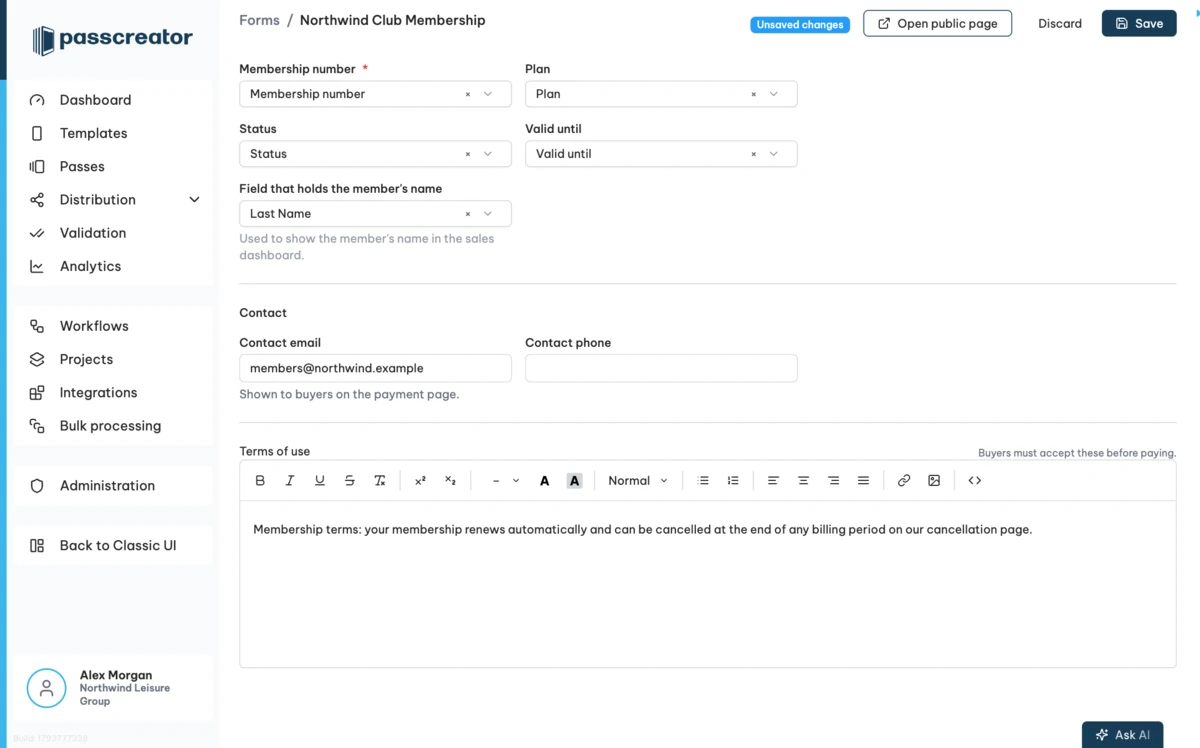
- Pass fields set which template fields receive the membership number, the plan, the status and the valid until date, and which field holds the member's name.
- A contact email and your terms of use. Buyers accept them before they pay.
Click Save. Passcreator creates the products and prices in your Stripe account.
Designing the order page
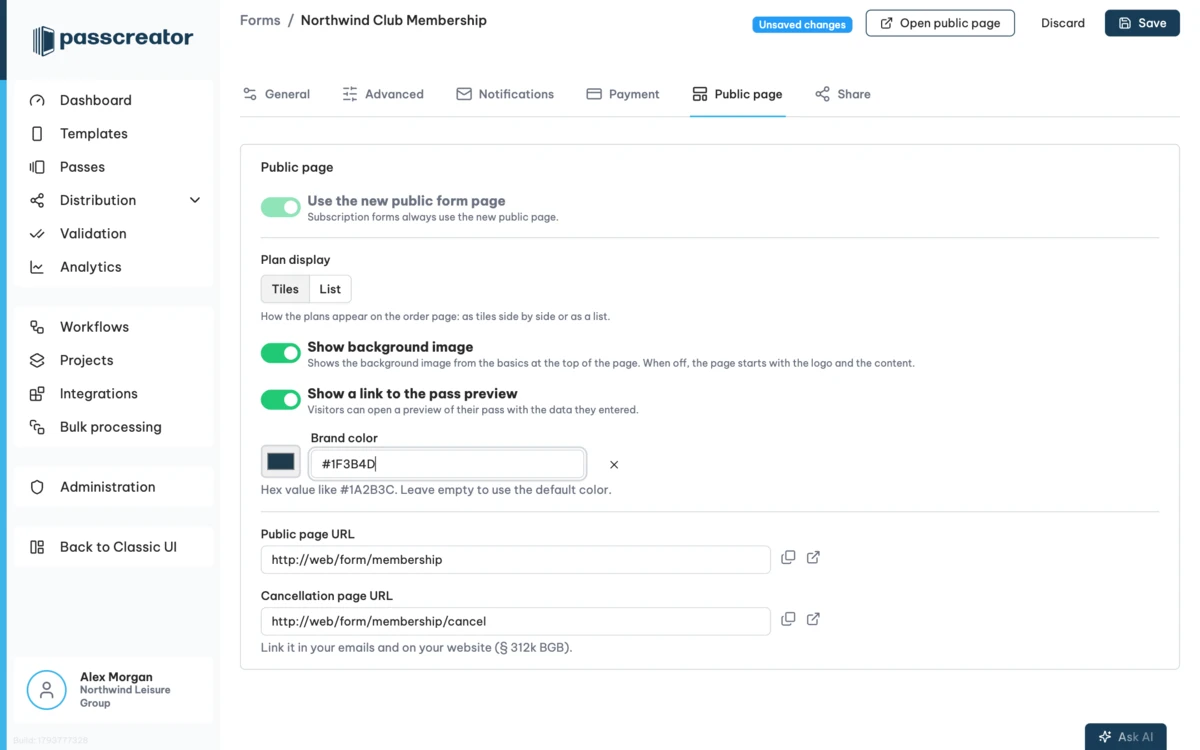
On the Public page tab you choose how plans are shown (tiles or list), whether the background image appears, whether visitors can open a preview of their pass, and your brand color. Here you also find the URL of the order page and of the cancellation page.
Cancellation
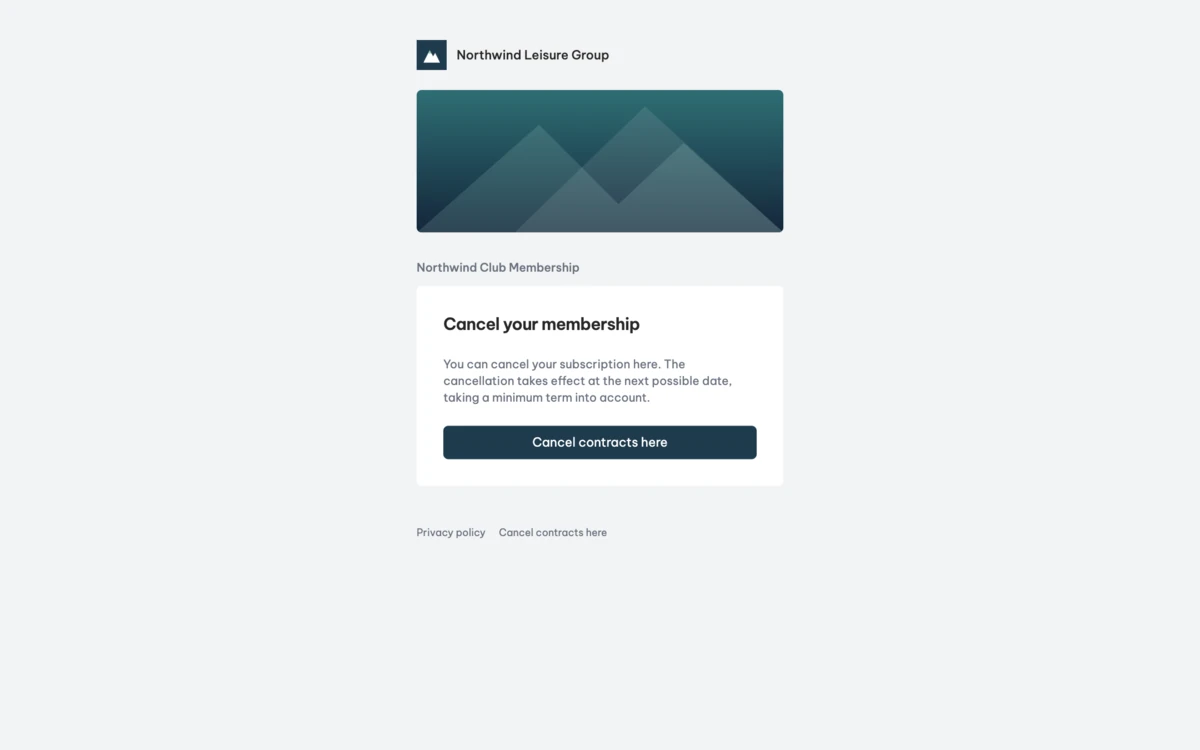
Every subscription form has its own cancellation page. Link it in your emails and on your website. Members enter their email address and membership number. The cancellation takes effect at the end of the current billing period, or at the end of the minimum term if that is later. Members receive a confirmation by email. You can also cancel subscriptions, or revoke a scheduled cancellation, in the sales dashboard.
What happens to the pass
| Subscription | Pass |
|---|---|
| Active | Valid, fields up to date |
| Payment failed | Stays valid during the grace period, then voided |
| Payment received again | Valid again |
| Cancelled | Valid until the end date, which is written to the pass |
| Ended | Voided |
Passcreator pushes every change to the pass in the wallet automatically.
Workflows and webhooks
Webhooks and workflows react to five events. A subscription starts, changes, is cancelled or ends, or a payment fails. Use them to update your CRM, send a welcome email or notify your team.
How to check it worked
Open the order page. Members choose a plan, enter their details and see the price in the order button. With Show pass preview they see their personal pass before they buy. They then pay through Stripe Checkout. After the payment Passcreator creates the pass, ready for Apple Wallet or Google Wallet. The page works on every phone.
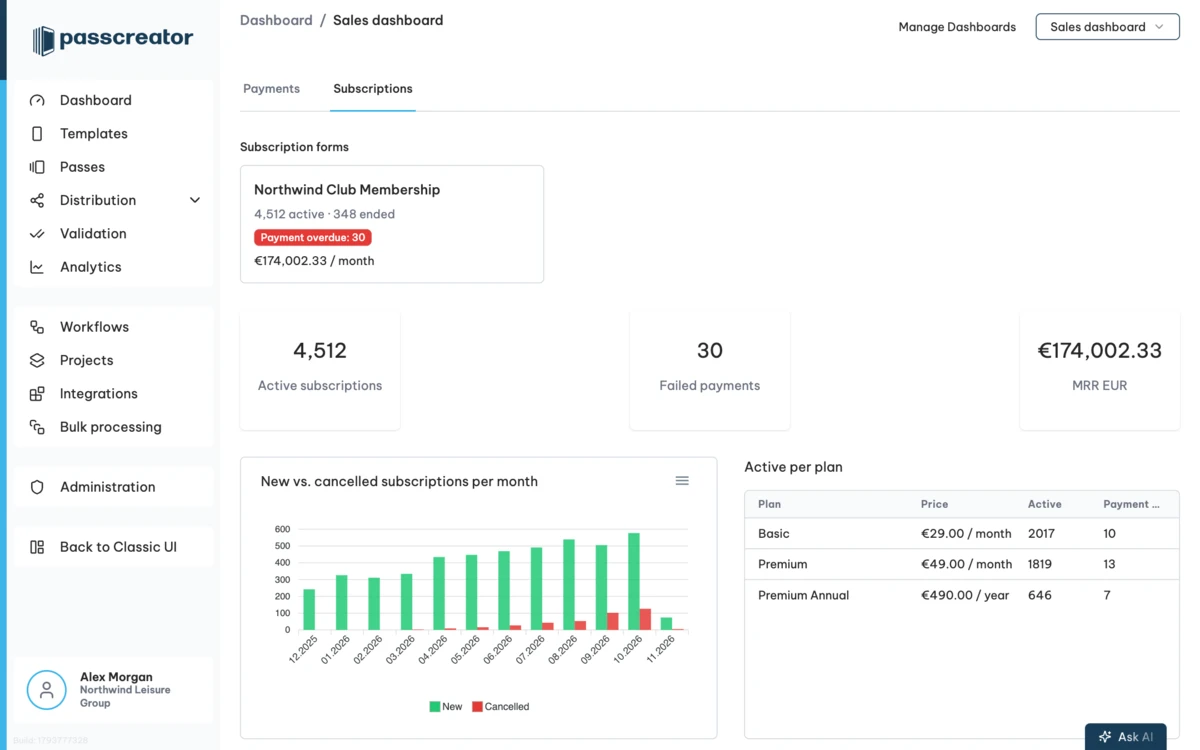
Dashboard › Sales dashboard › Subscriptions shows one tile per subscription form with active and ended subscriptions, overdue payments and monthly recurring revenue (MRR). Below you find new and cancelled subscriptions per month, active subscriptions per plan and the list of all members. Click a tile to filter everything to one form. You can export the member list as CSV.
Things to check
- The Stripe account is missing in the form. Connect it first under
Settings › Connected accounts. - You cannot delete a form. A form with running or ended subscriptions cannot be deleted, so no member contract gets lost while Stripe keeps billing.
- A member wants to switch plans. Switching is not possible yet. The member cancels and signs up for the new plan.
- A pass was voided after a failed payment. The grace period ran out. When the payment comes through again, the pass becomes valid again.
Checked 2026-11-04 · Documentation