
Pass download pages and localization
Steps
What a download page is
When you create a pass, Passcreator generates a unique download URL for it, for example https://app.passcreator.com/p/1234567. You see the link for any pass at any time.
- Go to Passes in the sidebar.
- Find the pass and click the QR icon Show Download Link in its row. A modal shows a QR code and the link to the pass download page.
Passcreator uses the same links everywhere it delivers passes. Sendouts, the emails after pass creation, forms and integrations all point to this download page.
Controlling download behavior
The Distribution tab of a template controls the download behavior of all passes of that template.
- Go to Templates in the sidebar and open your template.
- Open the Distribution tab. A preview of the download page replaces the pass preview on the right. The Edit Download Page button lets you customize its content.
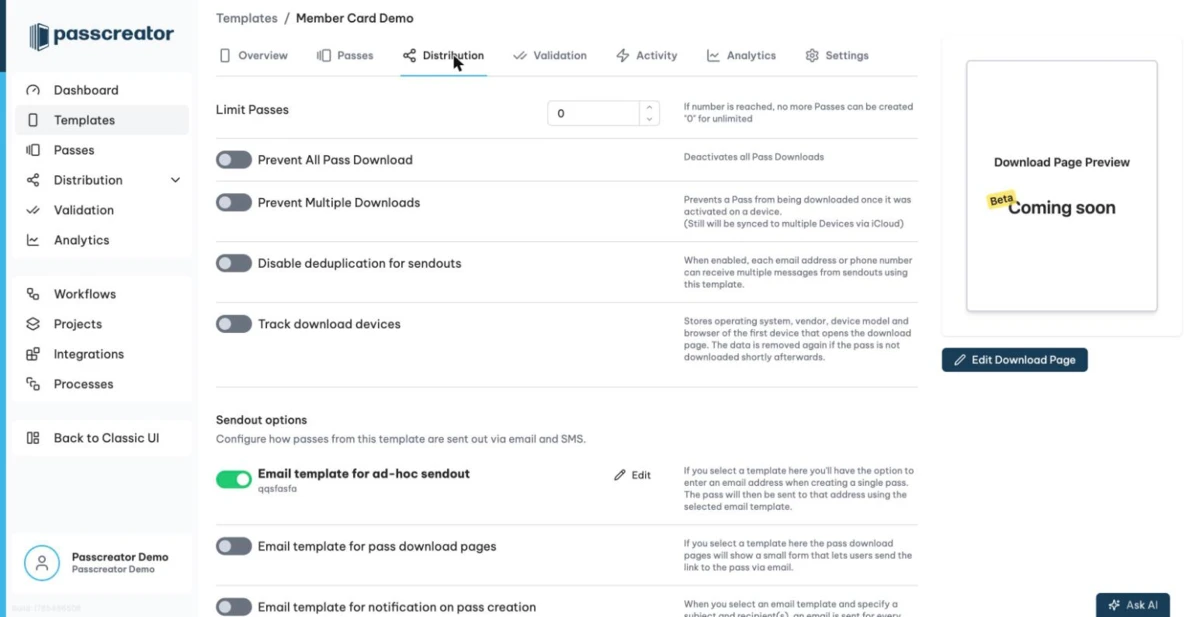
These settings on the tab affect download pages.
- Limit Passes stops pass creation once the template reaches this number. The value
0means unlimited. - Prevent All Pass Download deactivates all pass downloads for this template.
- Prevent Multiple Downloads blocks a second download of a pass once a device has activated it. iCloud still syncs the pass to the other devices of the pass holder.
- Enable extended download security allows only signed links to open the download page. See Signed links and extended download security.
- Track download devices stores operating system, vendor, device model and browser of the first device that opens the download page. Passcreator removes the data again if nobody downloads the pass shortly afterwards.
- Sendout options adds an email form to the download page and controls automatic emails and SMS after pass creation. See Sending single passes.
To change the content of the download page itself, for example your own descriptions and labels, click Edit Download Page. The button is also available as a quick action on the Overview tab of the template.
Localizing download pages
Besides the passes themselves, you can also translate the download pages. Download pages support all languages that iOS supports.
A language parameter in the URL determines the language of a download page. The base URL of your pass, for example https://app.passcreator.com/p/123456, renders the default language of your template. Add a language code to render another language.
https://app.passcreator.com/it/p/123456renders the Italian version.https://app.passcreator.com/nl/p/123456renders the Dutch version.
Provide the translations in two steps.
- Open your template and go to the Settings tab.
- In the Multiple Languages row, click Manage Languages. You can provide localized text for up to 40 languages. The language manager currently opens in the classic UI.
Passcreator uses custom labels on the download page only if you provide your own descriptions when you customize the download page. Only then can you translate them. The features enabled on your template decide which fields the translation offers. For example, the translation asks for the Google Wallet parts of the download page only if you have enabled Google Wallet for the template.
If no translation exists for a requested language, the page falls back to the default language defined in the translations of your template. Passcreator system labels fall back to English. You see these system labels only if you have not customized the download page.
For localizing the pass content itself, see Pass languages and localization.
Next step
Continue withSending single passesChecked 2026-08-20 · Documentation