
Email templates
Managing email templates
- Go to
Distribution › Email templatesin the sidebar. - The page shows your templates as cards with a live preview, the name, the last modified date and an In use marker when something references the template.
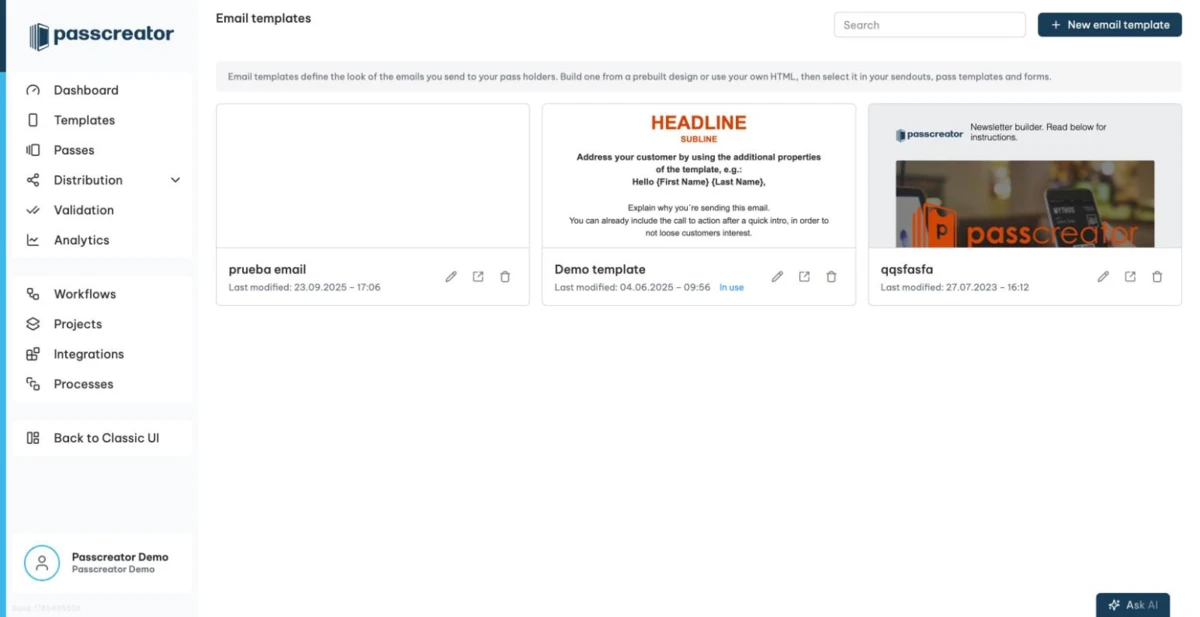
Each card offers three actions.
- Edit template opens the email template editor.
- Edit in classic UI opens the drag and drop editor of the classic UI. Templates built with the new builder do not show this option. You edit them in the new editor.
- Delete template deletes the template. You cannot delete a template that is still in use. The app then tells you to choose another email template wherever this one is in use first.
Use the search field to find a template by name.
Creating an email template
- Click New email template.
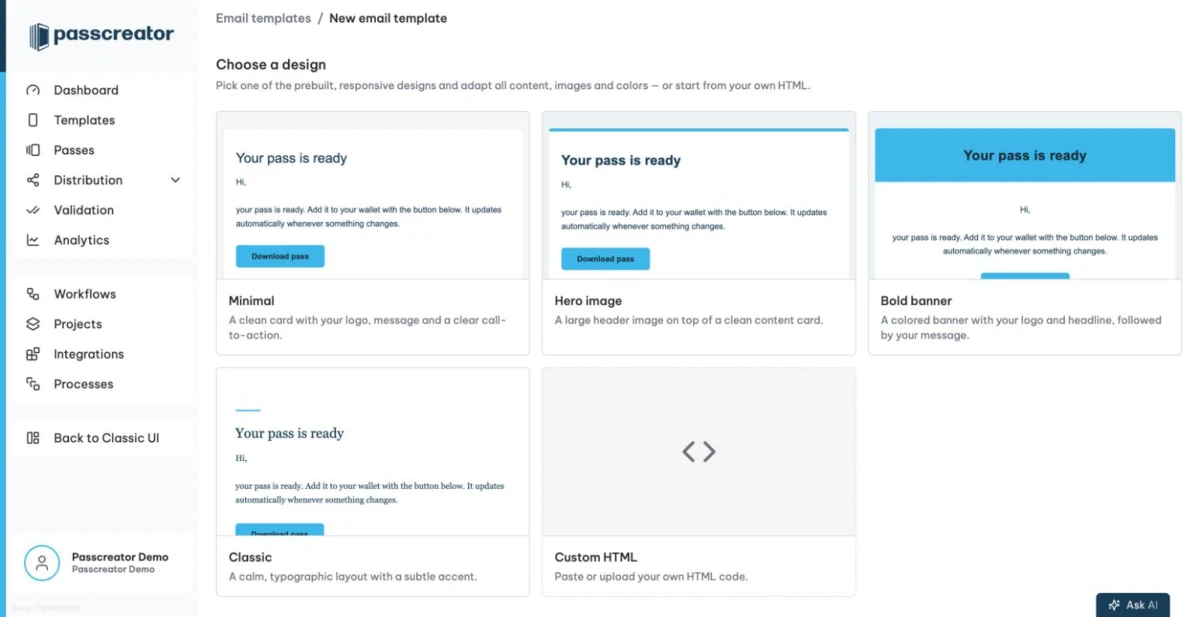
- Choose a design. There are four prebuilt responsive designs. Classic is a calm, typographic layout with a subtle accent, the others are Hero image, Bold banner and Minimal. Or pick Custom HTML to paste or upload your own HTML code.
Builder mode
If you start from a prebuilt design, the editor shows three tabs.
- Branding & colors holds Logo, Header image, Brand color, Background color, Card color, Text color and Corner radius. For the header image you upload a file or use a public image URL.
- Content holds Headline, Text, Button label and Button link, Footer text, and the unsubscribe options Show unsubscribe link and Unsubscribe link text. The unsubscribe link points to the personal unsubscribe page of each recipient.
- CSS takes your custom CSS. The documented classes are
.pc-wrap,.pc-container,.pc-headline,.pc-body-text,.pc-btn,.pc-footer-textand.pc-hero-img. The designs also set many colors and fonts inline for email client compatibility, so use!importantto override them.
The button link uses the {pass_link} placeholder. When Passcreator sends the email, it replaces the placeholder with the personal pass download link of each recipient.
HTML mode
If you choose Custom HTML, you get an HTML code field where you paste your code. You can also upload an .html file, for example a template exported from another newsletter tool.
Placeholders
You can use placeholders from your wallet template in all texts, for example {First name}. Passcreator replaces them with the pass data when it sends the email. So if your pass template has an additional property labeled "First name", write {First name} in the email and each recipient sees their own value. Text fields in the editor offer autocomplete for system and global placeholders.
Previewing
The editor shows a live preview next to your settings. Switch between Desktop preview at 600 px and Mobile preview at 375 px to check how the email looks on different screen sizes. All emails built with the prebuilt designs are responsive.
Where you use email templates
- Sendouts use the email template you select in the Content step of a sendout. See Sendouts by email or SMS.
- Pass templates use an email template for each sendout option on the Distribution tab. These options are the ad hoc sendout, the download page email form and the notification on pass creation. See Sending single passes.
- Forms that email the pass to the customer use an email template.
- Bulk processing jobs with Send Passes after Creation require an email template for the email channel. See Bulk processing.
Next step
Continue withSendouts by email or SMSChecked 2026-08-20 · Documentation