
Updating a single pass
For a personalized field, you change the value of one specific pass, for example to update a customer's name, points balance or membership level. Passcreator pushes the change to every device that has saved the pass. If the field has a change message, the device shows it as a push notification.
Requirements
- You need the pass update privilege to edit passes.
- The field you want to update is personalized. Its value contains the placeholder of an additional property, for example
{Name}. A field without a placeholder shares the same value across all passes. Change it on the template instead and follow Updating all passes of a template. - For a push notification, the field also needs a Change Message in the template editor. Passcreator replaces the placeholder
%@in the change message with the new field value. If the change message is empty, the pass updates silently. See How Wallet push notifications work for details.
Steps
Editing the pass
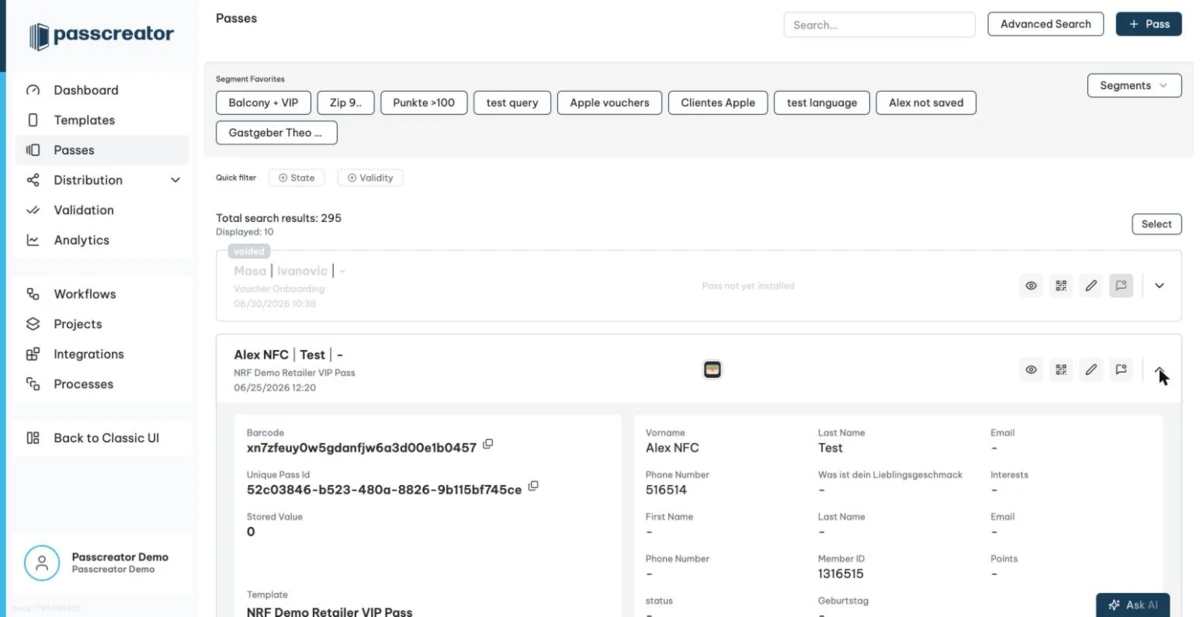
- Go to Passes in the sidebar.
- Search for the pass you want to update. You can also click a row to expand it and check the pass details first.
- Click the pen icon Edit in the pass row.
- The Edit Pass modal opens. Which sections you see depends on the template. You always see the additional properties of the pass. If the template allows values per pass, you also see the barcode value, the expiration, relevant and valid as of dates, colors, validation places and images per pass. Below them follow Stored Value and Identifiers with User Provided ID and Bundle ID.
- Enter the new values and click Save.
Saving triggers a pass update. Every device that has saved the pass receives the new content. Apple Wallet and PassWallet display the change message as a push notification if the value has changed.
For example, with the change message Name changed to: %@ and the new value Demo, the pass holder sees the notification Name changed to: Demo.
You can also mark the pass as voided in the same modal with the Mark Pass as invalid checkbox.
How to check it worked
- Expand the pass row and click Activity to open the pass history. It logs events such as
Pass update has been triggered,Update has been sentandUpdate has been delivered to user, including the related push notification text and the user who triggered the change.
Next step
Continue withHow Wallet push notifications workChecked 2026-08-20 · Documentation