
Segments as saved searches for targeting
Requirements
- The Advanced Search panel is always available on the pass list. Using segments for targeting, for example as sendout recipients, is an optional feature. Contact Passcreator if you don't see this option.
Steps
Segments are dynamic. A segment stores the search criteria, not a fixed list. When you create a new pass that matches the criteria, it automatically becomes part of the results of the segment.
Building an advanced search
- Go to Passes in the sidebar.
- Click Advanced Search to open the side panel. It contains the search phrase field and the same quick filters as the list. The state filter offers Active, Inactive and Not registered. The validity filter offers Valid, Voided, Expired, Voided or Expired, and Not yet valid.
- Select a Project/Template. You must pick one before you can add condition groups, and you cannot change it once groups exist.
- Click Add Group and then Add Property to add conditions. Passcreator combines conditions inside a group with AND and multiple groups with OR.
- For each condition, pick a property, an operator and one or more values. Properties are the pass state and the additional or system properties of the selected template or project. The available operators depend on the field type. Text fields offer is empty and is not empty. Select and checkbox fields offer One of the following options selected, All of the following options selected and None of the following options selected.
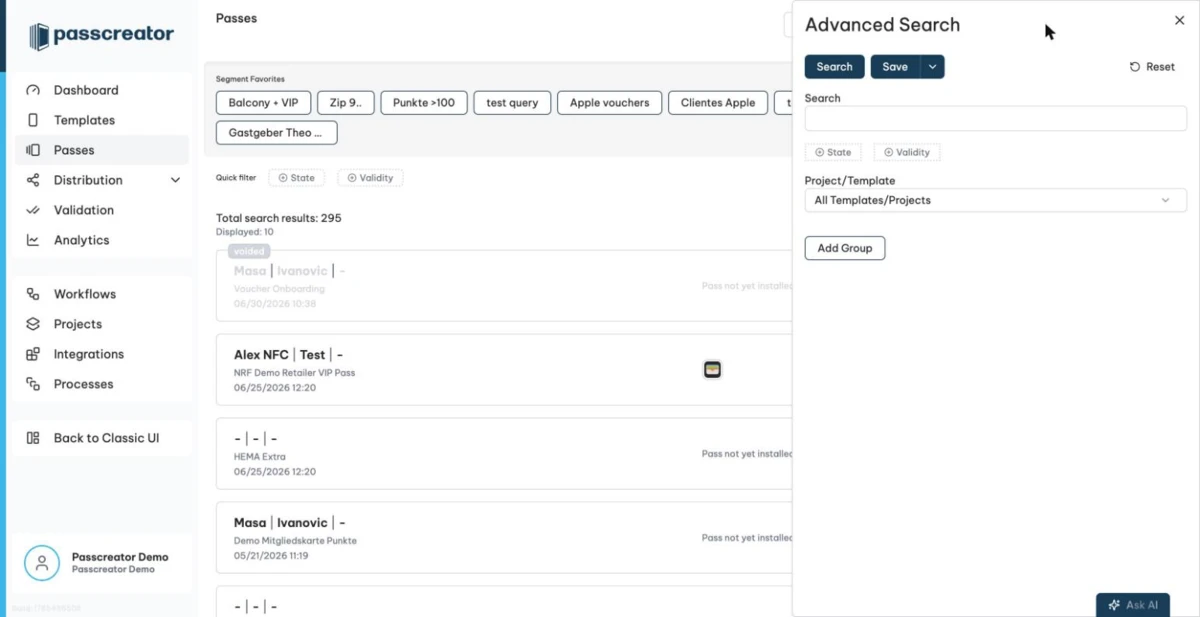
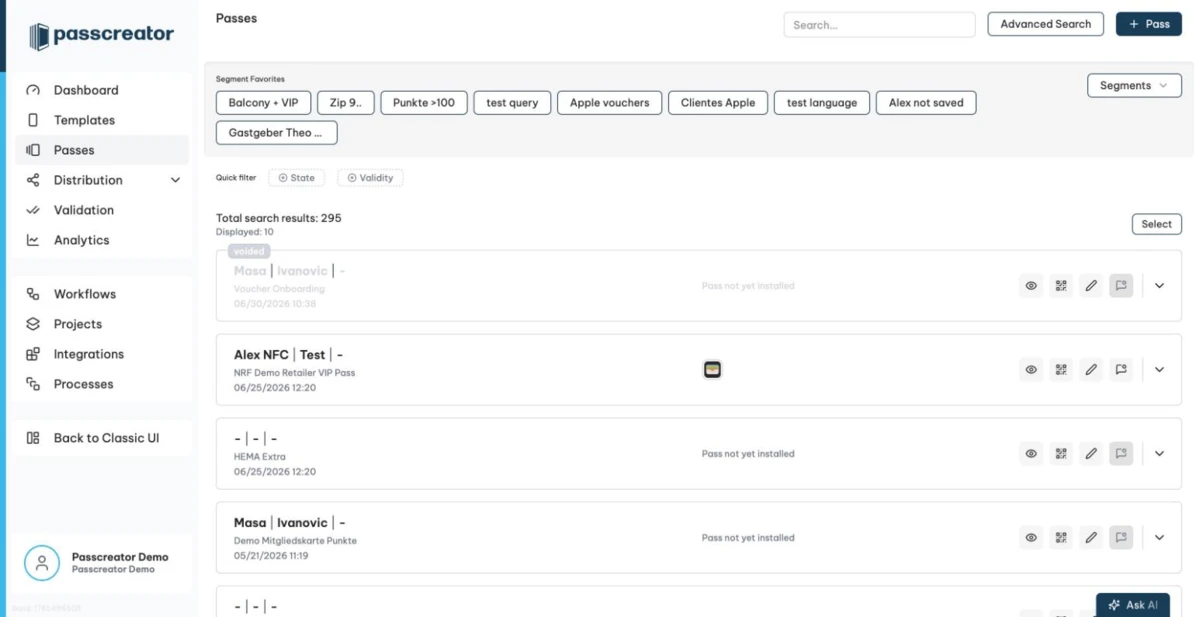
The result list updates and shows only matching passes, with a counter for the total search results. The page URL encodes the whole search state, so you can bookmark or share a search by copying the address. The Advanced Search button carries an (active) note while advanced criteria apply. Reset clears everything.
Saving a segment
Once your search returns the passes you want, click Save in the Advanced Search panel and give the segment a name. Save as... creates a copy instead. You can Rename or Delete Segment later. A code icon opens a query preview of the underlying search as JSON.
- Sharing. Use the Share toggle to make a segment visible to your teammates. Shared segments from others are read only. Use Copy Segment to create your own editable copy. The panel shows the owner as
Shared by:. The segments dropdown groups My Segments and Shared Segments. - Favorites. Star a segment with Add to Favorites to pin it as a button above the pass list under Segment Favorites. One click applies it.
Using segments for targeting
- Push notifications. When you send a push message from a template, select one or more segments as the Recipient instead of all passes. See Sending a message as push notification.
- Sendouts. In the Recipients step of the sendout wizard, pick a segment under
Segment (optional)to narrow who receives the email or SMS. See Sendouts for emailing or texting passes.
Because segments are dynamic, Passcreator evaluates the recipient list at the moment it sends the message.
Next step
Continue withSending a message as push notificationChecked 2026-08-20 · Documentation