
What are workflows
What the Workflow Engine can do
The Workflow Engine is an automation tool without code that sits directly in Passcreator. It connects your account with more than 1000 external apps. Among them are CRMs like HubSpot or Salesforce, marketing tools like Mailchimp, shops like Shopify, Microsoft 365, spreadsheets and many more.
The Workflow Engine has six key capabilities.
- Setup without code lets you build automations in a visual builder.
- Event based triggers react instantly to events like pass creation, updates, scans or wallet activity, as well as to schedules, webhooks or manual starts.
- A rich action library performs tasks in Passcreator, such as creating, updating and voiding passes or sending push notifications, or in external systems.
- Data mapping matches fields and variables across systems.
- Built in tools cover delays, routers, data transformation, AI tools and more. See Built in workflow tools.
- Error handling monitors workflow health and alerts you about failed automations.
Common use cases include the following.
- Generate event passes from a form submission.
- Send a Slack or email notification when Passcreator issues a VIP pass.
- Update the loyalty pass of a customer when their status changes in your CRM.
- Disable passes when a subscription expires.
- Send a push notification a few hours after a customer downloaded a pass.
How workflows work
Each workflow consists of two main parts.
- The trigger is an event that starts the workflow, for example a new pass, a pass saved in a wallet, a new contact in your CRM or a submitted form.
- Actions are one or more steps that run automatically when the trigger fires. Examples are creating or updating a pass, sending data to an external system or sending a notification.
Once activated, a workflow continuously listens for its trigger and executes the linked actions whenever the event happens. See Building a workflow for the details.
Example. You're organizing a concert and want to automate ticket distribution. Every time a new attendee registers in your CRM, the trigger "new contact added in CRM" fires. Passcreator creates a pass with the details of the contact and sends a confirmation email with the download link. Every registrant gets their pass instantly, without manual steps.
Accessing the Workflow Engine
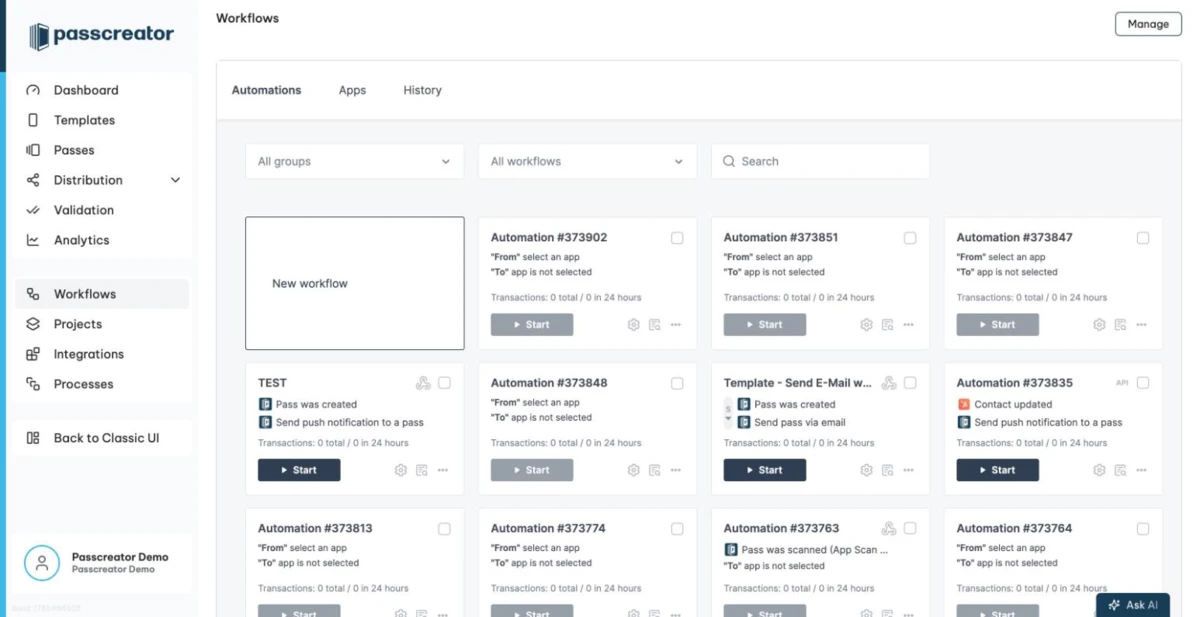
Go to Workflows in the sidebar. The workflow builder opens embedded in the page. If it doesn't load, use the Open in new window link. Your Passcreator account is already connected to the Workflow Engine, so you set up nothing else and configure no API. Inside the builder you'll find your automations, your connected apps and the execution history.
Trial, activation and billing
If the Workflow Engine isn't active on your account yet, the Workflows page shows an intro with the two buttons Add Extension and Start Trial. The trial is free and runs for a limited time. The page shows the remaining days and the end date.
Passcreator bills usage in transactions per month. The page shows your current usage under Current Usage (This Month) as used and included transactions. When you reach 100% of your transaction limit, Passcreator prompts you to upgrade before your workflows consume more transactions. Subscribed Customer administrators adjust the subscription via the Manage button, which leads to Subscription › Additional Services.
If you cancel the service, it remains active until the end of the current billing period. You cancel a scheduled downgrade before it takes effect with Cancel scheduled downgrade.
Next step
Continue withBuilding a workflow with triggers, conditions and actionsChecked 2026-08-20 · Documentation