
REST API and API keys
With the Passcreator REST API your own software creates, updates, searches and deletes passes and manages templates. API keys authenticate your system when it sends automated requests to the Passcreator interfaces. You create and manage them in the settings.
Requirements
- You need the API key management privilege to see the API Keys tab.
Steps
The REST API
The full API reference with all endpoints, request formats and code examples lives in the developer documentation. The API is fully supported and has run in production for years.
Other articles in this documentation refer to two entry points.
POST /api/v3/passinstance/searchsearches passes with a query. You build these queries visually with the Query helper, which outputs them as JSON or Base64.GET /api/v3/webhook-payloadretrieves stored webhook payloads when you use webhooks in pull mode. See Webhooks.
Creating an API key
- Open the profile menu at the bottom of the sidebar and go to Settings.
- Select the API Keys tab.
- Click API Key. The Create new key modal opens.
- Enter a Name that tells you later which system uses this key, for example
Webshop production. - Confirm. Passcreator shows your new API key once in a green panel with a copy button.
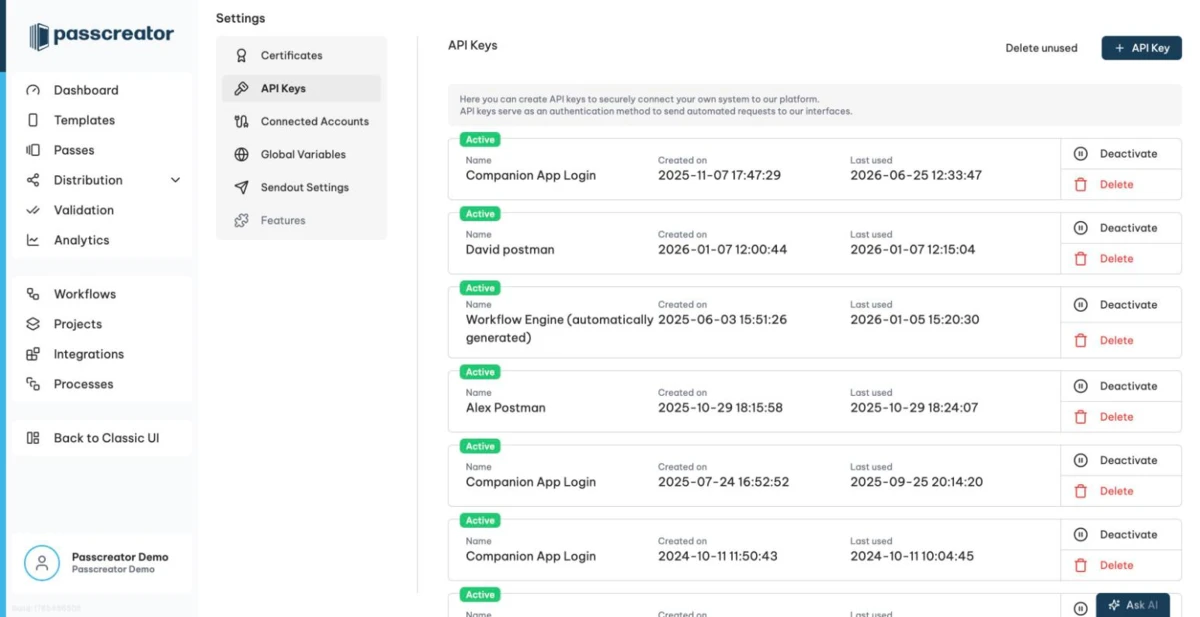
Managing existing keys
The key list shows each key with an Active or Inactive badge, its Name, the Created on date and the Last used timestamp. A key that nobody has used yet shows Never.
- Deactivate and Activate disable a key for a while without deleting it. Passcreator rejects requests with a deactivated key until you activate it again.
- Delete removes a key permanently. Passcreator asks "Do you really want to delete this API Key?" before it removes the key.
- Delete unused deletes all keys that nobody has ever used in one step. You cannot undo this, so check first that no future API call needs one of them.
Security recommendations
- Treat API keys like passwords. Store them in a secrets manager, never in client side code or public repositories.
- Rotate keys regularly. Create a new key, switch your system over, then delete the old one.
- Deactivate a key immediately if you suspect that it has leaked.
Next step
Continue withIntegration options overviewChecked 2026-08-20 · Documentation