
Custom numbers and user provided IDs
Steps
Passcreator stores the user provided ID alongside the IDs it generates itself. Update and delete jobs in bulk processing use it to match passes, and you can show it on the pass with the {userProvidedId} placeholder.
Choosing the ID source
- Open your template and go to the Settings tab.
- Find the User Provided Ids row and pick a Source.
- None. Passes get no automatic user provided ID. You can still set one by hand or via the API.
- Uploaded IDs. Passcreator assigns the next available ID from a list you upload, for example voucher codes you generated in advance.
- Pattern. Passcreator builds the ID from a pattern you define.
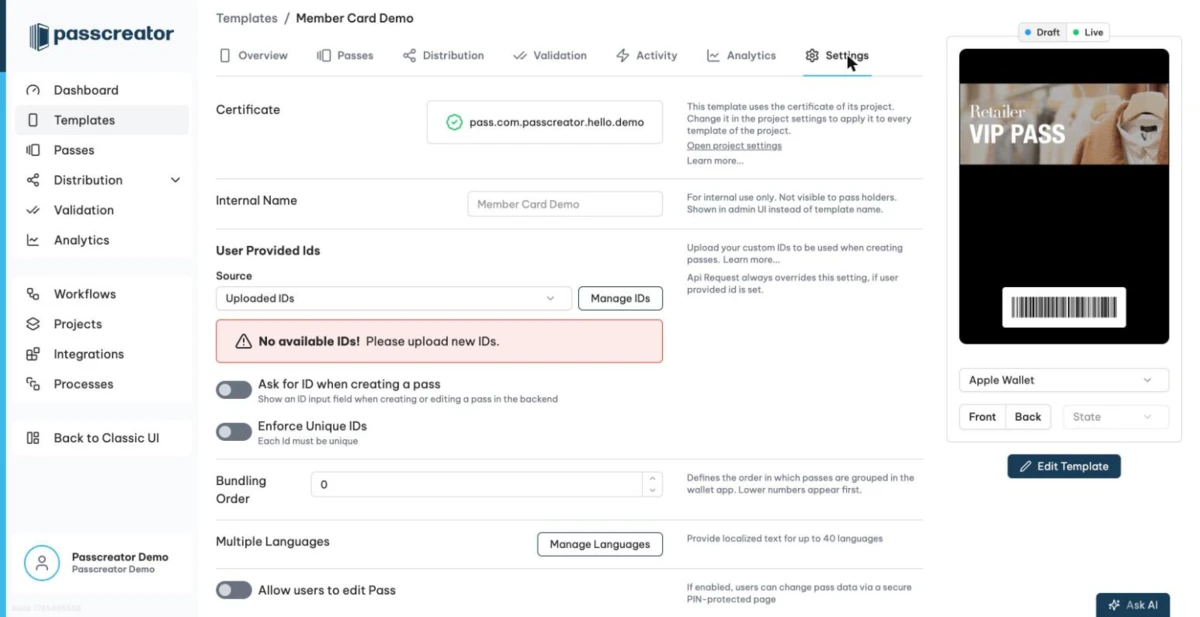
Two toggles refine the behavior.
- Ask for ID when creating a pass shows an ID input field when you create or edit a pass in the backend. You can enter or override the ID by hand.
- Enforce Unique IDs requires each ID to be unique. Creating a pass with an ID that is already in use fails with the message
This user provided ID is already in use.
Uploading your own IDs such as voucher codes
With the source set to Uploaded IDs, click Manage IDs to open the Manage IDs page. You can open this page at any time, also to prepare IDs before you activate the source.
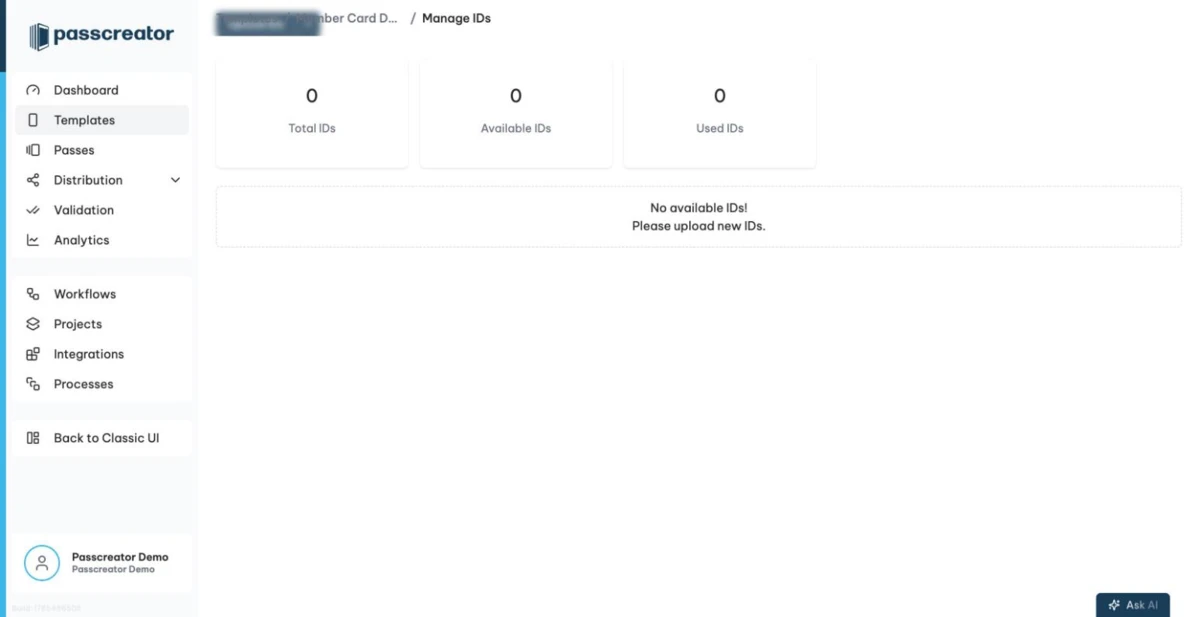
- Click Upload IDs.
- Select a CSV or text file with one ID per line and no header row.
- Upload the file. The page tells you how many IDs it imported.
A few things to know.
- Passcreator deduplicates IDs automatically. It ignores an ID that you already uploaded for this template and reports
{inserted} IDs imported successfully, {failed} failed. - Very large files have a cap. The page tells you if it imported only the first batch.
- The stats tiles show Total IDs, Available IDs and Used IDs, and a table lists the next available IDs.
- The Upload IDs split button also offers Export All Used IDs,
Export Used IDs (last 4 Weeks)including the date on which each ID went into use, and Delete Unused IDs. Deleting is irreversible. - If available IDs run low, Passcreator sends you daily reminder emails to upload more. The reminders stop when you upload new IDs or switch the source away from Uploaded IDs.
- When the pool is empty, the template settings show the red warning
No available IDs! Please upload new IDs.Passes cannot draw new IDs until you upload more.
If you upload IDs while a different source is active, the page reminds you with the message These IDs aren't currently in use but can still be managed. To activate them, select 'Uploaded IDs' as Source for User Provided ID in Template Settings.
Building IDs from a pattern
With the source set to Pattern, enter a Custom Id Pattern. The pattern combines fixed text with placeholders of your additional properties, for example like this.
prefix_{firstname}-{customerId}Every new pass gets its user provided ID from the pattern, filled with its own field values.
Checked 2026-08-20 · Documentation