
Create passes via URL parameters
A "URL that reads parameters" integration gives you a link that creates a pass on the fly. The pass data travels as URL parameters. Whoever opens the link lands straight on the download page of their freshly created, personalized pass.
Requirements
- You have the
integrations.createprivilege.
Steps
Create the integration
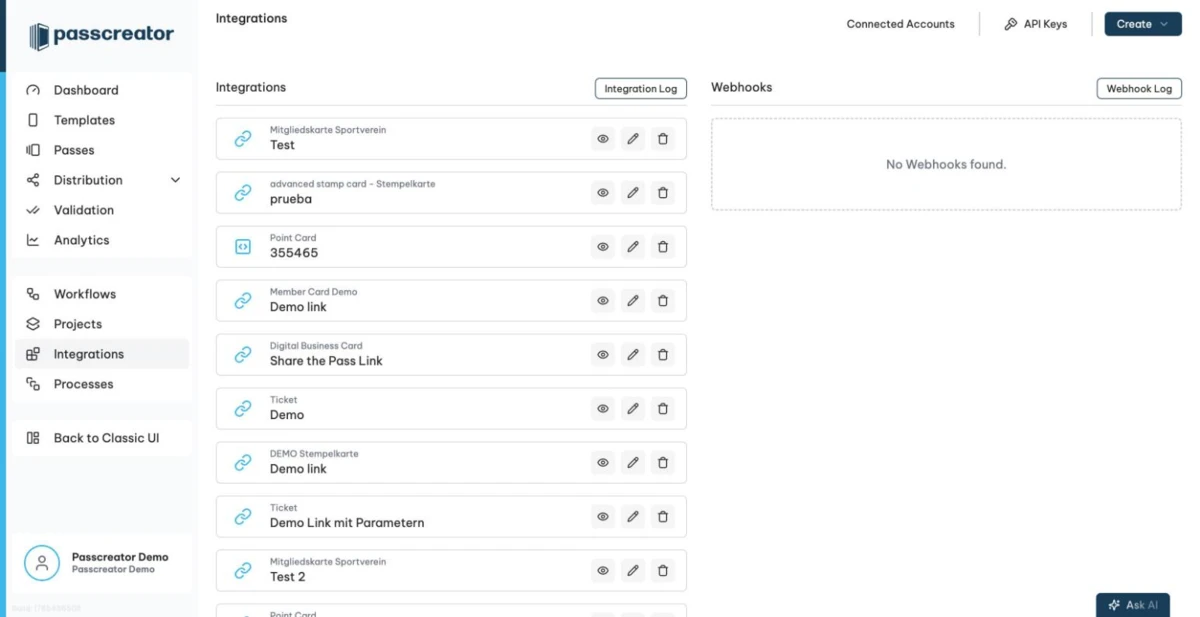
- Go to Integrations in the sidebar.
- Click Create and choose Integration. As a shortcut,
+ Pass › Integrationon the Passes page opens the same wizard with this type preselected.
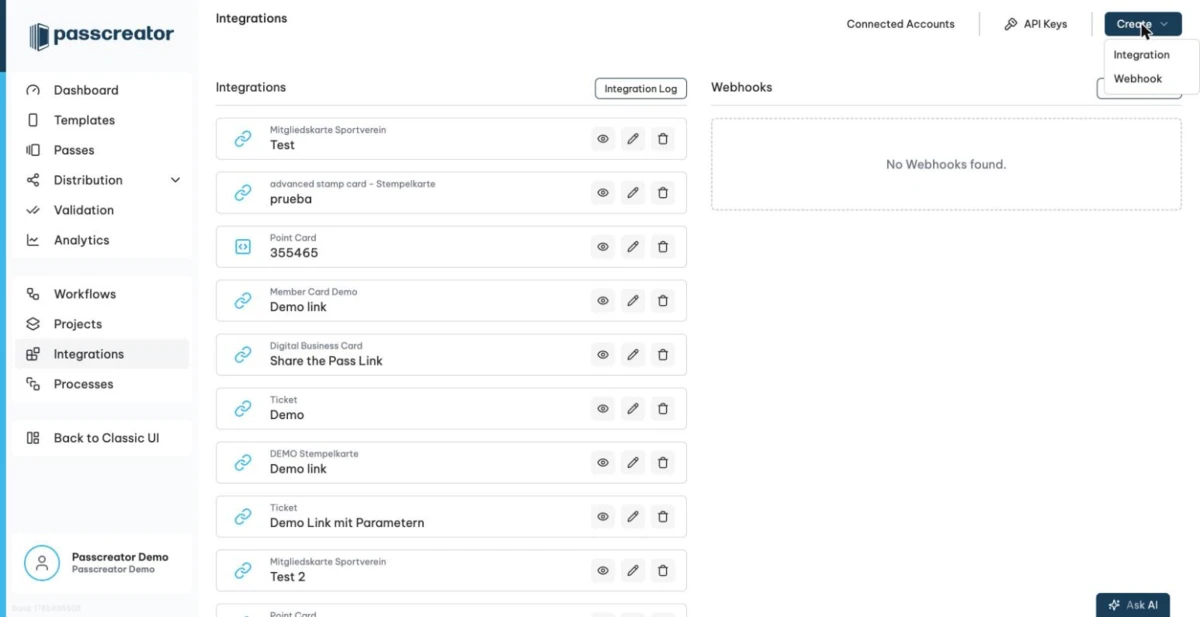
- In the wizard, choose the type URL that reads parameters. The wizard describes it as "Allows you to create a pass by clicking on a link. Directly redirects to the Pass Download Page."
- Give the integration a name and, if you like, a description. Then select the pass template to use.
- Configure the settings.
- Enable Deduplication. If you pass your own barcode values, Passcreator checks whether a pass with that barcode value already exists. If so, the link redirects to the existing pass instead of creating a duplicate.
- Forwarding URL. This setting is optional. If you set it, the link redirects to this URL instead of creating a pass. With Append all request parameters to the forwarding URL, the link passes the parameters along. Use this to pause pass creation temporarily or to hand the data to another system.
- Save the integration.
Build and use the link
The integration link points to the unique URL of your integration and carries the pass data as GET parameters. The following example is for demonstration only.
https://app.passcreator.com/integration/createpass/8edf0c27-e2ae-44da-a453-c6a26b581f51?barcodeValue=123456&First_name=John
These rules apply to the parameters.
- Passcreator matches parameters against the additional property names of the template. The match is case sensitive, and spaces and dots become underscores.
First namebecomesFirst_name. - The reserved parameter names
barcodeValue,userProvidedId,expirationDate,urlToThumbnail,urlToLogoandurlToBackgroundare available when the template uses the corresponding feature, for example "barcode value differs per pass". The expiration date uses the formatYYYY-MM-DD HH:MMwith a 24 hour clock. - The integration link cannot fill checkbox properties.
- All values need URL encoding. A space becomes
%20, for example. - You can prefix the URL with a language code to control the language of the download page.
Your systems, such as a newsletter tool, a CRM or a shop, then replace the values per recipient before sending the link out.
Next step
Continue withIntegration link generatorChecked 2026-08-20 · Documentation