
Embedding pass downloads with an iFrame
Requirements
- You have the
integrations.createprivilege.
Steps
Create the iFrame integration
- Go to Integrations in the sidebar.
- Click Create and choose Integration.
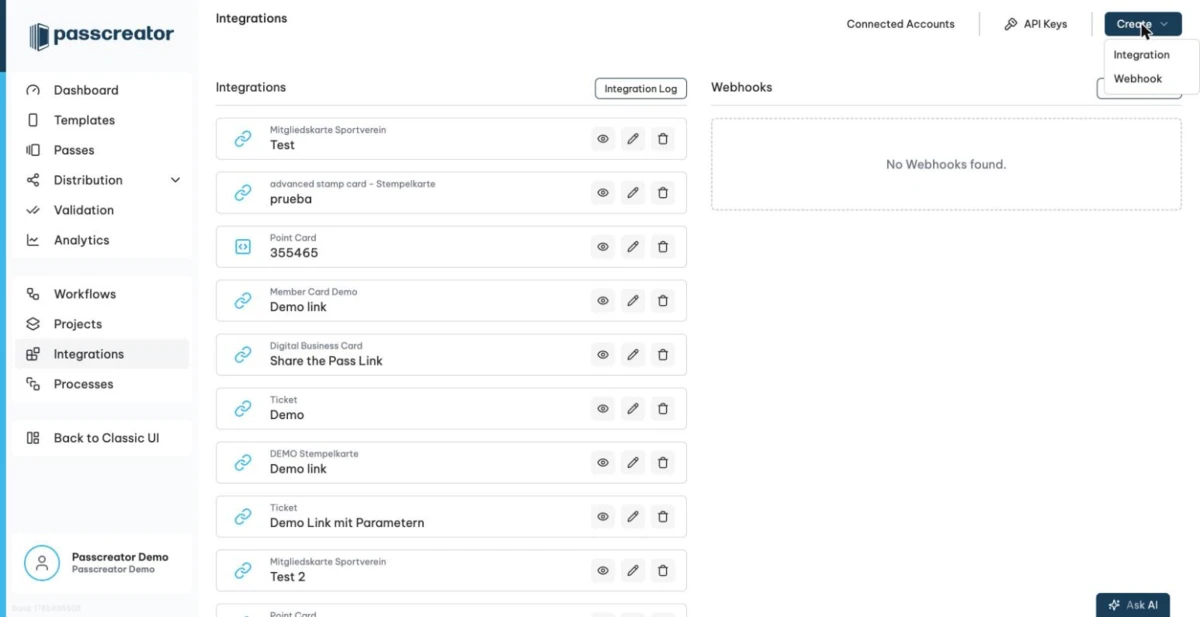
- Choose the type iFrame to include pass download. The wizard describes it as "Create an iFrame enabling customers to download a pass directly from your website."
- Enter a name and, if you like, a description. Then select the template whose passes get download buttons.
- Configure
Frame Ancestors (CSP). This is the list of origins that you allow to embed the script. The setting is optional, and we strongly recommend it. Without it, anyone can copy the script from the source code of your page and embed it elsewhere. Passcreator enforces the list with Content Security Policy headers,frame-ancestors, and additional checks.
Specify one origin per line. Three valid examples show the rules.
https://*.example.comallows all subdomains of example.com.http://www.example.comallows exactlyhttp://www.example.comand nothttp://example.com.http://example.comallows exactlyhttp://example.comand nothttp://www.example.com.
To allow both http://example.com and http://www.example.com, list both lines.
- Save the integration.
Embed the script on your page
Open the integration in the list. Its description modal shows the embed script to copy into your page, along with an explanation of the parameters. You adjust two values per pass.
- passId is the unique identifier of the pass that gets a download button. You get pass IDs by exporting the pass list from the Passes tab of your template via
Actions › Download CSV, or via the API. See get all passes of a template. - language controls the language of the download button. Passcreator currently supports the values
enandde.
For iPhone users you can also set automaticDownload=1 to start the pass download automatically.
What you use this for
Use the iFrame anywhere you already know which pass a visitor gets and want to offer the download without redirecting them to the Passcreator download page. A common pattern looks like this. Your shop creates the pass via the API during checkout and then renders the download button right on the order confirmation page.
Next step
Continue withCreate passes via URL parametersChecked 2026-08-20 · Documentation