
Backend white labeling and theming
Requirements
- The Theme tab is only visible to Customer administrators. Previewing a theme is free for everyone, but saving a theme requires the White Label Backend additional service. You request it under
Subscription › Additional Services. Contact Passcreator if you don't see this option.
Steps
Opening the theme editor
- Click your name at the bottom of the sidebar and choose Account.
- Open the Theme tab.
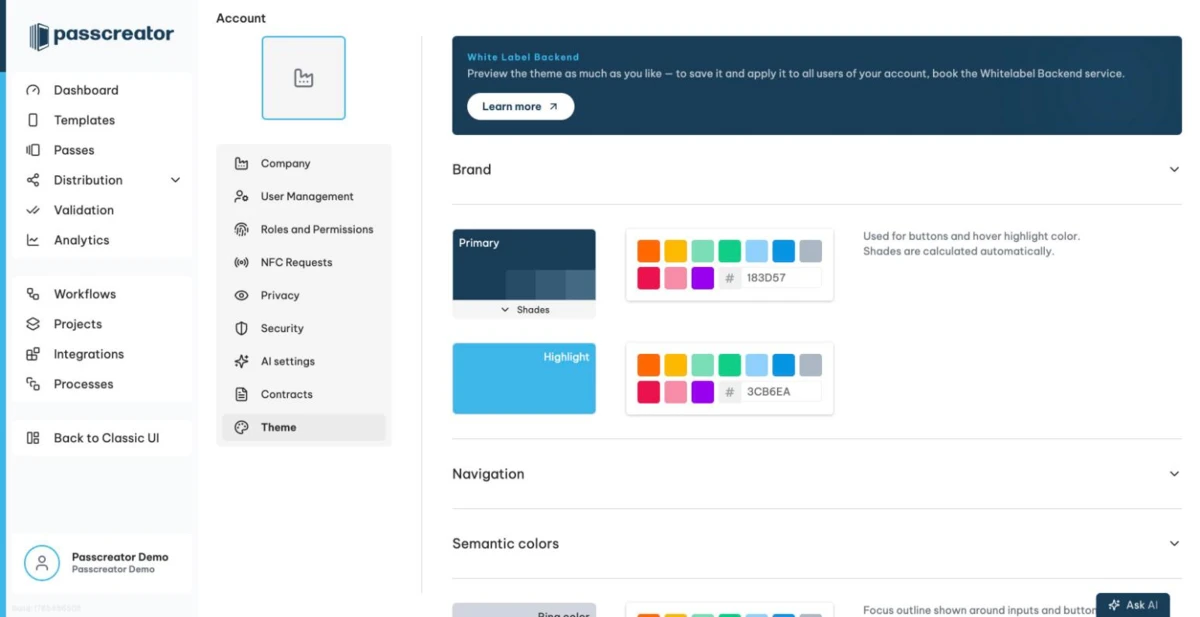
The editor shows your changes as a live preview while you edit. An Unsaved changes badge appears with a Revert changes option until you save.
Brand settings
The Brand section covers your identity.
- Brand name appears in the browser tab title. Leave it empty to use Passcreator.
- Support URL links to your own help center or contact page. Your users see it in the profile menu.
- Imprint URL links to your legal notice.
- Logo appears in the navigation sidebar.
- Favicon is the icon in the browser tab.
When your account is white labeled, Passcreator hides its own elements such as the documentation link and the guided tour. Your brand name replaces "Passcreator" in interface texts.
Custom fonts
With the White Label Backend service you upload your own fonts. Passcreator accepts woff2, woff, ttf and otf files with up to 2 MB per file. Set the Font family name, Weight and Style per file, the style is Normal or Italic. Then click Use as app font to apply it, or Reset to default font to go back. Passcreator saves font uploads immediately.
Colors and shape
The color sections let you match your corporate identity.
- Primary is your main brand color. Passcreator calculates three shades from it, which you can override by hand. Shade 3 serves for hover effects.
- Highlight is the accent color.
- Navigation sets the sidebar background, the text and the decorative side elements Side decoration top and bottom.
- Layout sets the page background, text and muted text colors.
- Semantic colors are Success, Error, Warning and Info.
- Ring color is the focus ring around active elements.
Under radii you adjust the Container Radius and Elements Radius to make the interface rounder or squarer.
Saving and resetting
Click Save theme to apply the theme to all users of your account. You see the confirmation "Theme saved. It now applies to all users of your account." Reset to Passcreator removes your saved theme and restores the default design for all users. Passcreator asks you to confirm.
Using your own backend domain
Backend white labeling usually goes together with a vanity URL, so your users reach the backend under your own domain, for example my.example.com. See White labeling with vanity URLs and your own domain. If you use the Workflow Engine, you also need a CNAME entry for workflows. Here is an example.
workflows.my.example.com. CNAME workflows.passcreator.com.
Passcreator support helps you with the exact DNS setup.
Next step
Continue withWhite labeling with vanity URLs and your own domainChecked 2026-08-20 · Documentation