
Subscription and billing
To open it, click your name at the bottom of the sidebar and choose Subscription. The page has three tabs, Overview, Invoices and Additional Services.
Your plan and usage
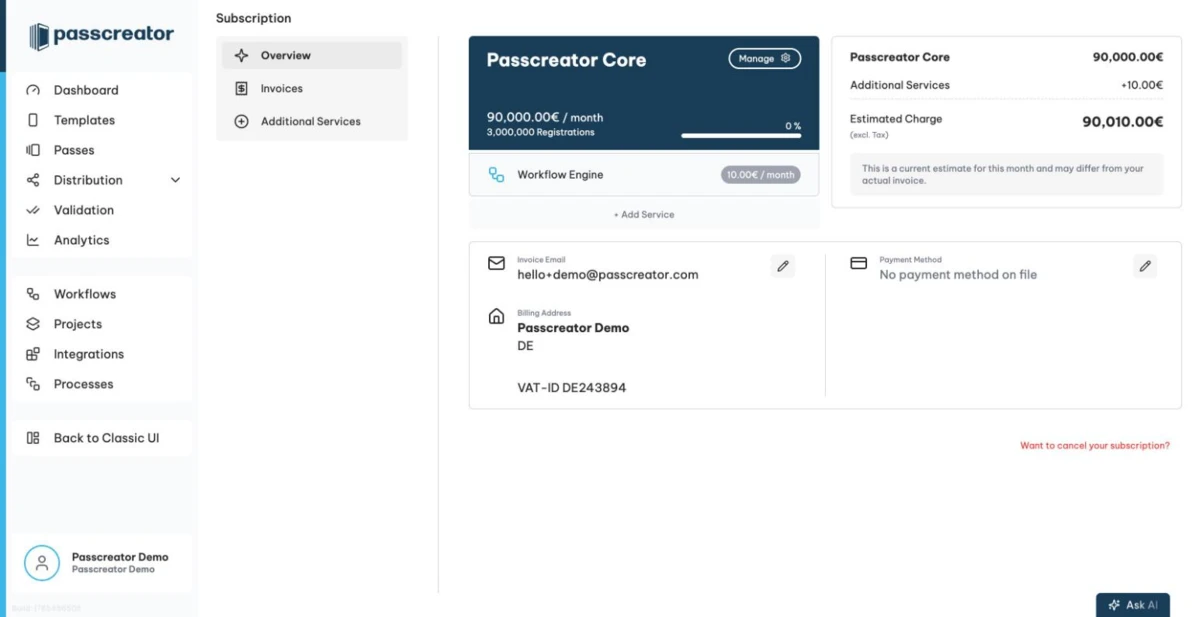
The Overview tab shows your Passcreator Core plan card. It contains your current price, the included volume of active registrations, and a usage progress bar with a peak indicator. Hover the bar to see the current number of active registrations and this month's peak.
What counts against your volume
A pass counts as soon as a user saves it on their smartphone and can receive push notifications. It stays active until the user deletes it from the phone or deactivates push notifications, or until you remove the pass from Passcreator completely. A voided or expired pass still counts, because you can still send push notifications and reactivate it.
- Apple Wallet. Each device registers separately. A pass synced via iCloud to an iPhone and an Apple Watch counts as two active registrations.
- Google Wallet. One active registration per user, even if the user has several devices.
See What is an active pass? for the full explanation, including how an active pass differs from an active registration.
Changing your plan
Click Manage on the plan card to pick a different volume tier. Upgrades take effect immediately. Downgrades take effect at the start of your next billing cycle. A scheduled change appears as a banner until it becomes active.
If you reach the limit of your current subscription, Passcreator disables pass downloads and shows a Limit reached banner. Click Upgrade to enable them again.
Billing information
Further down the Overview tab you manage three things.
- Invoice Email holds the main invoice recipient plus CC addresses.
- Billing Address holds name, street, ZIP and city, state, country,
VAT-IDand Billing Reference. Edit it via Edit billing address. - Payment Method is credit card, SEPA or invoice. Update it via Update payment method. The page warns you when your credit card is expiring or has expired.
An Estimated Charge table summarizes this month's expected costs without tax. It lists the plan, discount, additional services and sendout costs split into SMS and email. It is an estimate, because Passcreator updates usage data daily and the amount can differ from your actual invoice.
Invoices
The Invoices tab lists all invoices with date, invoice number, amount and status. The status is Paid, Open, Canceled or the number of days overdue. Click the download icon to get the invoice as a PDF.
Additional services
The Additional Services tab shows your Active Services and the Available Services you can book. These include the Passcreator Retail Suite, Workflow Engine, White Label Backend, White Label Domain for a vanity URL, White Label Mail for your own sender address, Sendout and Surveys.
Most services work on request. Click Request, and the Passcreator team gets in touch to set the service up. You activate the Workflow Engine directly in the app, including a free trial via Start trial.
Cancelling your subscription
At the bottom of the Overview tab, Want to cancel your subscription? opens the cancellation modal. It tells you the exact contract end date.
Checked 2026-08-20 · Documentation