
Integration options overview
The Integrations page
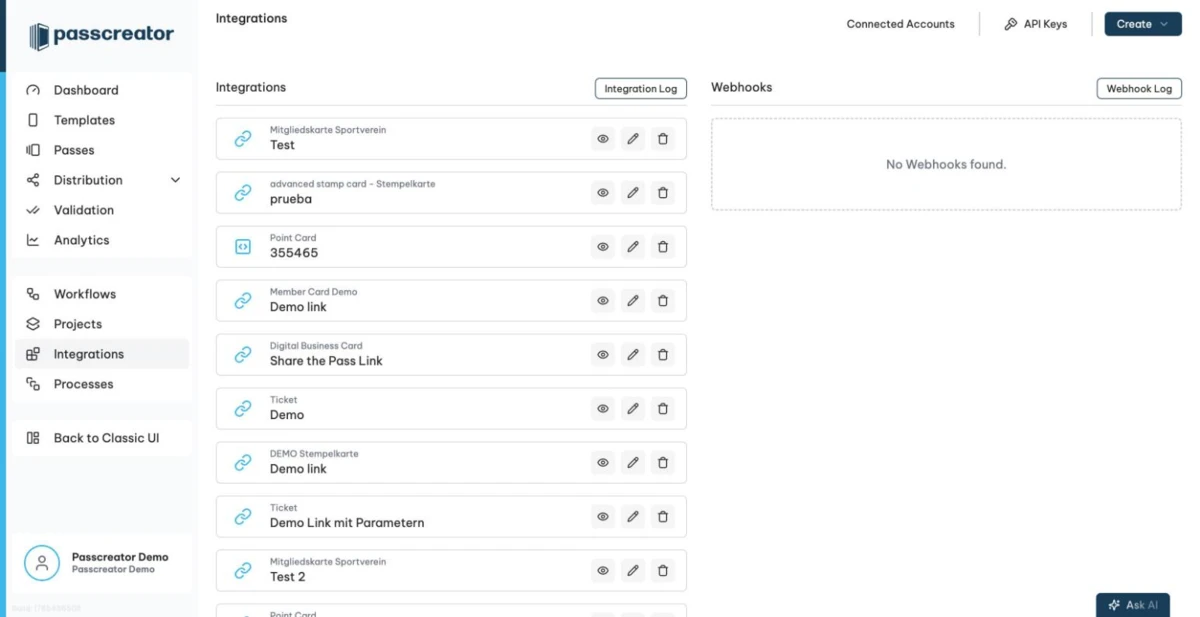
Go to Integrations in the sidebar. The page shows two lists, Integrations and Webhooks, plus shortcuts to Connected Accounts and API Keys in the header. Use the Create dropdown to add a new Integration or Webhook.
When you create an integration, a wizard walks you through four steps. They are Integration Type, Integration Name with an optional Description, Template and Settings.
Native integration types
The Integrations page offers the following integration types.
| Type | What it does |
|---|---|
| URL that reads parameters | Creates a pass when someone clicks a link that carries pass data as URL parameters, then redirects to the pass download page. Supports deduplication and an optional forwarding URL. See Create passes via URL parameters. |
| FTP Job | Processes CSV files from your FTP server to create or update passes. Passcreator checks the server every hour. See FTP import integrations. |
| iFrame to include pass download | Lets you embed the pass download area directly on your own website via a script. The script renders an iFrame and handles iOS, Android and desktop devices. See Embedding pass downloads with an iFrame. |
| Google Analytics | Tracks pass downloads and interactions with your own Google Analytics account. See Google Analytics integration. |
| NFC Pass Distribution URL | Distributes passes via NFC tags and supports personalization with Apple VAS. See Apple VAS. |
| Job to upload CSV with pass data to FTP | Exports pass data as CSV to your FTP server on a schedule. See Exporting pass data to an FTP server. |
Webhooks
Webhooks notify your systems in real time when something happens in Passcreator. They fire, for example, when someone creates a pass, saves it on a device or scans it. Passcreator pushes the payloads to your own endpoint, or your system pulls them via the API. See Webhooks for the full list of events and setup steps.
REST API
For fully custom integrations, use the Passcreator REST API. It has run in production for years and covers passes, templates, searches and more. You authenticate with API keys that you create under Settings › API Keys. See REST API and API keys and the developer documentation.
Workflow Engine
The Workflow Engine lives under Workflows in the sidebar. It automates without code and connects Passcreator with more than 1000 external apps, among them HubSpot, Salesforce, Mailchimp, Microsoft 365 and Shopify. It reacts to events in Passcreator or in external systems and runs automations with several steps. See What are workflows.
Passcreator is also available as an app on Zapier, if you prefer to build your automations there.
Which option fits which task
- To create passes from links in emails or on your website, use URL that reads parameters or the iFrame integration.
- If you regularly receive CSV files with pass data, use an FTP Job.
- If your system needs to know when something happens to a pass, use Webhooks.
- To connect a CRM, shop or other SaaS tool without writing code, use the Workflow Engine.
- If you build your own software integration, use the REST API.
Next step
Continue withWebhooksChecked 2026-08-20 · Documentation