Anyone who creates Apple Wallet passes for customers is familiar with the problem: The front shows a barcode, a logo, and a few text fields. Until now, additional links and services were only accessible in the Pass details and were easy to overlook.
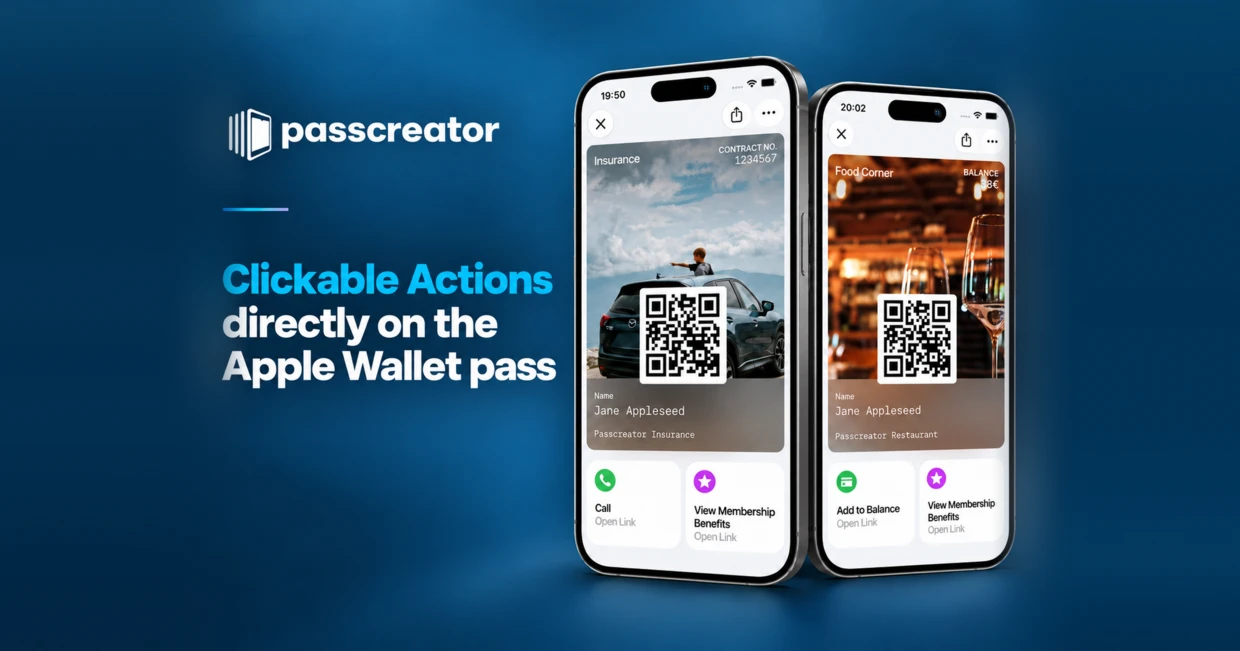
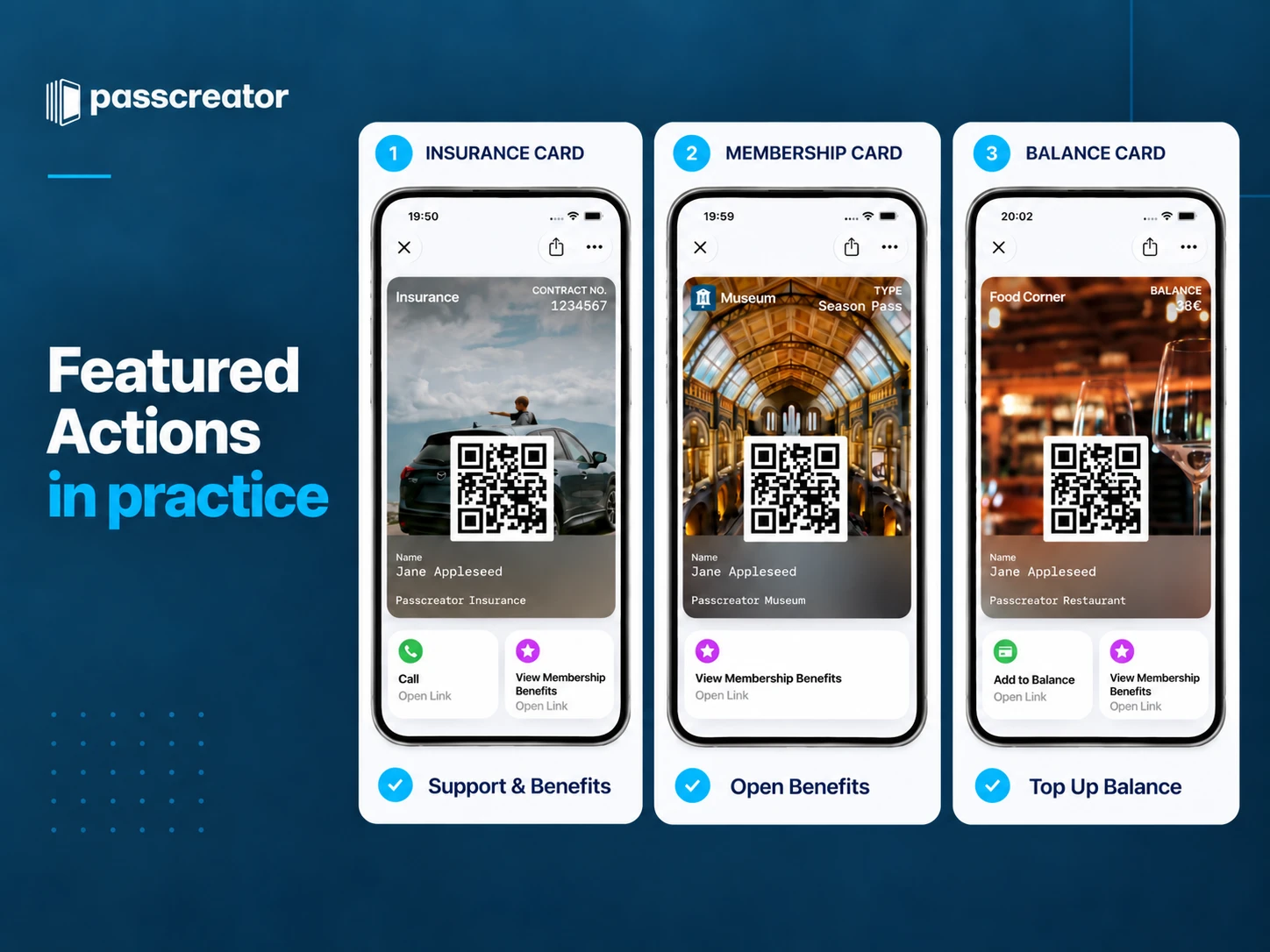
With iOS 27, that’s changing. Apple is introducing Featured Actions: clickable buttons directly below the pass. This makes a meaningful next step immediately visible.
In this article, we’ll explain what Featured Actions are, which card types they’re suitable for, and how businesses can use them in practice. We’ll include examples for loyalty cards, stamp cards, membership cards, event tickets, gift cards, and insurance cards.
Important for planning: The visible labels and icons are defined by Apple using predefined “Featured Action” types. In Passcreator, you select the appropriate type and configure the destination behind it—for example, a URL, phone number, or specific location. Custom labels or icons are not supported.
What are Featured Actions in Apple Wallet?
Featured Actions are clickable actions that Apple displays below the Wallet pass starting with iOS 27. In the Passcreator Editor, you select one of the action types predefined by Apple. The visible label and icon cannot be customized there; instead, you configure the destination behind it, such as a website, a phone call, or a specific location in Apple Maps.
Apple provides a fixed list of available actions:
- View Offers and Rewards: Opens a page with offers or rewards.
- Go to Location: Opens Apple Maps with a specific saved location.
- Call: Opens the Phone app to call a saved support contact.
The key difference from previous back-side links: Featured Actions are immediately visible. Users don’t need to know that there’s a back side. They open the pass, see the action, and tap.
We’ve been hearing this feedback from customers at Passcreator for years: The useful content on the back remains hidden. Featured Actions solve exactly this problem. You can find an overview of all the new features in this update in our article on the Apple Wallet Design Update 2026.
Why This Is Such a Big Step
Many customers open their Wallet pass mainly at the checkout to show the barcode. The back side, with links, phone numbers, and additional information, is easily overlooked.
Until now, there was no other way to handle this. Featured Actions finally make these selected next steps directly visible.
Apple allows up to two Featured Actions per pass. The following table shows possible action types.
Digital Loyalty Card with Featured Actions: Offers Directly Below the Pass
The digital loyalty card is the most common use case for Apple Wallet passes—and also the one where Featured Actions make the biggest difference.
The problem so far
A customer opens the loyalty card in Wallet, shows the barcode at the register, and that’s it. The pass functions as identification, but not as a communication channel. Promotions, coupons, or personalized offers are on the back and are never seen.
This means: Companies invest in loyalty programs and maintain offers and promotions, but the Wallet channel through which they could communicate these was virtually invisible.
What’s Changing with Featured Actions
Now, a retailer can display up to two clickable actions below the pass:
| Featured Action | What Happens When You Tap | Why It Works |
|---|---|---|
| View Offers and Rewards | Opens a personalized offers page with coupons or rewards. | Customers see offers that match their purchasing behavior |
| Go to Location | Opens Apple Maps with a specific store location pre-selected. | No Googling, no searching—instant navigation |
| Shop Online or In-App | Opens the online store. | Another path from the Wallet pass to a purchase. |
The result: The loyalty card transforms from a simple barcode into an active marketing channel. Every time a customer opens the pass, they see two options for action.
Example: Fashion retailer with a seasonal promotion
A fashion retailer can link the Apple action type “View Offers and Rewards” to a relevant offer page for a seasonal campaign. Once the campaign ends, they update the destination to the next promotion.
The advantage: The retailer doesn’t have to update an app, send push notifications, or send out a newsletter. They simply update the Featured Action via Passcreator, and the change automatically appears on all passes.
Example: Drugstore with Store Locator
A drugstore chain uses the Apple “Go to Location” action type and specifies a specific location. This allows customers to navigate directly to that particular store. As a second action, the chain can link “View Offers and Rewards” to the current flyer.
What This Means for Businesses
As our case studies show, Passcreator customers such as WÖHRL and Wormland rely on loyalty cards in the Wallet. Featured Actions finally give these passes a reason to be opened regularly. And for companies that issue their digital loyalty cards via Passcreator, these actions can be set up without any development work.
All Featured Actions at a Glance
Apple provides a fixed list of Featured Action types. The visible label and icon are predefined by Apple; in Passcreator, you choose the appropriate type and configure the destination. A pass can have up to two Featured Actions.
Membership, loyalty, gift cards, services and bookings
- View Membership Benefits
- View Offers and Rewards
- Add to Balance
- Shop Online or In-App
- Order Delivery or Pickup
- Book an Appointment
- Book a Car
- Book a Flight
- Book a Stay
General actions
- Call
- Go to Location
Event actions
- View Schedule
- Watch Trailer
- Listen to Music
Important: Labels and icons are defined by Apple and cannot be freely renamed. You configure only the destination behind the relevant action. “Go to Location” opens Apple Maps for one specific stored location; Google Maps is not a Featured Action destination.
Digital Stamp Card: Current Promotions Right on the Pass
Digital stamp cards are replacing paper stamp cards at cafés, hair salons, and retail stores. At Passcreator, you can create Wallet passes that function as stamp cards, with automatic updates after every visit.
The Problem with Traditional Stamp Cards
The paper stamp card has an obvious problem: it gets lost, gets wet, or is forgotten. The digital version in your Wallet solves that. But until now, it too had one weakness: It shows the stamp count and the barcode—nothing more. If the store was running a promotion or customers could redeem their full stamp card, they previously only found out about it when they checked the back of the pass.
Featured Promotions for Stamp Cards
| Featured Action | Usage |
|---|---|
| View Offers and Rewards | Link to current promotions and discounts. Customers also see current offers when they open the pass. |
| Shop Online or In-App | Direct link to the online store to order a redeemed reward. |
| Go to Location | Opens Apple Maps with a specific store location. |
With “Featured Actions,” the loyalty card becomes a promotional platform. Instead of just showing progress, it gives customers a specific reason to stop by every time they open it.
Example: Café with a Loyalty Program
A café issues a digital stamp card: After ten coffees, customers get one free. Previously, customers only saw “7 out of 10 stamps.” Using the Apple Action type “View Offers and Rewards,” the café links to its Tuesday happy hour specials. The goal can be updated to the next promotion as needed.
Example: Hair Salon with Online Appointment Booking
A hair salon uses the stamp card for a loyalty program. After five visits, customers receive a discount. Using the Apple Action type “Book an Appointment,” the salon links to its online appointment booking system. This allows customers to book their next appointment right away.
Why this is particularly relevant for smaller businesses
For most local businesses, developing their own app isn’t worth the effort. But a Wallet loyalty card with Featured Actions offers the same functionality. No download, no registration, and no development costs. Customers simply scan the QR code once, and the pass is in their Wallet. And every action on the pass works as intuitively as a button in a native app.
Membership Card in the Wallet: Highlighting the Benefits
Clubs, associations, and organizations are already using digital membership cards today. But with Featured Actions, the pass transforms from a simple membership ID into a service hub.
The problem so far
Many membership cards in the wallet display a barcode, the member’s name, and perhaps an expiration date. The actual benefits of membership—such as partner offers, discount codes, and access to exclusive content—were hidden. As a result, members often didn’t even know what benefits they had because they simply never found the information.
Real-world example: Membership benefits on the membership card
A company can link to partner offers on its membership card using “View Membership Benefits.” Featured Actions make this path more visible than a link in the pass details.
Featured Actions for Membership Cards
| Featured Action | Result |
|---|---|
| View Membership Benefits | Direct link to membership benefits and partner offers |
| View Schedule | Link to the current course or event schedule |
| Call | Call support directly |
Example: Sports club with member benefits
A sports club issues digital membership cards to its 5,000 members. Using the Apple Action type “View Membership Benefits,” the pass links to partner discounts at local sports stores and physical therapy practices. As a second action, “View Schedule” can open the current class schedule. Instead of a static plastic card, each member now has a dynamic connection to the club right in their pocket.
Example: Professional Association with Continuing Education Opportunities
A professional association uses the Apple Action type “View Schedule” to link to the registration page for the next online seminar. After the webinar, it updates the destination to the next date; the visible name of the action remains unchanged.
You can find more information about digital membership cards in Wallet on our overview page.
Event Tickets with Program, Directions, and Playlist
Event tickets are another type of pass where Featured Actions make the biggest difference in the user experience. Previously, a Wallet ticket was a static barcode with the date and seat number. Now it becomes an event guide.
The problem with static tickets
Today, a concert ticket in the Wallet displays: date, time, seat number, and barcode. Anything beyond that—such as a venue map, directions, admission rules, or the artist’s setlist—visitors have to Google themselves or look up in a separate app. The ticket was merely an access code, but not an all-in-one event guide.
Featured Actions for Event Tickets
| Featured Action | What happens |
|---|---|
| View Schedule | Opens the event schedule as a webpage |
| Go to Location | Opens the event location in Apple Maps |
| Listen to Music | Links to a Spotify or Apple Music playlist by the artist |
Example: Music festival with a multi-day program
A festival issues digital tickets via Apple Wallet. Using the Apple Action type “View Schedule,” the pass takes users to the daily schedule. On Sunday, the organizer updates the destination to the new day’s program. As a second action, “Go to Location” opens Apple Maps with the festival grounds as the specific destination. Visitors have everything they need right below the ticket, without having to install an additional app.
Example: Conference with a networking feature
A business conference uses “View Schedule” for the daily agenda and “Book an Appointment” for scheduling one-on-one meetings. Between presentations, attendees can network, book slots for one-on-one meetings, or find the room for the next session.
Example: Sports event with directions and fan content
A soccer club issues season tickets as Wallet passes. Before each match day, “View Schedule” takes users to the latest match day information. “Go to Location” opens Apple Maps with the stadium set as the specific destination. The destination for “View Schedule” can be updated to the match summary after the game. For event organizers who create Apple Wallet tickets, the ticket becomes a touchpoint before, during, and after the event. The use of the destinations linked to the actions can be analyzed using web analytics or appropriate tracking parameters.
Gift Cards: Redeem Credit with a Tap
Digital gift cards thrive on being redeemed. The link to the online store wasn’t immediately visible to recipients. With Featured Actions, it’s right where it belongs: directly below the pass, just a tap away.
The Problem So Far
A gift card in the Wallet shows the redemption code and the remaining balance. But where can you redeem it? In the online store? In-store? Both? This information was often not immediately accessible. As a result, some gift cards went unused—not because of a lack of interest, but because the process for redeeming them was unnecessarily cumbersome.
Featured Actions for Gift Cards
| FEATURED ACTION | USAGE |
| Shop Online or In-App | Direct link to the online store or to redeem the balance. |
| Go to Location | Opens Apple Maps with a specific store location. |
| View Offers and Rewards | Displays current offers or rewards related to redeeming credit. |
| Call | Direct contact for questions about the gift card. |
The appropriate action depends on the redemption method: online, in-store, or a combination of both.
Examples of gift cards
Example: Bookstore with online and in-store redemption
A bookstore gives away digital gift cards. The “Shop Online or In-App” option takes the user directly to the web store, where the gift card code can be redeemed. The second option, “Go to Location,” opens Apple Maps to a specific store location. The recipient decides for themselves whether to order online or browse in-store.
Example: Restaurant Gift Card with Order Link
A restaurant issues digital gift cards. With “Order Delivery or Pickup,” the pass links directly to the online ordering page. When the recipient opens the pass, they immediately see how to place an order, rather than having to search for the restaurant’s website first.
Insurance cards: Support at the touch of a button
Featured Actions are also fundamentally changing the user experience for insurance companies. Instead of searching for their insurance number and calling a hotline when a claim arises, customers simply tap the action below the pass.
The problem so far
Insurance cards in the Wallet display the insurance number and the type of insurance. But when a claim arises, customers want to take action: file a claim, check their policy, or call customer support. Until now, all of this information was on the back of the pass or had to be found on the insurance company’s website—precisely in a stressful situation where simplicity matters most.
Featured Actions for Insurance Cards
| Featured Action | Result |
|---|---|
| Go to Location | Opens Apple Maps to a specific, pre-selected contracted clinic or service center. |
| Call | Call Support Directly |
| View Membership Benefits | Link to a page listing insured benefits and services. |
Example: Auto Insurance with Accident Reporting
A driver has a minor fender bender while parking. They open their insurance card in the Wallet. “Call” directly initiates a call to the stored assistance or support contact. For a digital claims process, the insurance company can also provide a corresponding link in the pass details; Featured Actions do not replace a freely named “Report a Claim” button.
Example: International Health Insurance with Emergency Support
An international health insurance policy displays “Call” with a direct call link. As a second action, “Go to Location” can open Apple Maps to a specific contracted clinic. This offers tremendous added value, especially when abroad, where language barriers and unfamiliar healthcare systems are additional challenges.
Read more in our article on digital insurance cards in Wallet.
Other Use Cases
City Passes and Tourist Passes
Cities and tourism associations that issue City Passes via Apple Wallet can use Featured Actions to guide visitors through the city. “Go to Location” opens Apple Maps to a specific landmark. “View Schedule” can link to a current calendar of events or tours. This gives travelers a digital travel companion right on their admission ticket.
Library Pass
A library issues digital library passes via Apple Wallet. “Call” opens the stored service contact. “View Schedule” can link to the library’s event calendar. The library can also include a link to its online catalog in the pass details.
Parking Ticket
A parking garage issues digital parking tickets. To extend the ticket or make a payment, the parking garage can include a relevant link in the Pass details. As a second action, “Go to Location” can open Apple Maps with the parking garage set as the specific destination. Customers don’t have to walk back to the ticket machine.
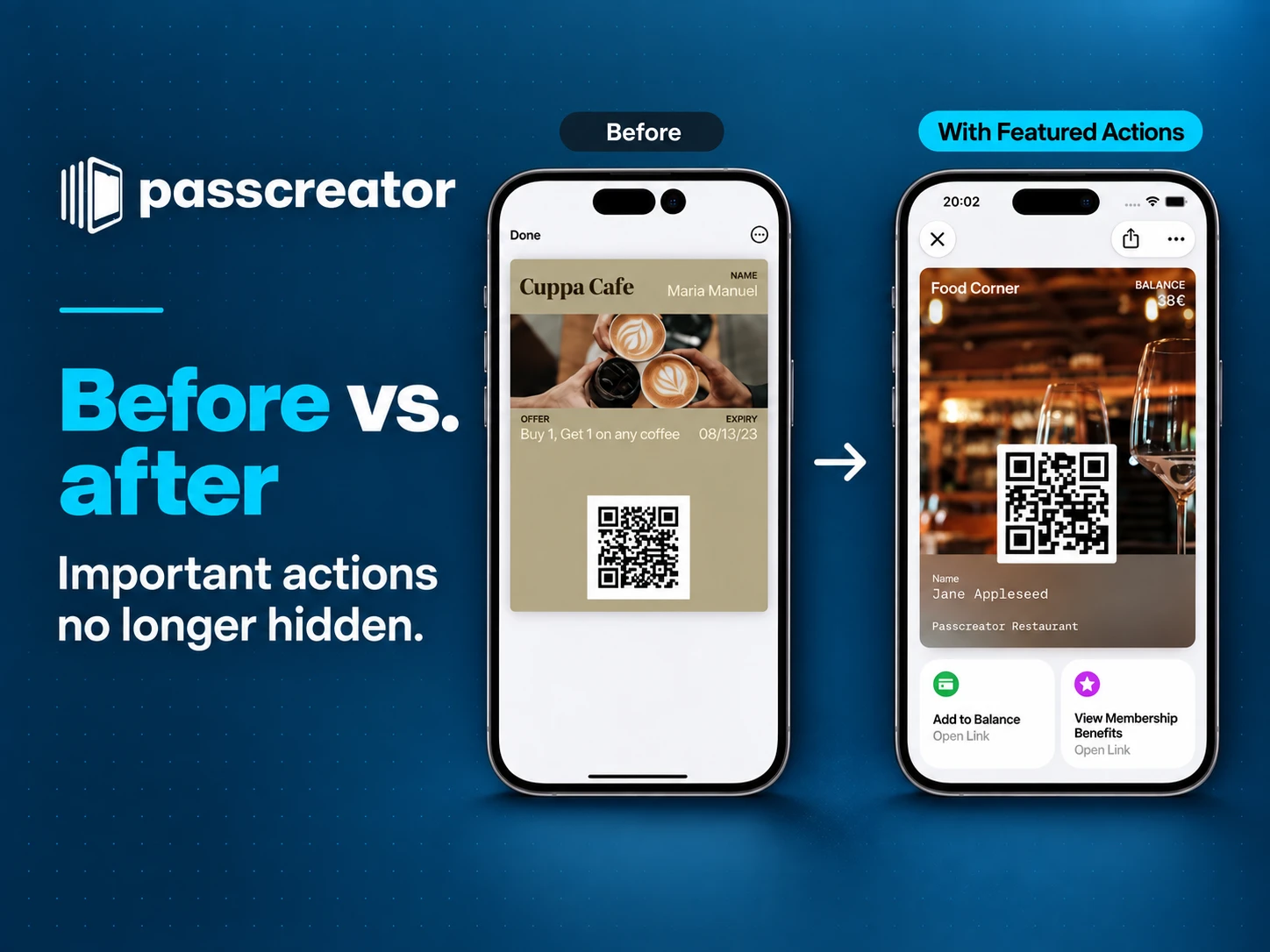
Before vs. After: What Featured Actions Actually Change
| BEFORE | WITH FEATURED ACTIONS |
| The pass displayed a barcode and basic information. | Two relevant next steps are directly accessible. |
| Additional information had to be searched for specifically. | Offers, services, or redemption options open with a tap. |
| The pass was primarily a form of identification. | The pass also links service and loyalty goals. |
Update the target of a Featured Action
The visible label and icon remain tied to the action type specified by Apple. However, you can update the destination behind it—for example, from an expired campaign page to a new offer, from a daily schedule to the next event day, or to another specific location on file. Existing Wallet passes do not need to be reissued for this; after updating via Passcreator, the existing pass receives the new Pass version.
How Passcreator Supports Featured Actions
Featured Actions are already available in Passcreator. Customers can now manage them in the editor. They will become visible to end users as soon as Apple releases the update with iOS 27 and the respective iOS version is installed.
Existing Wallet passes do not need to be recreated. You can update your passes via Passcreator, and the Featured Actions will automatically appear for all users who have installed iOS 27. Users with older iOS versions will continue to see the pass without Featured Actions.
In the Passcreator Editor, you select one of the action types provided by Apple and specify the destination—for example, a URL, a phone number, or a specific location, depending on the action. The icon and visible label cannot be customized. The destination behind the action can be updated at any time, for example, for a new offer page or a different location.
Summary
Featured Actions are the biggest usability update for Apple Wallet passes in years. For businesses that already rely on digital passes, they are the next logical step. And for businesses that don’t yet have a Wallet strategy, they are a strong reason to get started now. You can already set up Featured Actions in the PasscreatorEditor.
If you need help with the right configuration, talk directly to our team.