
Logs and processes
The log viewer
Open Logs from the profile menu at the bottom of the sidebar. The log viewer is a single page for several log types. Use the Select a Source dropdown to pick one. Which sources you see depends on your privileges.
Audit
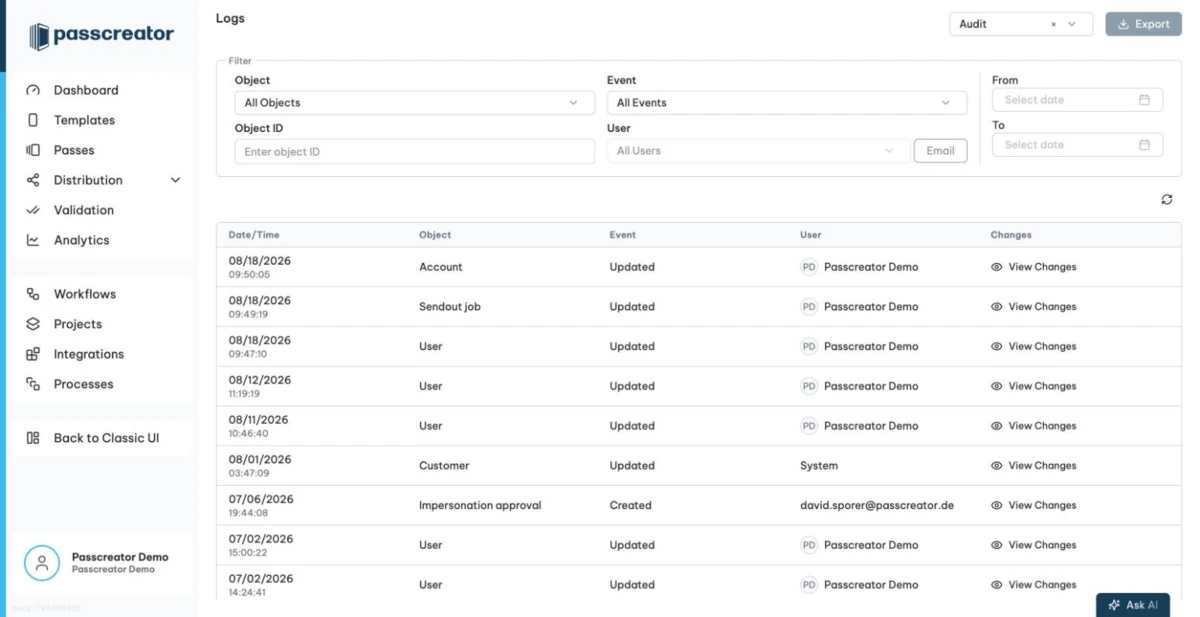
The audit log records every create, update and delete in the configuration of your account, so you trace who changed what and when.
The columns are Date/Time, Object, Event with the values Created, Updated or Deleted, User and Changes. Click an entry to open a diff of the change. Switch between Show Full JSON and Show Changes Only to see added, removed and modified values. You filter by object type, object ID, event, user and date range.
Webhooks
The webhook log shows every webhook execution with Date/Time, Result as Success or Error, HTTP Status, the webhook that fired and the payload details. Use it to debug integrations that don't receive events.
Messages
The message log covers email and SMS deliveries from sendouts and emails that belong to passes. It shows Date/Time, Recipient, Status and additional info. You filter by status and by Channel with Email or SMS, search by recipient, message ID or sendout ID, and restrict the timeframe.
Scanned Passes
The scanned passes log lists every scan made with the Smart Scan app. It shows Date/Time, Device, Barcode, Status and any additional properties your staff captured at scan time. Summary counters at the top show Successful Scans, Already Voided and Pass Not Known. Filter by app configuration, place, keyword and date range. This is the only log source with an export. Click Export Result to download the scans as the CSV file scanned_passes.csv.
Processes
Go to Processes in the sidebar to monitor your bulk processes. Bulk processes create, update or delete many passes at once from CSV files. Each runs as a background job.
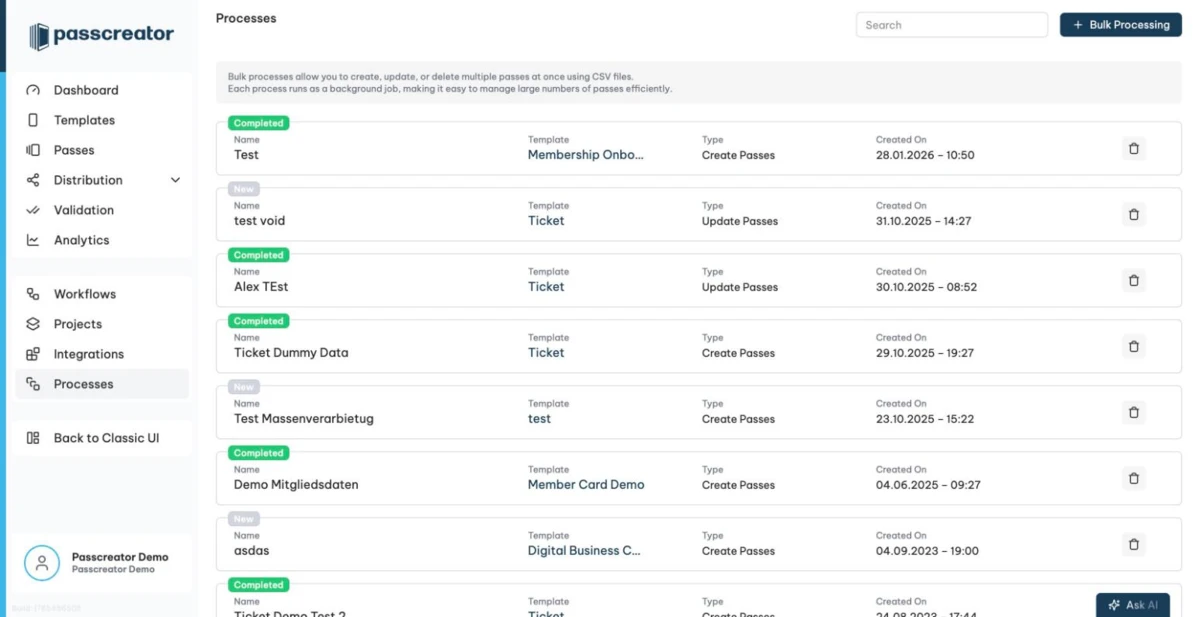
Each job shows its name, the Template, the job type Create, Update, Update or Insert or Delete, the Created On date and a status badge. The status is New, Ready to Run, Running, Sendout Pending, Completed, Completed with Errors or Failed.
Per job you have four actions.
Download Results (CSV)downloads the result file with the outcome per row. It is available once the job has produced results.- Download Source File downloads the CSV you originally uploaded.
- Download Error Log downloads details on rows that failed. Use it to fix the rows and upload them again.
- Delete Job removes the job from the list.
You also define a sendout action for a job and start a new job with the New Bulk Process button. See Bulk processing with CSV files for the full wizard.
Checked 2026-08-20 · Documentation