
Shareable reports
Requirements
You need the following to share a report.
- A user role with the permission to share reports.
- Analytics data for your account, a project, a template or a dashboard.
- A paid plan if you want to send reports by email or on a schedule. Sharing by link works on every plan.
- The account admin role for everyone who approves reports before they are sent.
Steps
Creating a report
You can share a report for your whole account, a project, a template or a dashboard. The share icon sits in the header of Analytics, of a project, of the analytics tab of a template and of a dashboard. Next to it you find the AI summary icon, which opens a short summary of the data you are looking at.
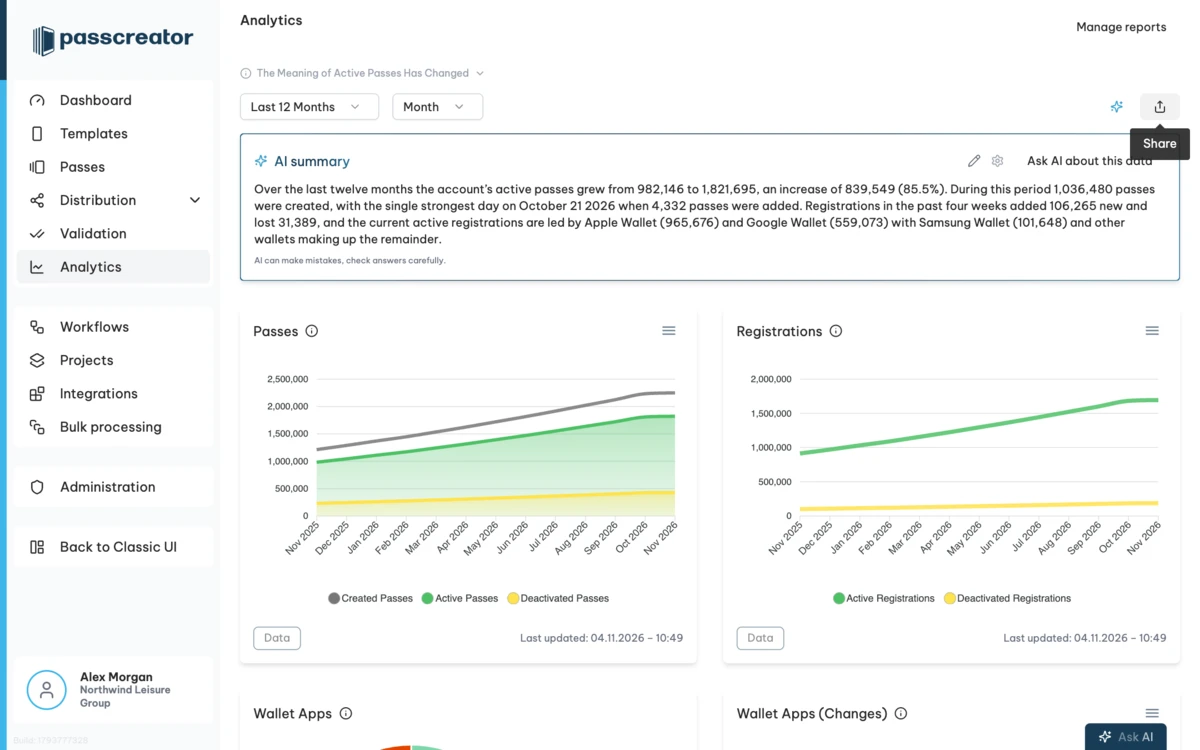
- Open the analytics page and click the share icon. The report opens in a new browser tab.
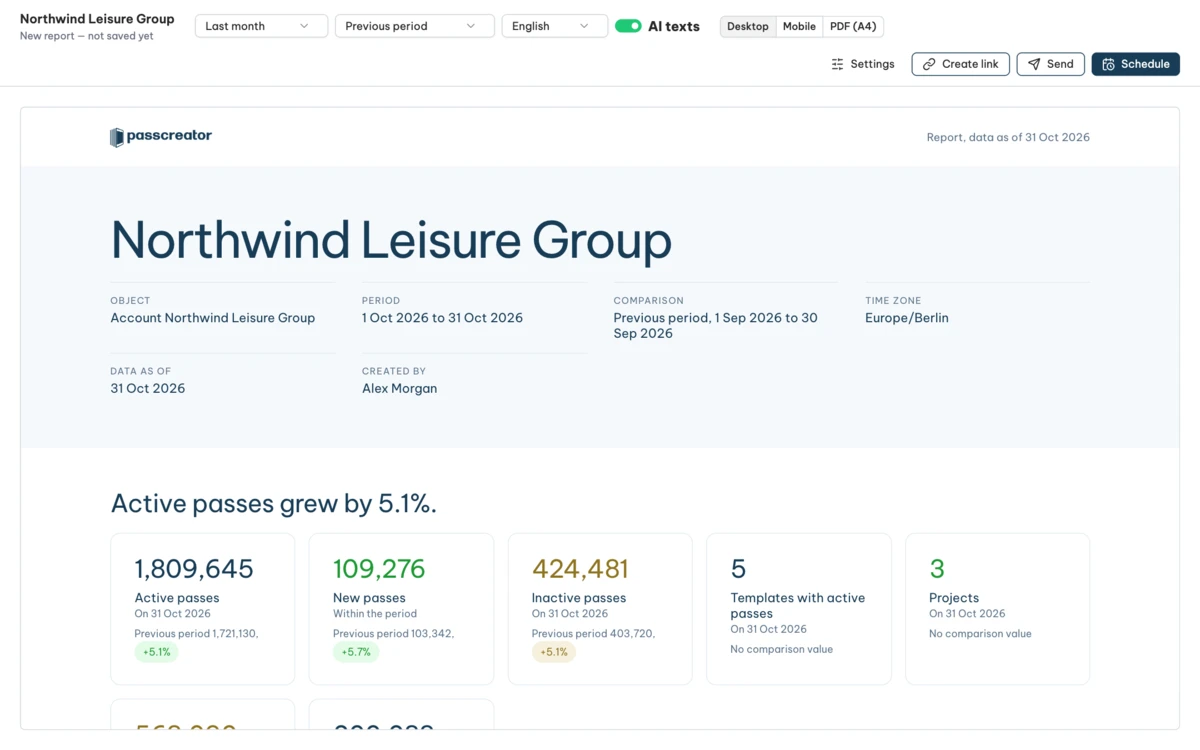
- Choose the period (last 7 days, last month, last quarter or year to date), the comparison (previous period, same period last year or none) and the report language. Switch AI texts on or off.
- Check the preview. Desktop, Mobile and PDF (A4) show exactly what your recipients get.
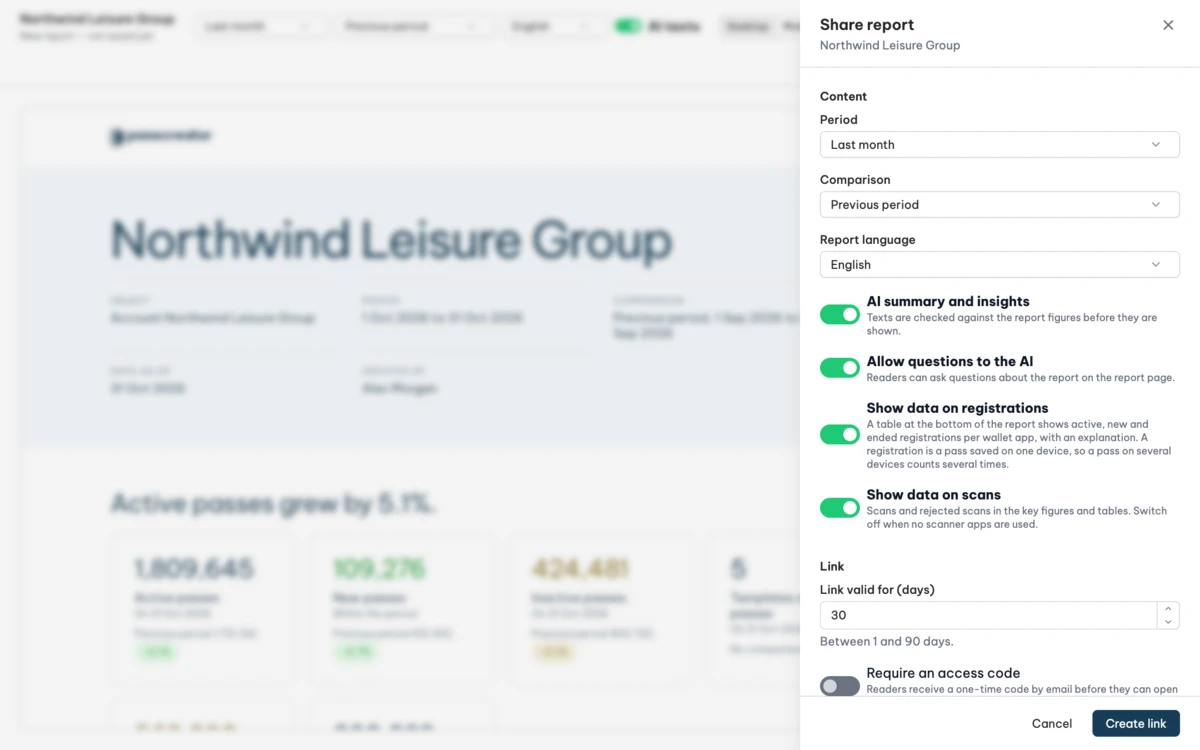
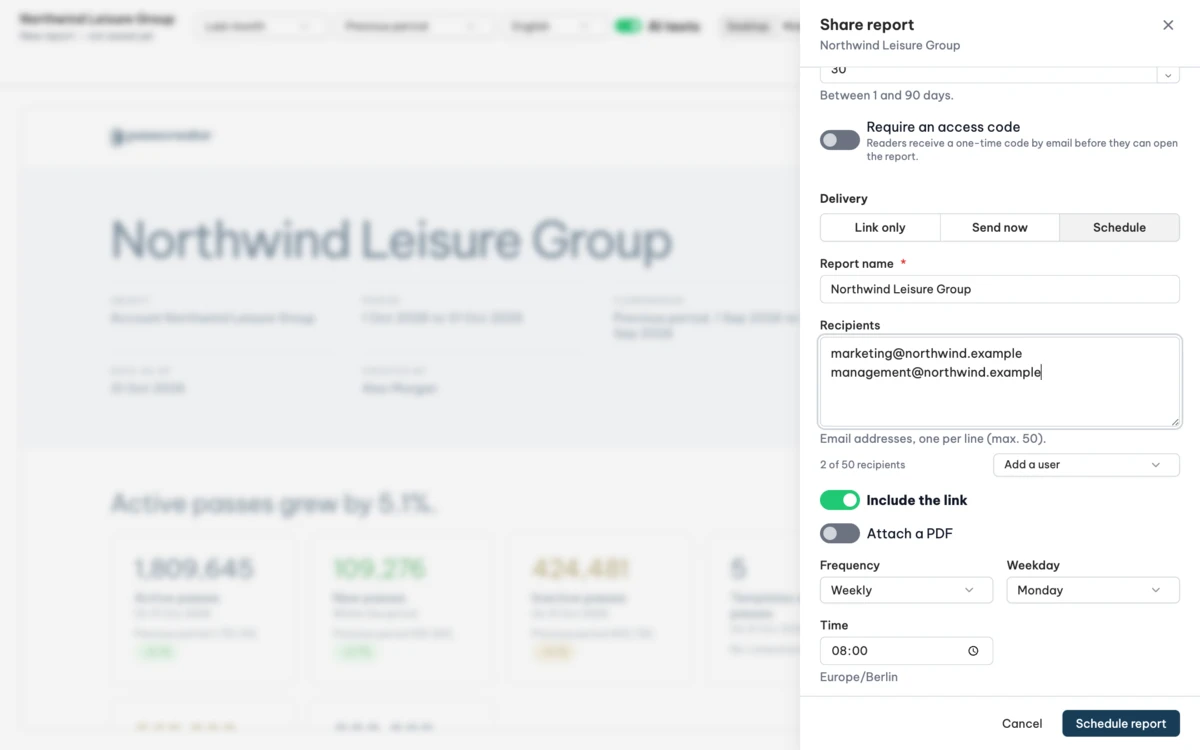
- Click Create link, Send or Schedule in the toolbar. A side panel opens with all settings. Content covers the period, comparison, language, AI summary and insights, AI questions for readers and data on registrations and scans. Link sets how long the link stays valid (1 to 90 days) and whether readers need an access code sent to their email address. You can limit the access code to specific addresses or whole domains, for example
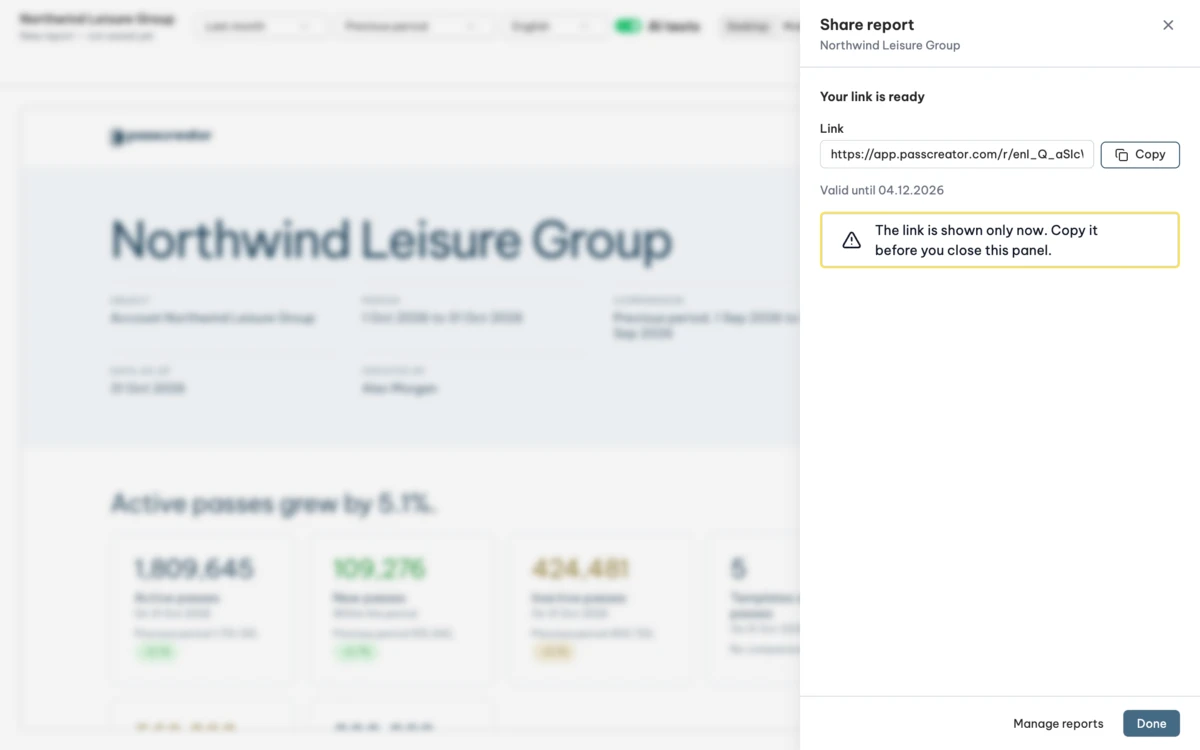
@yourcompany.com. Delivery offers link only, send now or schedule. Approval lets an account admin check the report before it is sent. - Click Create link and copy the link right away. For security reasons Passcreator shows it only once.
Sending and scheduling reports
Choose Send now to email the report right away, or Schedule to send it automatically. For a schedule you pick the frequency (daily, weekly, monthly or quarterly), the weekday or day of the month and the time. You enter up to 50 recipients, one per line. Recipients get the link and, if you want, the report as a PDF attachment. Every email contains an unsubscribe link.
Approval before sending
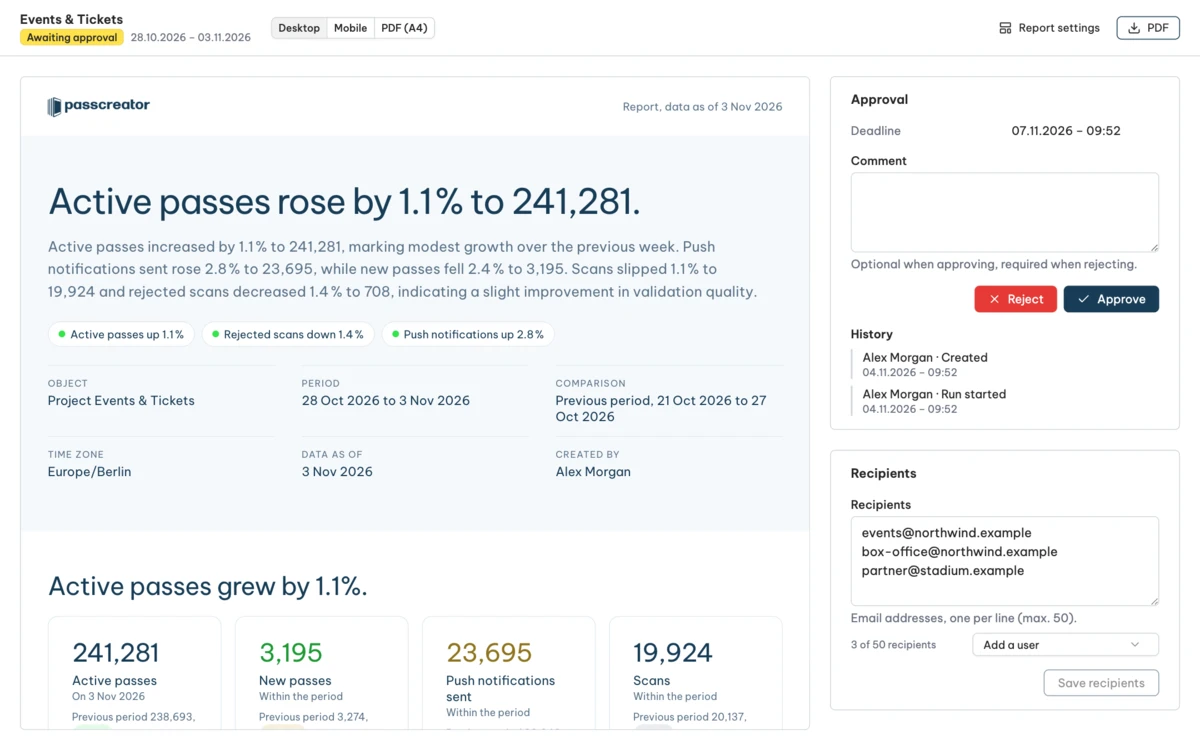
Switch on Require approval before sending and choose the approvers among your account admins. When the report runs, the approvers get an email. On the approval page they review the report, adjust the recipients and approve or reject it with a comment. If nobody decides before the deadline, Passcreator does not send the report.
Managing reports
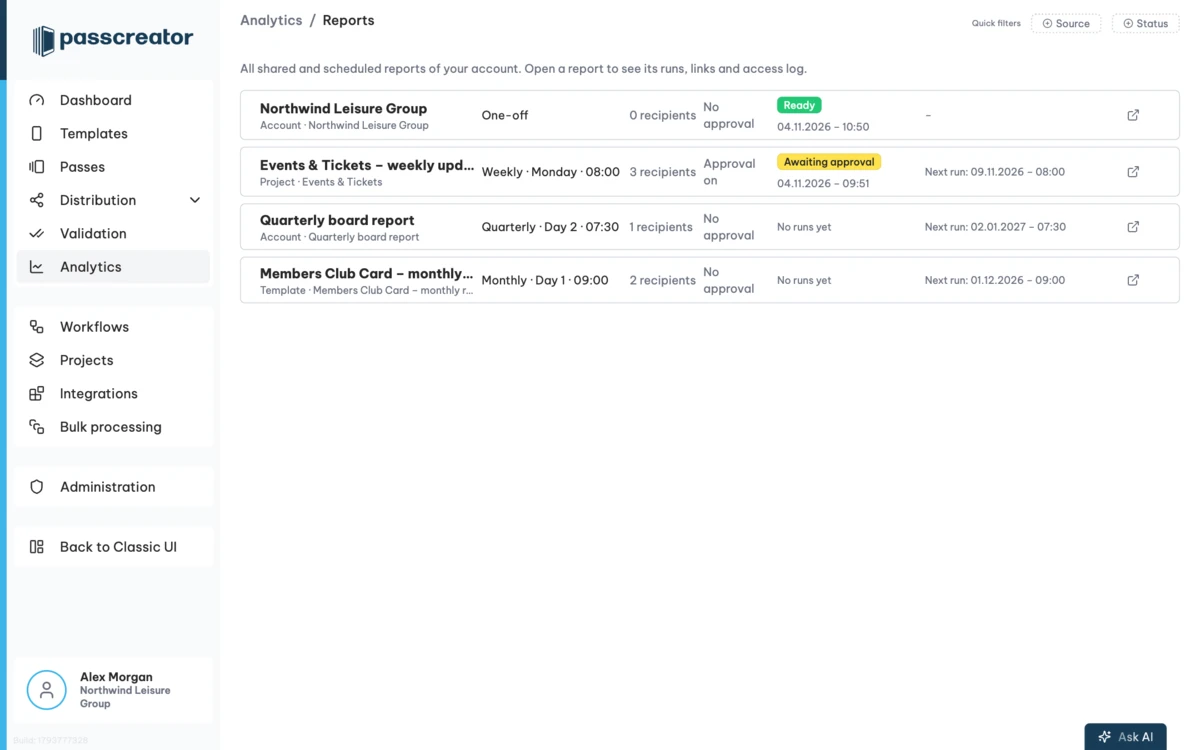
Analytics › Manage reports lists every shared and scheduled report of your account with its schedule, recipients, approval status and next run. Open a report to change its settings, run it now, pause or resume it, duplicate or delete it. History shows earlier runs. Under Share you create more links, see how often each link was opened and revoke links that should no longer work.
What a report contains
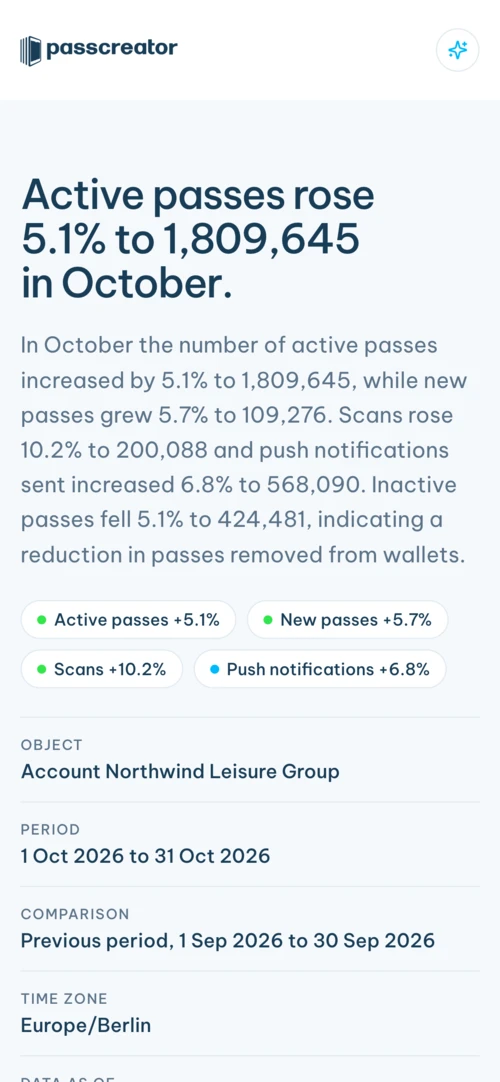
- A headline and summary written by AI from the report figures, plus short highlight chips such as Active passes +5.1%.
- Key figures for active passes, new passes, inactive passes, push notifications sent, scans and rejected scans, each next to the comparison period.
- Charts for the development of active passes against the comparison period and a ranking of templates or projects.
- What stands out, up to five insights, each with the figure it is based on.
- What works well and what to keep an eye on.
- Tables comparing projects and templates, and registrations per wallet app.
- Methodology with the definition of every key figure.
Reports are snapshots. Passcreator freezes the numbers when the report runs, so everyone who opens the link sees the same figures. A scheduled report creates a new run with new numbers every time.
Security and privacy
- Links contain a long random token, expire automatically and can be revoked at any time. Search engines do not index report pages.
- Optional access codes make sure that only the people you choose open a report.
- Reports contain aggregated figures only. Dashboard widgets that could show personal data of pass holders are left out or need your explicit confirmation before sharing.
- Passcreator checks AI texts against the report figures before it shows them.
How to check it worked
Open the link in a private browser window. The report page loads without a login and shows the headline, the key figures and, if enabled, the AI summary. On a phone the page adapts to the screen. Readers can download the report as a PDF. If you allowed it, they click Ask about this report and ask questions in their own words. The AI answers only from the data in the report.
Things to check
- You do not see the share icon. Your role lacks the permission to share reports. Ask an account admin to add it.
- Send and Schedule are not available. Sending by email needs a paid plan. Sharing by link works on every plan.
- You did not copy the link. Passcreator shows a link only once. Create a new link under Share in the report and revoke the old one.
- The report has no AI texts. Passcreator checks every AI text against the report figures. If a text contains a number that is not in the report, the report goes out without AI texts.
- A scheduled report did not go out. If approval is required and nobody decided before the deadline, the report is not sent. Check History in the report.
Checked 2026-11-04 · Documentation