
Security settings
To open it, click your name at the bottom of the sidebar, choose Account and open the Security tab. The settings sit in sub tabs. Save your changes to apply them, and you see the confirmation "Security settings saved successfully".
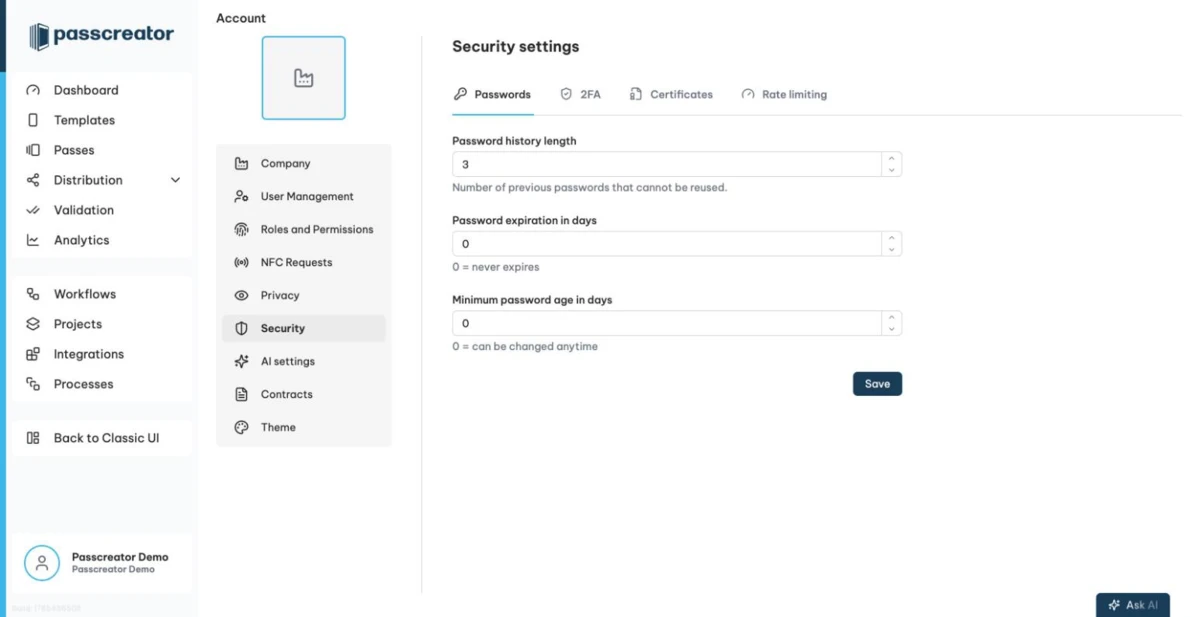
Passwords
The Passwords sub tab defines the password policy for all users of your account.
- Password history length is the number of previous passwords that a user cannot reuse, from 0 to 50. With a value of 5, users can't reuse any of their last five passwords.
- Password expiration in days sets how long a password stays valid, from 0 to 3650.
0means passwords never expire. - Minimum password age in days sets how long a user must keep a password before changing it again, from 0 to 3650.
0means users can change it anytime.
These rules apply on top of the built in requirements every password must meet. A password has at least 10 characters with uppercase, lowercase, number and special character, and Passcreator rejects passwords known from data breaches. See Your profile and language settings.
2FA
The 2FA sub tab has a single toggle, Enforce two-factor authentication. It requires all users of this account to set up two factor authentication. See Two factor authentication for how users set it up. You can also enforce 2FA per role instead.
Certificates
The Certificates sub tab contains the toggle Prevent usage of demo certificates. It blocks templates from using demo certificates for production passes.
You can only enable this setting when no template uses a demo certificate. If templates still do, a warning lists them and asks you to assign a production certificate to them first. Assign a production certificate to each listed template, then enable the setting. See How certificates work.
Rate limiting
The Rate limiting sub tab controls how strictly Passcreator limits requests to your public pages and endpoints. Choose a Rate limiting mode.
Default (recommended)offers balanced protection against abuse.- Less aggressive allows a higher request volume before limiting kicks in. Choose this if Passcreator limits legitimate traffic spikes, for example large event entries.
- Disabled turns off rate limiting. Only use this if you know what you are doing.
Next step
Continue withTwo factor authenticationChecked 2026-08-20 · Documentation