
Your profile and language settings
Steps
To open it, click your name at the bottom of the sidebar and choose Profile.
Personal information
The Personal Information tab shows a read only overview of your profile. It lists your title, first name, last name, phone number, email, timezone, company and your last login. The title appears only if you set one.
To change your details, follow these steps.
- On the Personal Information tab, click Edit.
- Update Title, Firstname, Lastname, Phone Number, Email or Timezone.
- Click Save.
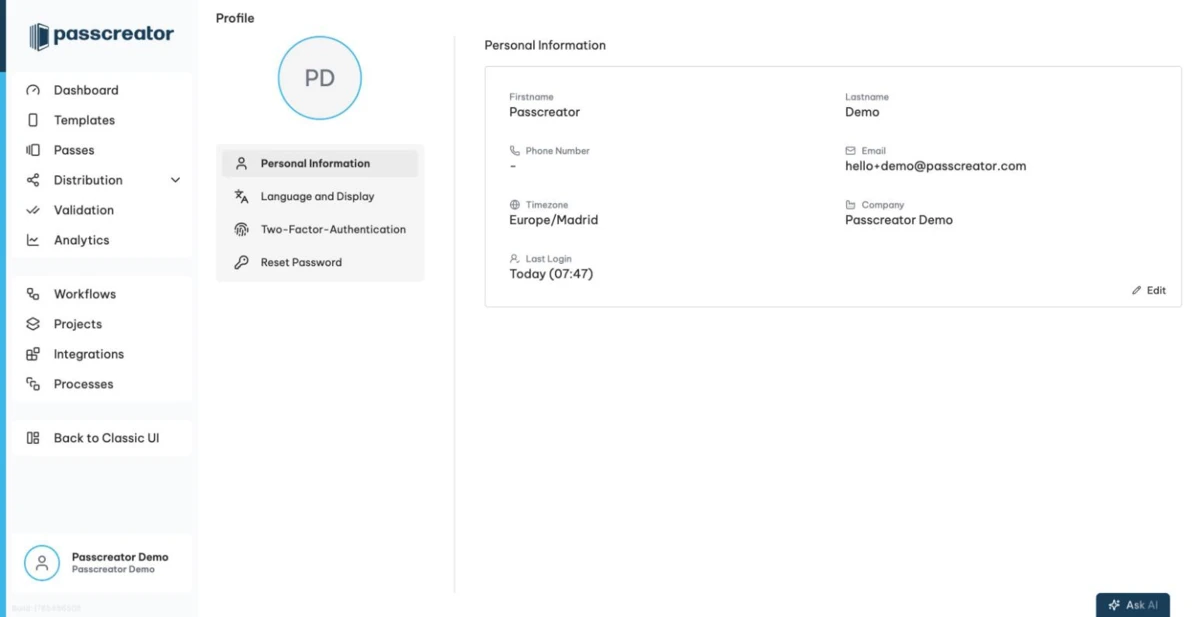
To change your avatar, hover over the round avatar at the top of the page and click the upload icon. The Edit Avatar modal lets you upload a square image in 1:1 format.
Language and display
On the Language and Display tab you switch the interface language. Passcreator is available in Deutsch, English, Español, Français, Íslenska, Ελληνικά and Português. Pick a language from the Language select. Passcreator saves the change immediately.
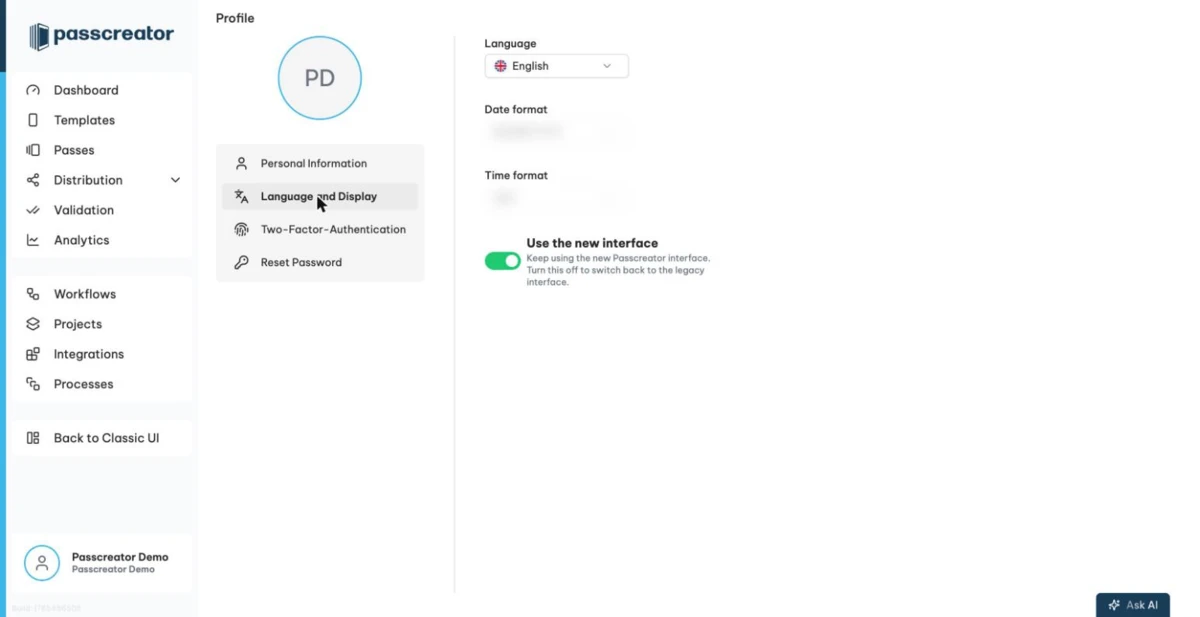
If your account still has access to the classic interface, this tab also shows the toggle Use the new interface. Turning it off switches you to the classic backend. You see this option only if your user has the required permission.
Changing your password
- Open the Reset Password tab.
- Enter your Current Password.
- Enter a New Password. It must be at least 10 characters long and contain an uppercase letter, a lowercase letter, a number and a special character. A strength indicator rates your password, and you can only save once the indicator shows Safe.
- Repeat it under Confirm new Password and submit.
After you set a new password, Passcreator logs you out and you log in again.
Two factor authentication
The Two-Factor-Authentication tab lets you protect your own login with a verification code from an authenticator app. See Two factor authentication for the full setup.
Next step
Continue withTwo factor authenticationChecked 2026-08-20 · Documentation