
Two factor authentication
Steps
Setting up 2FA for your own user
You need an authenticator app on your phone, for example Authy or Google Authenticator. Any app that supports time based one time passwords, known as TOTP, works.
- Click your name at the bottom of the sidebar and choose Profile.
- Open the
Two-Factor-Authenticationtab. - Follow the three steps shown on the page.
- Download 2FA App. Install an authenticator app if you don't have one yet. The page links to Authy as an example.
- Scan QR Code. Click Generate to create your personal QR code, then scan it with your authenticator app.
- Enter Code from App. Type the 6 digit code the app shows.
- Click Enable 2FA. You'll see a confirmation that 2FA is enabled and your account is now more secure.
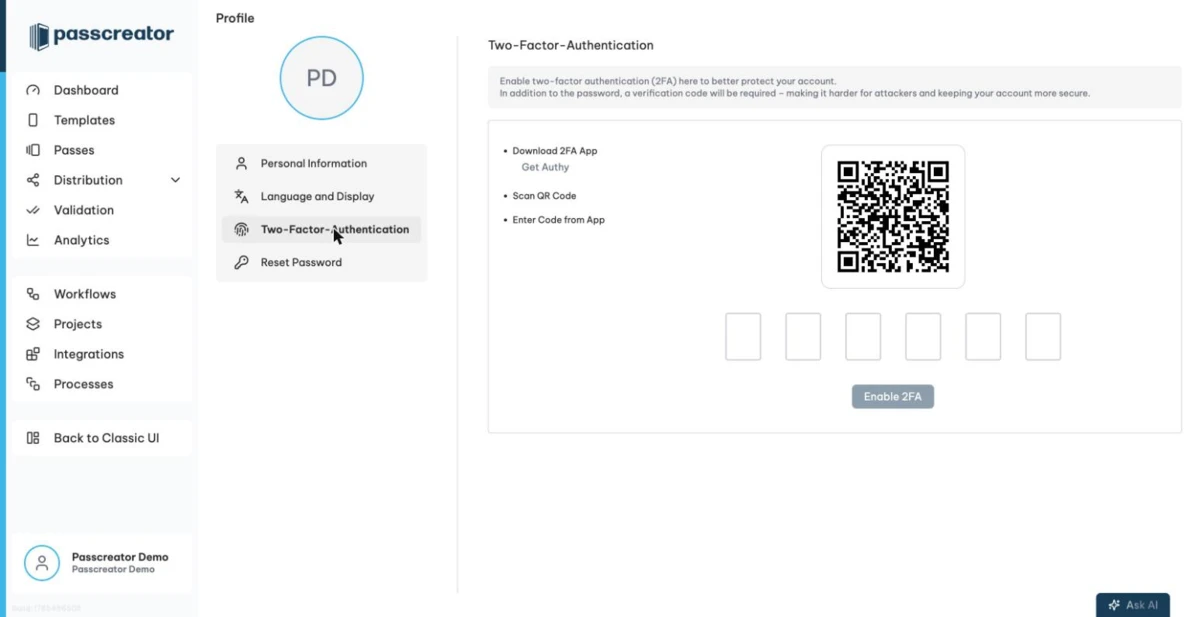
From now on, Passcreator asks you for a verification code from your app every time you log in.
Deactivating 2FA
When 2FA is active, the tab shows a 2FA active banner with a Deactivate button. Click it to turn 2FA off for your user.
Enforcing 2FA for all users
Customer administrators can require every user of the account to set up two factor authentication.
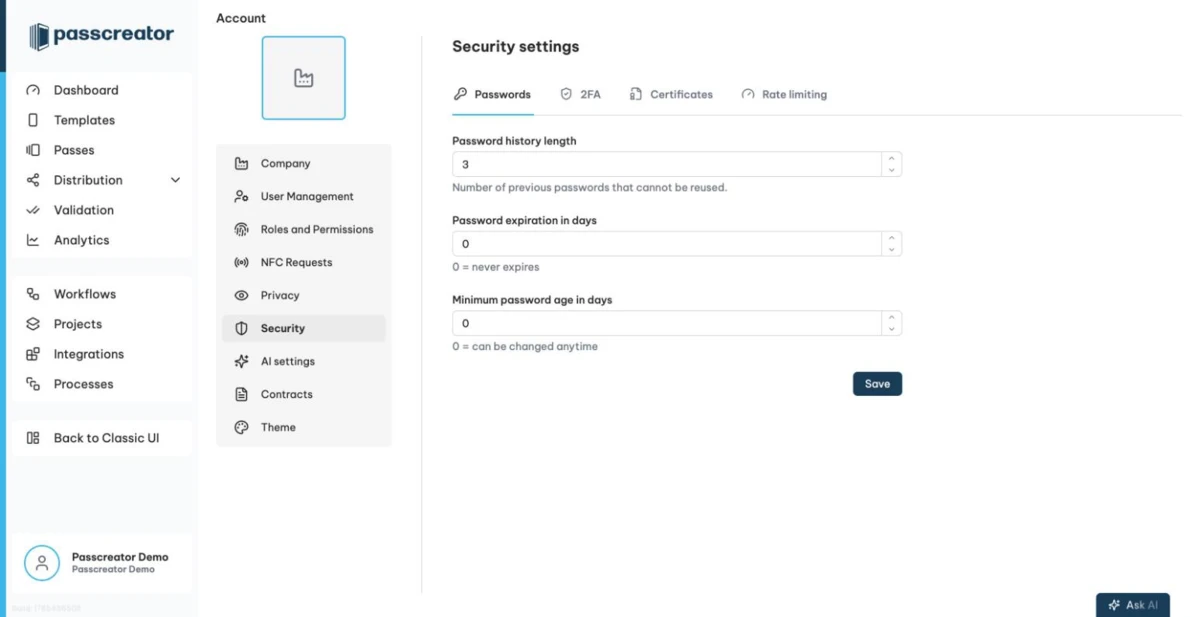
- Click your name at the bottom of the sidebar and choose Account.
- Open the Security tab, then the 2FA sub tab.
- Turn on
Enforce two-factor authenticationand save.
Enforcing 2FA for specific roles
If you don't want to enforce 2FA account wide, you can require it per role instead, for example only for administrators.
- Go to
Account › Roles and Permissions. - Edit the role or create a new one, and turn on
Enforce Two-Factor Authentication. The option explains that users with this role must enable two factor authentication. - Save the role.
Every user who has this role must then set up 2FA. See Users and roles for details on roles.
Next step
Continue withYour profile and language settingsChecked 2026-08-20 · Documentation