
Global variables
Steps
Creating a global variable
- Click your name at the bottom of the sidebar and choose Settings.
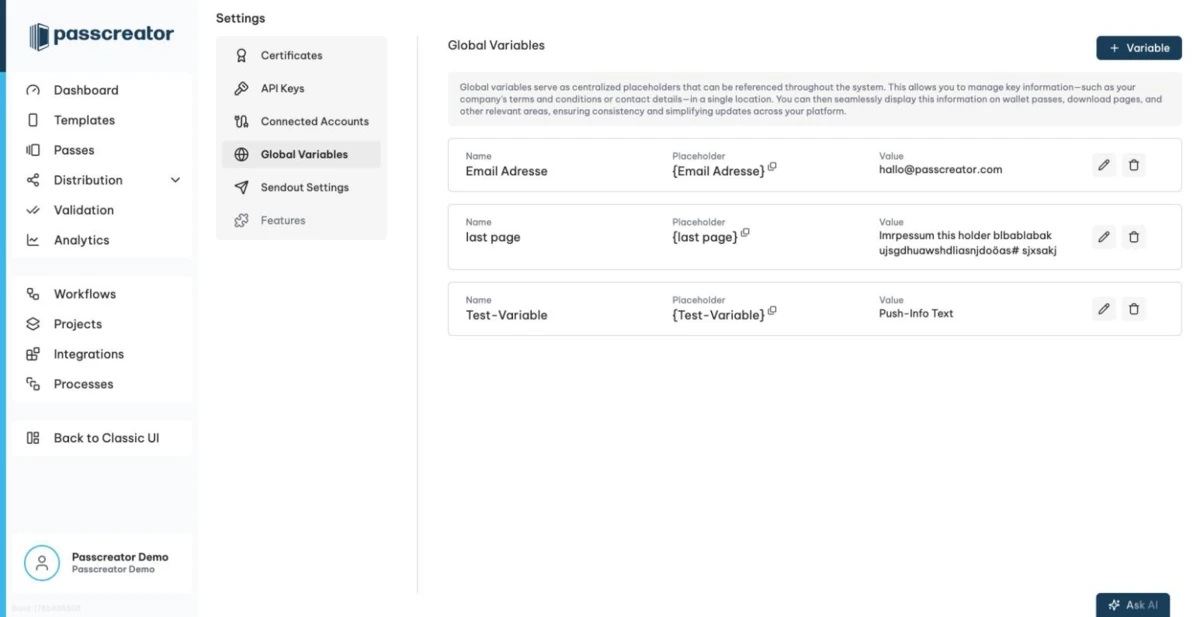
- Open the Global Variables tab.
- Click the Variable button. The New Variable modal opens.
- Enter a Name. The modal shows a live Placeholder preview, the name wrapped in curly braces, for example
{Terms}. Names must be unique. - Enter the Value. This is the text that replaces the placeholder.
- Save the variable.
Using a variable
Insert the placeholder, for example {Terms}, anywhere Passcreator supports placeholders. This includes pass fields in the template editor, back fields, email templates and other text inputs across the system. The list view shows each variable's placeholder with a copy icon, so you can copy it to the clipboard.
Wherever the placeholder appears, Passcreator renders the variable's current value. When you update the value, it changes everywhere you use the variable.
Editing and deleting variables
The list shows each variable's Name, Placeholder and Value, plus an In Use badge when something references the variable. Open a variable to edit its value in the Edit Variable modal.
You cannot delete a variable that is in use. Remove all references to it first. When you delete an unused variable, Passcreator asks for confirmation.
Next step
Continue withPersonalization and additional propertiesChecked 2026-08-20 · Documentation