
Query helper and the search query language
The Query Helper builds advanced filter queries with the same visual builder you know from the pass search. It gives you the result as a JSON object or as a Base64 string. You use that output with the Passcreator Search API.
Steps
Opening the Query Helper
- Open the profile menu at the bottom of the sidebar and choose Tools.
- Select the Query Helper tab.
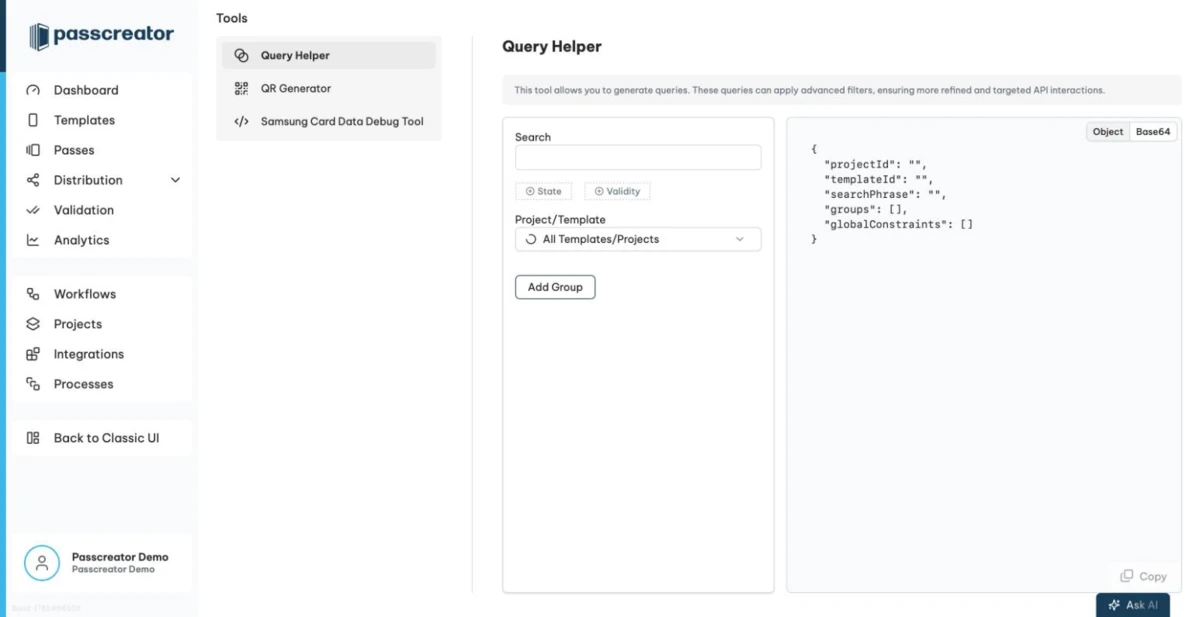
Building a query
The tool embeds the same segmentation builder as the Advanced Search on the pass list.
- Choose a template or project. The available properties depend on this choice.
- Click Add Group to add a condition group. Passcreator combines groups with OR.
- Inside a group, click Add Property to add conditions. Passcreator combines the conditions within a group with AND.
- For each condition pick a property, an operator and, where applicable, one or more values. The operators depend on the field type. Text, number, email, phone number, date and time, select, radio button and checkbox fields each offer their own set. It includes operators without a value like "is empty" and "is not empty" and option operators like "One of the following options selected" or "None of the following options selected".
This is exactly the logic that powers segments. Anything you express as a saved search on the pass list, you also express here.
Using the output
The tool shows the generated query live below the builder. Toggle between two views.
- Object shows the query as a readable JSON object. Use it to understand the query structure or for APIs that accept the raw JSON.
- Base64 shows the same query encoded as a Base64 string. This is the form the Search API endpoint
/api/v3/passinstance/searchaccepts.
A copy action puts the result on your clipboard for your code or API client. See the developer documentation for the Search API reference.
Next step
Continue withSegments as saved searches for targetingChecked 2026-08-20 · Documentation