
Pass bundles
Steps
Typical use cases are vouchers bundled with an event ticket, which visitors use at your venue or at stores of sponsoring retailers, or one pass per contract for insurance customers.
How bundles work
A shared Bundle ID associates the passes of a bundle with each other. Apart from that, the passes are completely independent. You can update a single pass of a bundle, remove it, void it, and add or remove passes from a bundle at any time. Pass holders only notice such changes when they open the download page again.
When a pass belongs to a bundle via a project, Passcreator does not create the other passes immediately. It creates the additional passes as soon as a user opens the download page and adds the bundle to their wallet.
Creating bundles with a project
If all of your bundles contain the same set of passes, for example the same vouchers for every user, projects are the easiest way.
- Create the templates you want to bundle, for example an event ticket and a voucher for a free coffee.
- Go to Projects in the sidebar and create a project with your main template. See Projects.
- On the Overview tab of the project, assign the other templates under Assigned Templates.
- Turn on the Pass Bundle toggle in the tab bar. On download, Passcreator creates passes for all templates and bundles them, up to 10 passes.
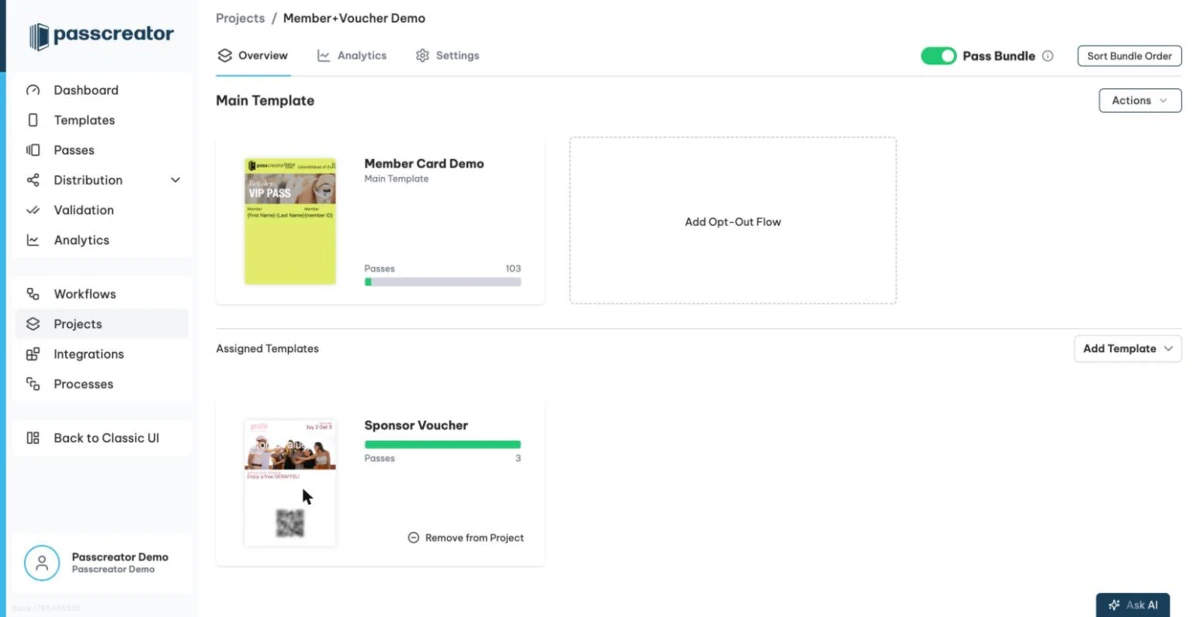
Now create a pass for any of the templates and open its download page. You receive all passes that are part of the bundle. Bundling here is implicit, because Passcreator creates the other passes of the bundle for you. To distribute bundles, send your users the download link, the same way as for single passes.
Bundling existing passes in the pass list
You can also bundle passes that already exist, even across templates outside of a project.
- Go to Passes in the sidebar.
- Tick the checkboxes of the passes you want to bundle. You need at least 2.
- In the selection actions, choose Add Selected to Quick Bundle and confirm. Passcreator groups the selected passes together under a new bundle ID.
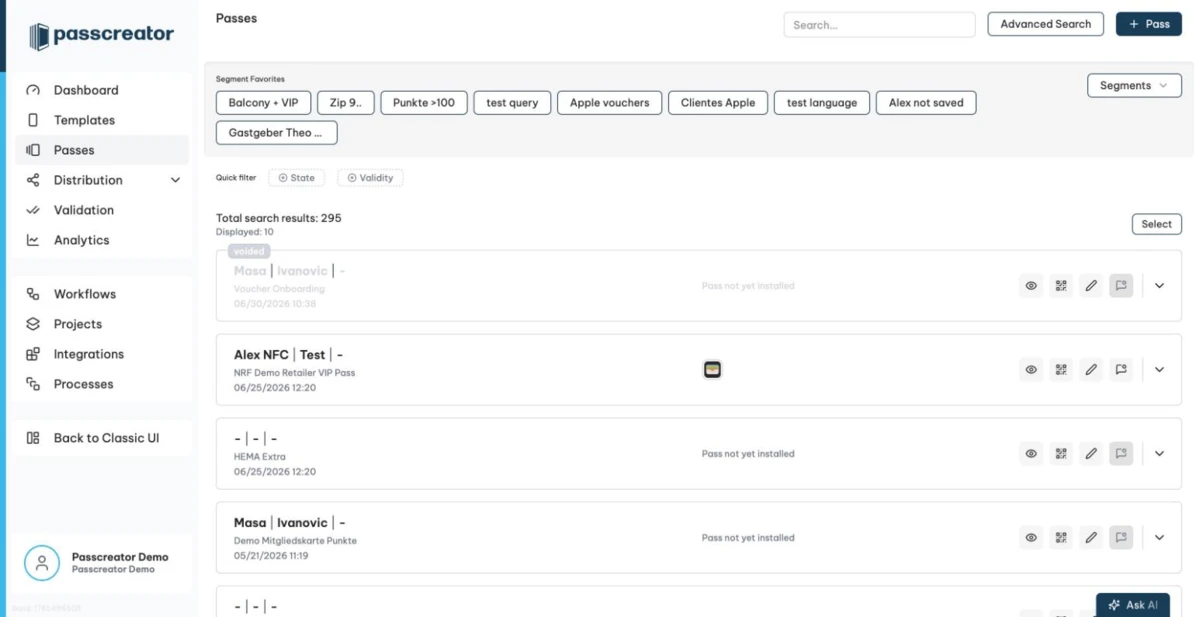
To add another pass to an existing bundle, select the passes of the bundle together with the new one and bundle them again. If a selected pass already belongs to another bundle, Passcreator removes it from the old bundle and adds it to the new one. To dissolve a bundle, select its passes and choose Remove Selected from Quick Bundle.
Passes that belong to a bundle show a bundle icon in the pass list. Click it to filter the list to that bundle. On the pass details you also see the Bundle ID.
Other ways to create bundles
- Bulk processing. When you create many passes from a CSV file, map a Bundle ID column. Rows with the same bundle ID end up in the same bundle. See Bulk processing.
- Single pass creation. The Create Pass modal offers a Bundle ID field under Identifiers.
- API. See the Pass Bundles API documentation.
Defining the order of passes in a bundle
You decide which pass appears first and in which order the others follow. The first pass is always the one whose download link the user opened. Passcreator sorts the passes after it in ascending order by their configured number.
- Passes in a project. On the Overview tab of the project, click Sort Bundle Order and drag and drop the templates to reorder them within the pass bundle. The ordering excludes the opt out template.
- Passes not in a project. Open the template, go to the Settings tab and set the Bundling Order number. It defines the order in which the wallet app groups the passes. Lower numbers appear first.
Next step
Continue withProjectsChecked 2026-08-20 · Documentation