
Projects
The project list
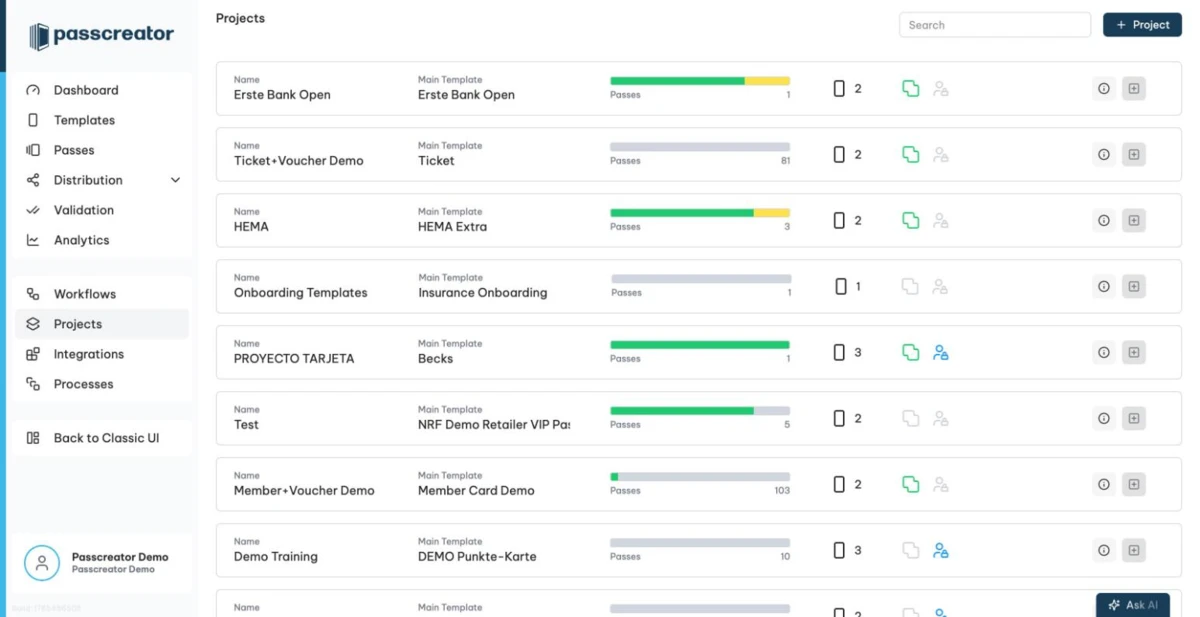
Go to Projects in the sidebar. Each row shows the project name, its Main Template with pass statistics, the number of templates in the project, and two status icons. A green icon means bundling is on, a blue icon means an opt out template is present. If the certificate of the project needs attention, a badge appears on the row. The badge reads Certificate missing, Demo certificate or Certificate expired, or it warns you when the certificate expires within 30 days.
Creating a project
- Go to Projects in the sidebar and click Project in the upper right.
- Enter a name and choose the Main Template. You need both.
- Save the project and open it.
The main template is the anchor of the project. Its passes drive the project statistics, and the other templates you assign share its certificate and additional properties.
The Overview tab
The project details page has three tabs. They are Overview, Analytics and Settings.
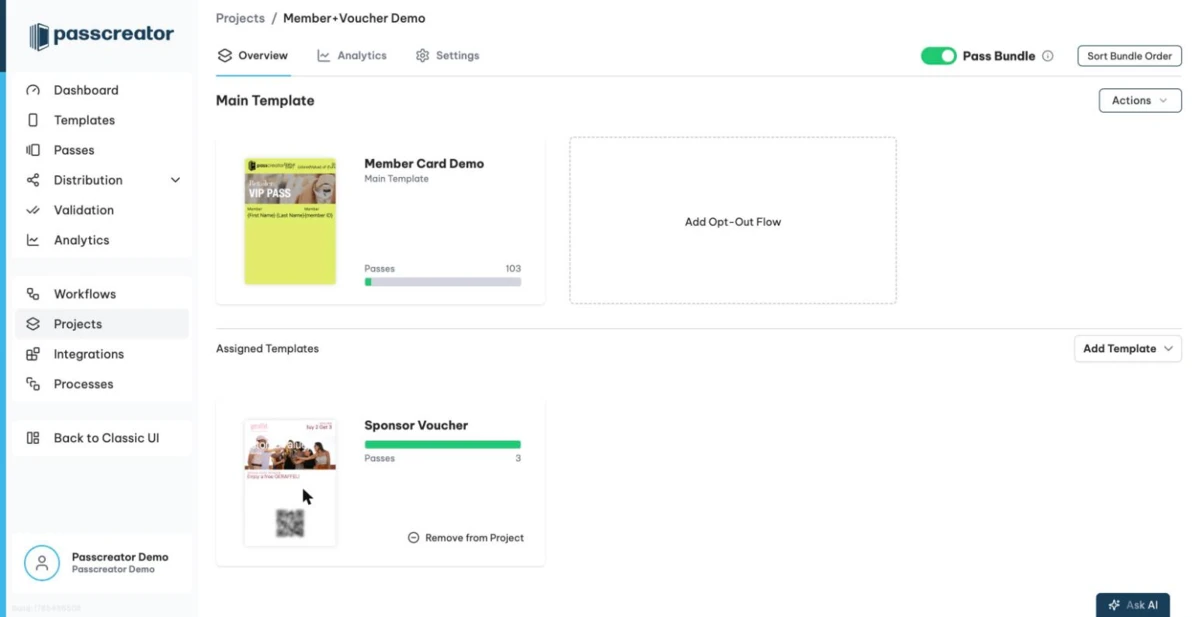
On Overview you find three things.
- The Main Template card with a pass preview and statistics. Its Actions dropdown takes you to all passes of the project via Show passes of the project or sends a push notification.
- The Pass Bundle toggle in the tab bar. When it is on, downloading one pass creates passes for all templates of the project and bundles them, up to 10 passes. Use Sort Bundle Order to drag and drop templates into the order they appear in the wallet. See Pass bundles.
- The Assigned Templates section, where you add the other templates of the project.
Assigning templates
Use Add Template to assign an existing template, or choose Add Copy of Main Template to create a copy. You cannot add templates that already belong to another project.
All templates in a project share the same additional properties and the same certificate. If a template you add has different additional properties than the main template, this can result in duplicate fields. Check the additional properties after adding it. Passcreator also verifies compatibility and reports problems such as Pass type mismatch with the main project template or Certificate mismatch between template and project.
To remove a template, click Remove from Project. If bundling is on, users no longer receive passes of this template. The template itself and its existing passes remain active.
The opt out flow
If you add an opt out template, Passcreator asks users whether they agree to promotional content before they download a pass for the first time. If they do not opt in, Passcreator moves the pass to the opt out template. This lets you cater content specifically to these users, for example a version without marketing messages.
- On the Overview tab, click
Add Opt-Out Flow. - Choose an existing template or Add Copy of Main Template.
If a user opts out, they only receive a pass based on the opt out template. If the user opts in, they receive a pass based on the main template, along with all other assigned templates if bundling is on. The bundle ordering excludes the opt out template.
You can also enable Show Opt Out on Main Template Backside so pass holders opt out later from the back of their pass.
The Analytics tab
The Analytics tab shows the same charts as the account wide Analytics page, with passes, registrations and wallet apps and with timeframe and interval pickers. Here they only cover the passes of this project.
Next step
Continue withPass bundlesChecked 2026-08-20 · Documentation